Find/Replace Question
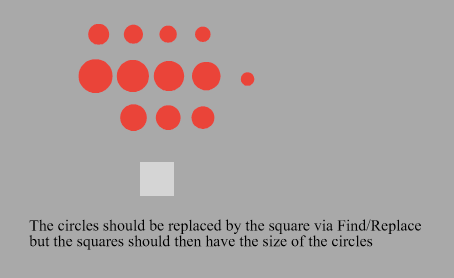
-
Thanks @VectorStyler
I already noticed that for Circle and Square no transformation effect
is shown in the Shape Effect Panel. Only if they were transformed in curves.But in the end circle and square stand for any shapes.
-
@Subpath A different way to implement shape replacing is to use shape styles (or shape roles):
- create a circle.
- open Objects -> Object Options and set a name, and set the shape role.
- draw another shape (can be a circle).
- select the Shape style from the context panel Shape drop down to the name set in the second step.
- duplicate and scale this shape.
- now edit the original shape, or:
- create other shape styles (with object role) and select the shape style on multiple shapes.
-
Will show some thoughts and a few finds about that Idea later here.
Since I'm away from my desk for a while. -
Even if it is not the method I had in mind.
But Wow, the Method you have described here blows my mind,
VS is such a crazy Tool.What I find interesting and find out about your method is that the relation of proportions
will be preserved if i change the Size from the Original Shape.Must explore this possibilities a bit.
-
@VectorStyler said in Find/Replace Question:
I will add an option (in the next build) to use scaling instead of changing shape parameters for all shapes.
You mean a 'Preserve Size' or 'Keep Transform/Scaling' inside the Find/Replace window?
-
@b77 said in Find/Replace Question:
You mean a 'Preserve Size' or 'Keep Transform/Scaling' inside the Find/Replace window?
No, this would be an option in preferences, and when disabled, shapes like rectangle, ellipse and text are scaled by adding a transform effect, just like other shapes.
The option will be enabled by default.
BTW: this option already exists, but it was not accessible in preferences. -
@VectorStyler Maybe I'm obtuse, but why hide this option in the Preferences, when you could always have it in the Find/Replace window, to enable or disable on a case by case basis?
Also, I'm not sure that having two different behaviors — one for parametric shapes and one for converted shapes — is intuitive and user-friendly.
-
@b77 said in Find/Replace Question:
have it in the Find/Replace window, to enable or disable on a case by case basis?
It has little to do with find / replace. It affects how the Transform tool scales objects.
Maybe the option could be in the Transform panel menu? -
@VectorStyler OK, since the object size is the cause of complications here, maybe there's a third way:
Can the replacement object adopt the "dumb" size of each of the replaced shapes (as if they are converted to curves, minus rotation, skewing, etc) then apply any other transform Shape Effects except scaling (rotation, skewing…) to it?
So, with a 'Preserve Size' checkbox in the Find/Replace window…
-
if a parametric shape is bigger than another one because it was scaled, but in the Transform panel it still shows 100% width and height, pick its real size and use that as the size for the replacement object, then add any other shape transform effects to it;
-
if a parametric shape is bigger than another one because it was scaled, and in the Transform panel it shows at 120% width and height (because the option you mention is enabled in Prefs), pick its real size and use that as the size for the replacement object, then apply any other shape transform effects.
In any case, indeed I am talking about how to easily replace all selected objects with an adjusted (scaled) shape, without complications like shape styles or roles, converting parametric objects to curves before that or going into Preferences to change this option.
I mean… I welcome having this option in Preferences, but most users wouldn't know about it and won't make the connection for this particular Find/Replace need.
That's why I said a 'Preserve Size' option in the Find/Replace window is better, because it's more direct, discoverable and simple.
-
-
....Will show some thoughts and a few finds....
I'm still working on it, it will take yet some time

-
Here why i came to this question.
First
Because of the shear amount of options "Find/Replace" seems to already have.
But i dont know, how to use any
.
.
Second
Most steps seem to be already possible in VS. But only manually.Resizing Objects:
I like resizing via Alignment Size
because it will align the Size from any Shape to any Shape
(works also with blended Shapes, i use blend often to get
a bunch of colors or sizes)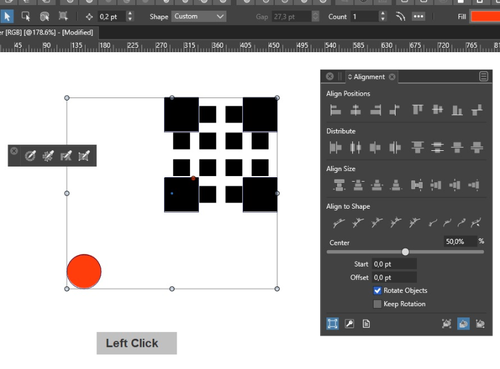
.
.
Change Shapes:
I use the Shape Picker Tool, could also change Sizes
(works also with blended Shapes)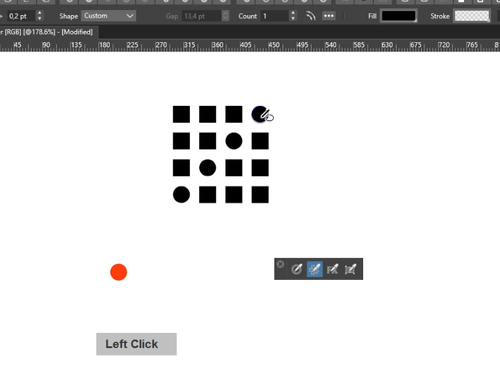
-
I dropped by the forum this time because I was wondering if something might be possible. My scenario is probably not super typical, but maybe not entirely uncommon either.
I create illustrations where certain objects are reused many times - sometimes thousands. Think leaves, bricks, roof tiles, cracks, windows, you name it. These objects are sometimes drawn in different programs and have gone through roundtrips via the clipboard, so I don't always use symbols for them. And even when I can, it's rarely an obvious fit, because symbols tend to impact performance without offering much benefit when used in large quantities.
Also - and this is important - I work on illustrations that need to look natural and organic. So, even when I’ve used symbols, I typically detach them and then manually tweak many of the instances using the node or pen tool. This results in hundreds of unique objects. It’s usually the final step in my workflow. It’s what makes things look beautiful, not like a monotonous matrix of duplicates.
Now, imagine I have ~900 fairly varied roof tiles, and I realize I can now draw a much better version of that tile - better than the one I used as the original. I might decide it’s worth the effort to replace all previous tiles with this improved version. But again, they were placed with care to look natural - rotated, skewed, slightly offset to simulate old buildings with patina.
At this point, a “replace object” function would be really helpful. Ideally, I could select all the old tiles by name or some identifier and replace them with the new, improved base tile. If the replacement could inherit skew, rotation, and positioning, that would be perfect. Then I’d save a lot of repetitive cleanup and wouldn’t have to start over.
Definitely not a daily scenario - but a very real use case, and a good example of why symbols aren’t always the answer. I imagine others may have similar workflows, especially considering FreeHand once offered similar functionality.
So, I believe a “search and replace object” feature makes sense - even more so when you receive SVGs or PDFs that didn’t use symbols, but where you could still select multiple objects using some form of “select similar.”
/end of input
-
@Ingolf said in Find/Replace Question:
At this point, a “replace object” function would be really helpful. Ideally, I could select all the old tiles by name or some identifier and replace them with the new, improved base tile. If the replacement could inherit skew, rotation, and positioning, that would be perfect. Then I’d save a lot of repetitive cleanup and wouldn’t have to start over.
Why not replace just the shape. Draw the new tile shape in one object, copy the shape to the clipboard and paste on multiple other objects. This will keep all local skew, rotation, scale of those other objects.
And then do this for the color / style of that changes.
-
@VectorStyler said in Find/Replace Question:
Why not replace just the shape. Draw the new tile shape in one object, copy the shape to the clipboard and paste on multiple other objects. This will keep all local skew, rotation, scale of those other objects.
And then do this for the color / style of that changes.I just tried with a single shape - Paste Shape didn’t preserve rotation, etc.?
Anyway, neither roof tiles, leaves, bricks, nor windows I make are single shapes - they’re objects with embedded details, essentially groups of objects. There’s quite a bit of work behind the details in them. All the things that make the illustrations feel organic and less like clipart.
But as mentioned, probably not a typical use case.


