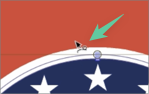
What does this cursor symbol represent?
-
Can anyone explain what this cursor icon symbol represents? It seems to show up when I am making selections, but in many cases, I'm unable to shift click and continue to add to my current selection
In this video, I'm trying to grab the top of the bat on each side of the image plus the background white piece... i can select all the bat on one side and get the white piece, but when I shift-click on the bat pieces on the other side, none of them get selected... it's frustrating at best.Getting a screenshot of it was not easy:
🍎 macOS Tahoe 26.2, Mac mini (M1, 2020), Chip Apple M1, Memory 16 GB
Cintiq 27QHD Display and LG Ultra HD Display -
@Boldline Yep, the issue in the video looks like a selection limitation. As a simple workaround, you can Shift-drag to add the bat pieces on the right, which will deselect the white piece, then you can re-add it to the selection with Shift-click.
-
@b77 Thanks - do you know what that symbol means?
-
@Boldline Not sure… if you press Shift before dragging a shape by its contour, it snaps it to a path point of another shape AND rotates it perpendicularly to it, if Snap to Points' is enabled.
I'm sure the developer has a much better explanation…

-
Is this the Collider tool ?
-
@Devil-Dinosaur You're right, it is the Collider tool (shortcut: C).

Copied from the documentation:
The Collider tool can be used to move and rotate objects, to precisely align the location with locations on other shapes. The curvature at a shape location defines a precise angle and position. The collider tool can be used to move an object to the location on the shape and rotate it to the angle defined by the shape curvature.
To align objects with the Collider tool:
- Select the Collider tool from the application toolbox.
- Click on an object to select it.
- To align objects, click on the outline of the object at a location that should be aligned with other shapes.
- Drag the object from an outline location, close to other objects with outlines.
- When the moved object location is sufficiently close to an other shape, the object will rotate and snap to the curvature of that other shape.
- Press and release the Spacebar key to swap the side of the shape.
-
@b77 @Devil-Dinosaur ok so what I have figured out so far, if I am using the transform tool to select multiple overlapping stacked vector fills and I just so happen to have the the collider tool visible in the vertical toolbar stack (not using it at all) if I start selecting the shapes on the artboard, it will eventually switch to the collider tool and then essentially not let me select more objects. If I switch away from the collider tool and set it to the move tool for example, (again, not that I was using the collider tool at all in this case), then I can select all the shapes I want with the transform tool and using shift-modifier to keep clicking and adding to my selection
-
@Boldline It is the collision indicator cursor. It is used by the collider tool.
-
@VectorStyler Thanks - I think the issue for me is that the collider tool is set to the forefront in that tool grouping by default and even if it's not being used, if it's icon is visible in the vertical tool bar, it affects the way the transform tool can be used. I was getting the collider symbol to appear by my cursor even when all I was doing was trying to shift-click several overlapping vectors - this caused them to not select properly. I was not trying to use the collider tool, at all in this case and it still was in part activated.
This is a similar issue with the magic wand tool - if it's the visible top toolbar icon in it's set on the vertical toolbar, other selections cannot be made until it is switched away from entirely.



