VectorStyler
    • Categories
    • Unread
    • Recent
    • Tags
    • Popular
    • Register
    • Login

    Blend mode for image effects + flatten/merge

    Scheduled Pinned Locked Moved Features and Ideas
    10 Posts 3 Posters 9.5k Views 3 Watching
    Loading More Posts
    • Oldest to Newest
    • Newest to Oldest
    • Most Votes
    Reply
    • Reply as topic
    Log in to reply
    This topic has been deleted. Only users with topic management privileges can see it.
    • IngolfI Offline
      Ingolf
      last edited by Ingolf

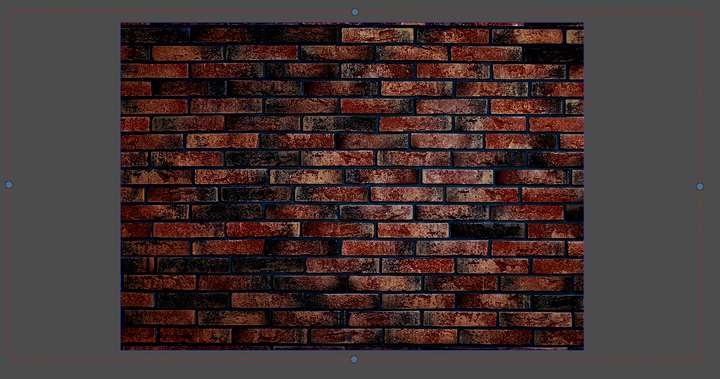
      1. Can I set the blend mode for individual image effects? I am simply trying to make a bitmap background darker with brightness & contrast, levels or curves, but I need the blend mode of the image effect to be luminosity for the effect to look natural or just have the desired look.

      2. When the desired look has been achived can I flatten the effect and bitmap into a plain bitmap layer. No need for VS to process image effects forever.

      🍏 macOS Sequoia Apple Silicon

      VectorStylerV 2 Replies Last reply Reply Quote 0
      • VectorStylerV Offline
        VectorStyler @Ingolf
        last edited by

        @Ingolf said in Blend mode for image effects + flatten/merge:

        Can I set the blend mode for individual image effects?

        Currently not. But it is possible to make an object that acts as an "Adjustment Layer" over an area and has a blending mode.
        It is also possible to add adjustment image effects in the Appearance panel, and those can have blending modes (select the effect in the appearance panel, and adjust the blending mode in the transparency panel).

        I think a per effect blending mode would be a good feature, so added it to the backlog.

        When the desired look has been achived can I flatten the effect and bitmap into a plain bitmap layer

        The Object -> Rasterize should do this.

        IngolfI 1 Reply Last reply Reply Quote 0
        • IngolfI Offline
          Ingolf @VectorStyler
          last edited by Ingolf

          @VectorStyler said in Blend mode for image effects + flatten/merge:

          @Ingolf said in Blend mode for image effects + flatten/merge:
          The Object -> Rasterize should do this.

          Suggestion inspired by Affinity - a trim option (trim to artboard) when rasterizing.
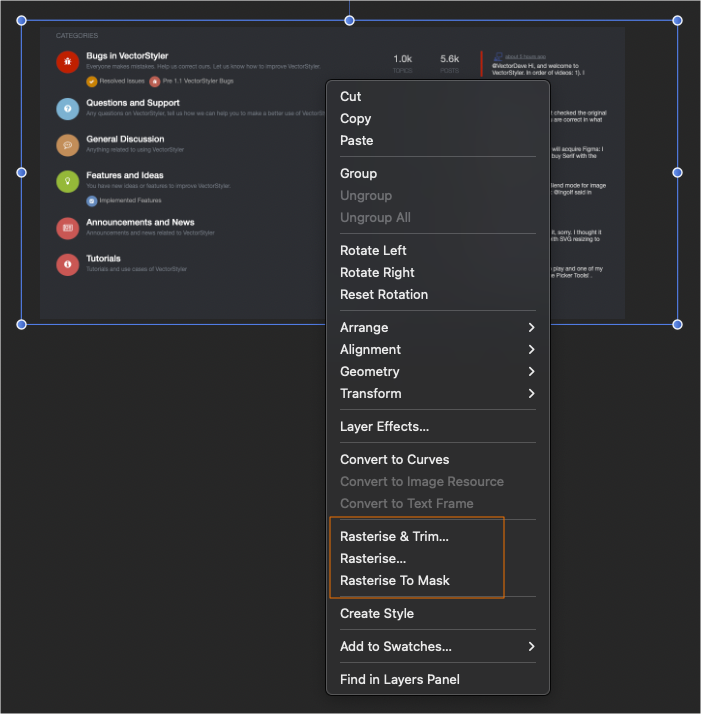
          0_1663447693360_4998945d-0a3c-4d6f-a8ba-6d3dab23e46e-image.png

          I just need the part that covers the artboard when I rasterize. Whatever is outside is not needed at that point. Makes total sense to erase it when rasterizing:
          0_1663446542635_875e12e8-990a-4082-9106-1bd962ff4b3c-image.png

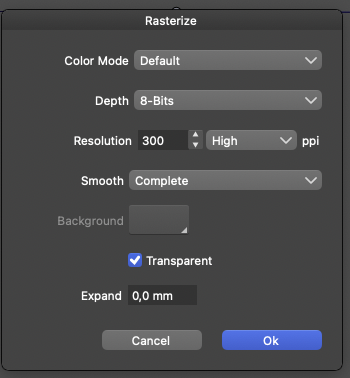
          It could easily be an option here:
          0_1663446627737_b6f78768-52da-41c0-a5bb-c4f8ddf138d7-image.png

          Excellent options btw - just need that one extra 🙂

          🍏 macOS Sequoia Apple Silicon

          b77B VectorStylerV 2 Replies Last reply Reply Quote 2
          • b77B Offline
            b77 @Ingolf
            last edited by b77

            @Ingolf Interesting.
            What happens in AD when the artboard has a 4 pt or mm bleed on all sides?
            Is that taken into account — is the rasterized image 8 pt/mm bigger?

            MacBook Pro (Intel) running Monterey 12.6.4

            IngolfI 1 Reply Last reply Reply Quote 0
            • IngolfI Offline
              Ingolf @b77
              last edited by Ingolf

              @b77 said in Blend mode for image effects + flatten/merge:

              @Ingolf Interesting.
              What happens in AD when the artboard has a 4 pt or mm bleed on all sides?
              Is that taken into account — is the rasterized image 8 pt/mm bigger?

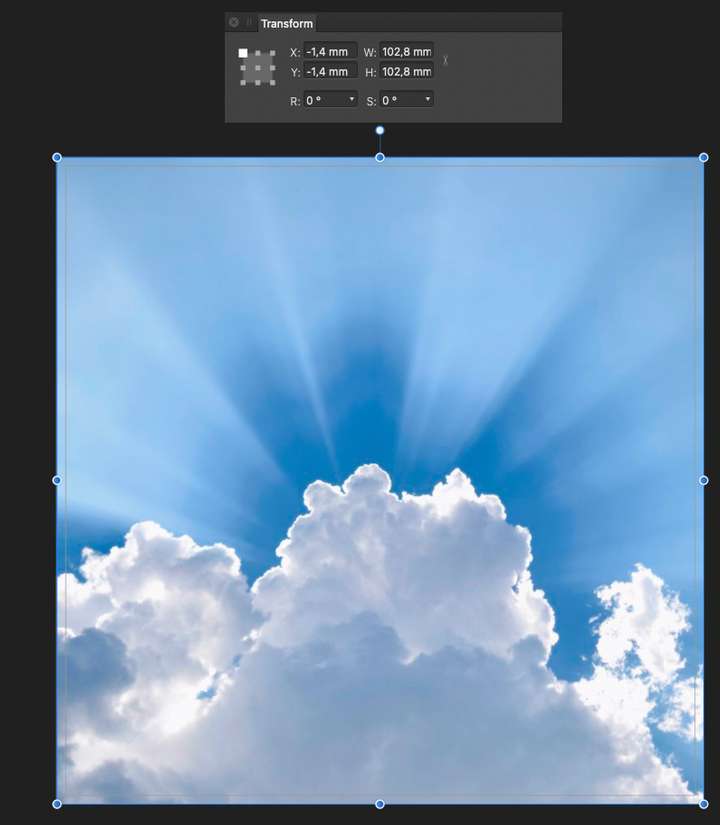
              Yep, indeed it is.

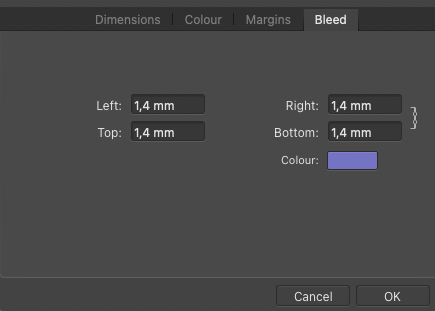
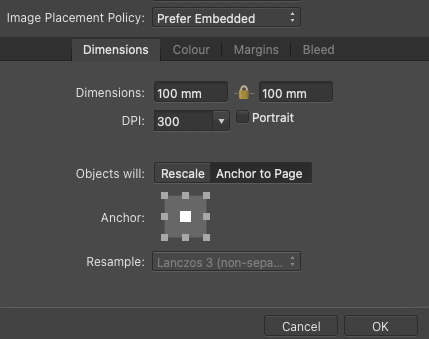
              Example: 100 mm x 100 mm document with 1,4 mm bleed on all sides:
              0_1663449278100_045d3f82-29b1-4ebd-b78b-0e0406d3c19c-image.png

              0_1663449765394_8ddc2d72-48c6-407d-9605-c8f1a28a9848-image.png

              0_1663449778473_cb3dbb44-42a4-41ba-83fe-306b9cfaadf0-image.png

              🍏 macOS Sequoia Apple Silicon

              b77B 1 Reply Last reply Reply Quote 2
              • b77B Offline
                b77 @Ingolf
                last edited by

                @Ingolf Nice! 👍

                MacBook Pro (Intel) running Monterey 12.6.4

                1 Reply Last reply Reply Quote 0
                • VectorStylerV Offline
                  VectorStyler @Ingolf
                  last edited by

                  @Ingolf said in Blend mode for image effects + flatten/merge:

                  trim option (trim to artboard) when rasterizing.

                  Creating a clipping shape with the artboard size for the image will work for now.
                  Added the trim option to the backlog.

                  1 Reply Last reply Reply Quote 1
                  • VectorStylerV Offline
                    VectorStyler @Ingolf
                    last edited by

                    @Ingolf Added blend mode for image effect transparency in build 1.1.062

                    IngolfI 1 Reply Last reply Reply Quote 1
                    • IngolfI Offline
                      Ingolf @VectorStyler
                      last edited by

                      @VectorStyler Excellent - the blend mode itself works as expected. 🙂

                      Unfortunately

                      • when a different blend mode is selected the image effect adjustment is reset
                      • if a different blend mode is selected and there is more than one image effect all image effects except for the first one are removed from the list

                      macOS

                      🍏 macOS Sequoia Apple Silicon

                      VectorStylerV 1 Reply Last reply Reply Quote 0
                      • VectorStylerV Offline
                        VectorStyler @Ingolf
                        last edited by

                        @Ingolf Added this to the backlog as a bug.

                        1 Reply Last reply Reply Quote 0
                        • First post
                          Last post