Divide Question
-
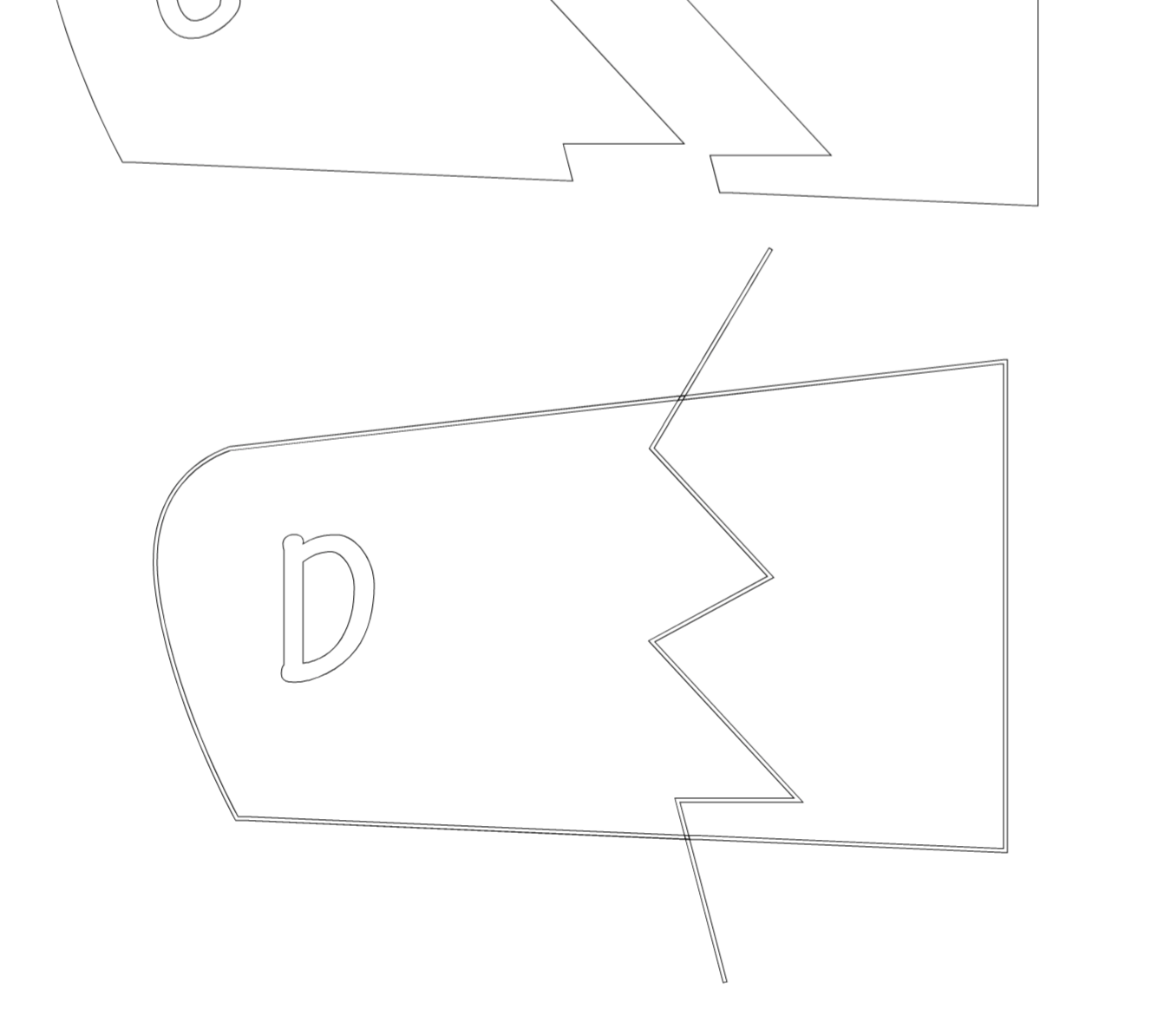
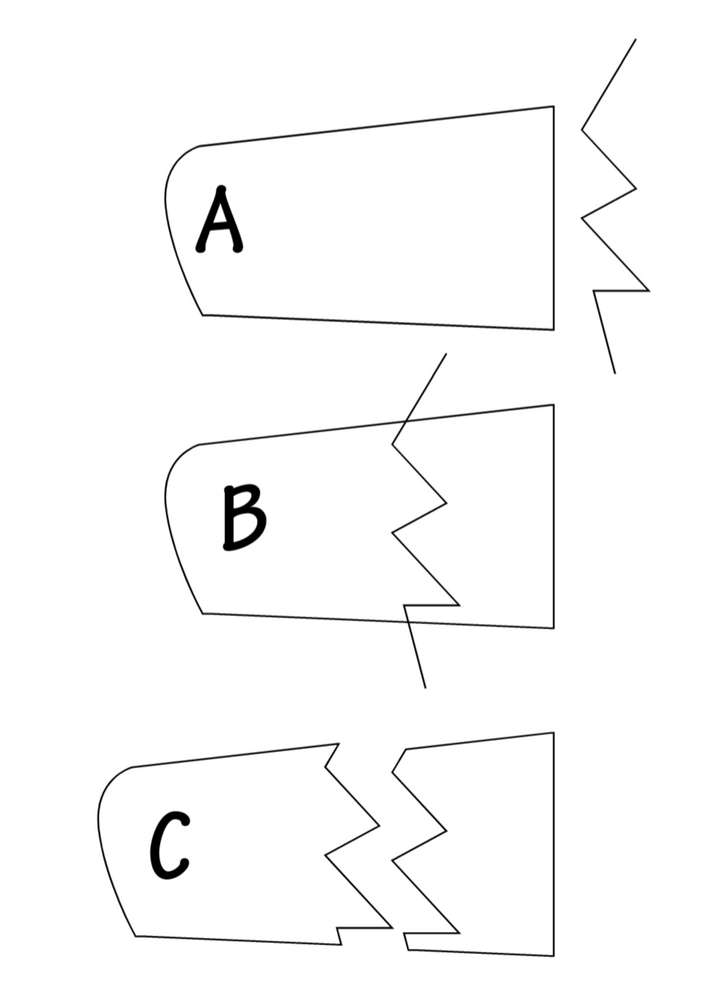
I'm having an issue this morning, in AI, the command is simply Pathfinders/Divide - whatever selected path that is sitting above your object will divide it.
It uses the centre line of the above path and does NOT take the stroke width into consideration. The object below will be divided and left grouped - the dividing path above will be deleted, so essentially a sacrificial "tool". If the path below is closed, then when ungrouped, you will get two closed paths (which is the whole point for me )
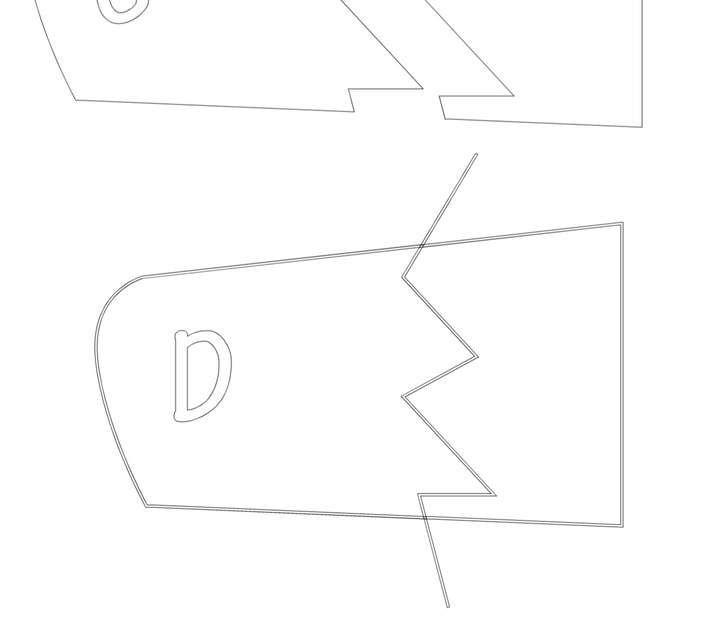
)In VS, if I use a path to Combine Path/Divide an underlying object, not only does it take the stroke into consideration, it also converts the divided object into an outlined stroke.
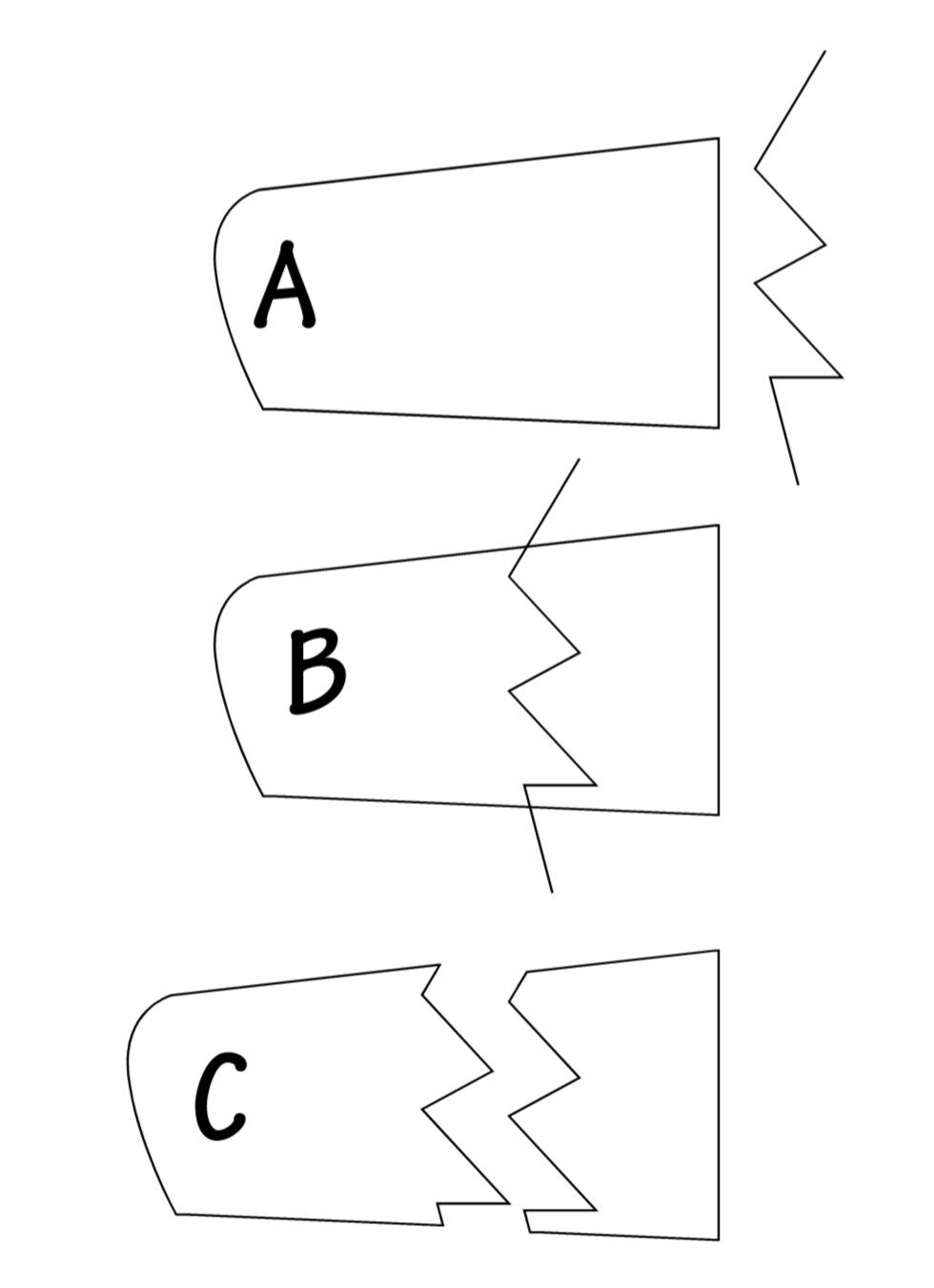
While from a pixel view, it looks like it might have done the job, it really hasn't, it's just outlined the stroke of the divided object. I really can't see a use for this tool as it stands - all it has done is broken the underlying closed path at two points and hasn't divided the closed path below ??I've attached a couple of pix showing what is happening, the first is the result in AI, the second (item D), the results from VS using preview mode..
My question is, is there a way to switch off using the stroke width and divide it fully ? I know I can use the trim tool, but that then involves using a copy of the original parts and doing it twice - that's at least six operations as opposed to one in AI - it's also possible in complex situations, that you might miss something.
TIA
Neil
iMac 27" 2015 Catalina 32Gb, MacBook Pro 13" 2016 Monterey 8Gb, Mac Mini M2 2023 8Gb
-
@Igull Yes, this can be configured: in the Path panel select the "Shape Combine Options" command. In the "Operation" field select Divide and then uncheck Expand All
-
@Igull There is a setting in a panel's menu somewhere to make Merge and Divide ignore the stroke width, but I forgot where…

@VectorStyler These should work the same for thick or thin strokes — with vector graphics it makes most sense, IMO.
If I want the current result, I know I need to convert the stroke with 'Expand Stroke' before the combine operation.
-
@b77 said in Divide Question:
These should work the same for thick or thin strokes — with vector graphics it makes most sense,
I will change the defaults.
-
@VectorStyler That's awesome.
-
@VectorStyler said in Divide Question:
@Igull Yes, this can be configured: in the Path panel select the "Shape Combine Options" command. In the "Operation" field select Divide and then uncheck Expand All
Great, problem solved - I don't think I would ever have found that one without help LOL
Thanks
Neil
-
@Igull I'm glad you brought this up - it solves in part, another request I had made a while back about allowing the stroke to do a clean cut of another shape underneath it when using the divide boolean - much like illustrator does. It's not quite the same still, but that setting change allows VS to get close to it which helps.
-
Yes, AI divides then removes the trimming path "tool" and groups the resultant parts - all you need to do then is ungroup.
TBH, I'm happier the way that VS does it, means you don't have to make a copy of the tool before using it
Further, VS doesn't group the resultant parts, so no need to ungroup - win winNeil



