VectorStyler
    • Categories
    • Unread
    • Recent
    • Tags
    • Popular
    • Register
    • Login

    Why can't I permanently change the colour panel to "RGB sliders"?

    Scheduled Pinned Locked Moved Questions and Support
    6 Posts 2 Posters 5.3k Views 2 Watching
    Loading More Posts
    • Oldest to Newest
    • Newest to Oldest
    • Most Votes
    Reply
    • Reply as topic
    Log in to reply
    This topic has been deleted. Only users with topic management privileges can see it.
    • B Offline
      B-Vs-V
      last edited by

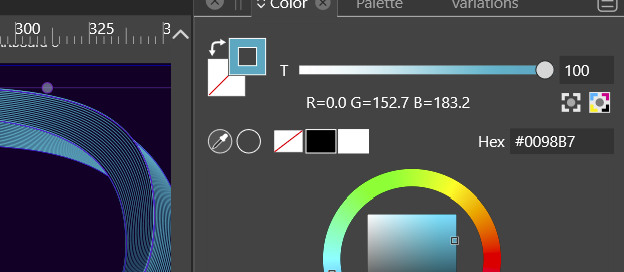
      So far I've tested VS with 'RGB sliders' colour panel. For this object, I've got this colour tint correction:
      0_1668877316063_148d1abd-794c-47de-bc1e-820c11b15a92-image.png

      When I change to RGBsliders, it is fine but as soon as I deselected the object & select it again I always get the tint correction. I don't know what I could have done to explain that.

      W11 Pro 25H2 - 12th Gen Intel(R) i7-12700K 3.61 GHz - RAM 64 Go - NVIDIA GF GTX 4070 Ti - Intuos - Dell UP3216Q / Eizo ColorEdge
      W11 Pro 25H2 - 12th Gen Intel(R) i7-12700KF 3.60 GHz -RAM 64 Go - NVIDIA GF GTX 3080 - IntuosPro- ProArt PA329C

      VectorStylerV 1 Reply Last reply Reply Quote 0
      • VectorStylerV Offline
        VectorStyler @B-Vs-V
        last edited by

        @Pat If the selected color is a global/spot color then the Tint is shown, there is no way around this for now.
        I'm open to suggestions.

        B 2 Replies Last reply Reply Quote 0
        • B Offline
          B-Vs-V @VectorStyler
          last edited by B-Vs-V

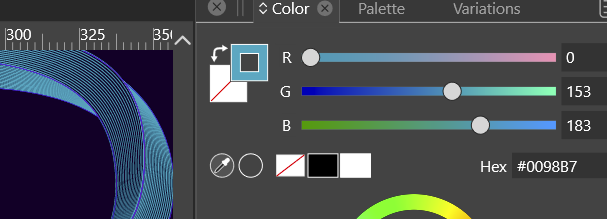
          @VectorStyler Right but I have another object with the same global colour& :

          0_1668879258902_44268399-cbd5-44e0-bae6-8badc1efd789-image.png

          0_1668879217740_eb54dfbd-47be-48ac-8382-abc2e8ce2023-image.png

          W11 Pro 25H2 - 12th Gen Intel(R) i7-12700K 3.61 GHz - RAM 64 Go - NVIDIA GF GTX 4070 Ti - Intuos - Dell UP3216Q / Eizo ColorEdge
          W11 Pro 25H2 - 12th Gen Intel(R) i7-12700KF 3.60 GHz -RAM 64 Go - NVIDIA GF GTX 3080 - IntuosPro- ProArt PA329C

          VectorStylerV 1 Reply Last reply Reply Quote 0
          • B Offline
            B-Vs-V @VectorStyler
            last edited by B-Vs-V

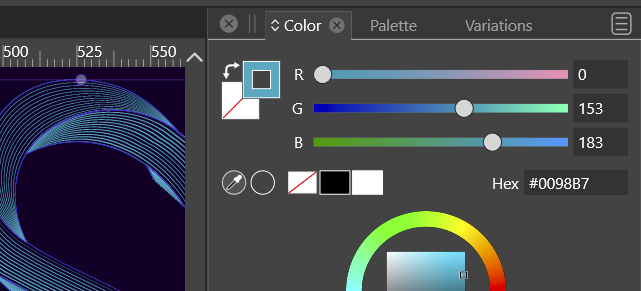
            @VectorStyler ... and after closing & reopening VS, the colour panel of the 1st object is fine:
            0_1668879319331_33fa6da8-6699-46f3-bc0a-c490660c9f22-image.png

            Just before, I did undo after applying a gradient to blended objects and I did observe very weird consequences. It could be one of them.

            Colour gradient (on blended shapes?) + Undo (Ctrl-Z) --> leads to strange things

            W11 Pro 25H2 - 12th Gen Intel(R) i7-12700K 3.61 GHz - RAM 64 Go - NVIDIA GF GTX 4070 Ti - Intuos - Dell UP3216Q / Eizo ColorEdge
            W11 Pro 25H2 - 12th Gen Intel(R) i7-12700KF 3.60 GHz -RAM 64 Go - NVIDIA GF GTX 3080 - IntuosPro- ProArt PA329C

            1 Reply Last reply Reply Quote 1
            • VectorStylerV Offline
              VectorStyler @B-Vs-V
              last edited by

              @Pat Could be some mix up here, I have to replicate this.

              B 1 Reply Last reply Reply Quote 0
              • B Offline
                B-Vs-V @VectorStyler
                last edited by

                @VectorStyler I will finish a drawing and I'll send you the file. You can then test colour gradient changes with the "undo" function.

                W11 Pro 25H2 - 12th Gen Intel(R) i7-12700K 3.61 GHz - RAM 64 Go - NVIDIA GF GTX 4070 Ti - Intuos - Dell UP3216Q / Eizo ColorEdge
                W11 Pro 25H2 - 12th Gen Intel(R) i7-12700KF 3.60 GHz -RAM 64 Go - NVIDIA GF GTX 3080 - IntuosPro- ProArt PA329C

                1 Reply Last reply Reply Quote 1
                • First post
                  Last post