Problem Viewing or Setting UISTYLER MODE To Light Mode
-
Hi. Using Eindows 10. On day 1 of 42 day trial. Installed on my laptop. Problem is Dark Theme mode is too dark. When attempting to change this to Light mode through Edit then Preferences, the menu that pops up has options that are off screen. So I cannot see nor access any such options. This pop up menu is tool tall for my normal laptop display and i am unable to view all options nor scroll nor resize any portion. I am stuck on day 1 and will not be able to view or test this softwRe. How do i view all options in Preferences file and set the mode to Light mode? BTW i have other vector software in use for years in this same laptop and no such issues exist
with them. Would like help else I eill uninstall this trial version very soon. Thank you. -
@trialkw1000 The problem here is that the Preferences view could be a bit tool large for your screen size.
In general VS was optimized for use with larger screens.One way to work around this is to try to change the "Interface Scaling" field in Preferences -> User Interface -> Interface Scaling, if this can be accessed on your screen.
Set a smaller value, like 70% or 80% and test how it works out.Also: attaching a larger screen to the laptop will solve this.
-
Hi
The preferences panel is actually moveable and switching
the dark mode to another one is no problem here
(also Win 10)What screen resolution are you running your laptop screen at ?
-
Thank you for responding. My display is ser at 1366 by 768. I even tried resetting it much smaller as 1024 x 868. But same problem exists. U able to see nor access all menu options in the Preferebces section. Not able to see any User interface field nor its sub-fields. No additional monitor to connect to laptop. I do not know the designers of this software had not made this accomable to my standard laptop display setting I just cannot picture myself using this since the dark mode is wY too dark and I cannot easily set if go a Light Mode to evaluate it. If I use Notepad++ to directly edit the key Preferences file - what is the exact name of the file to edit and whi h line of code and which particular setting to update? After editing the file via NotePad++ I should be able to save it and try VS again. Can someone be specific and tell me the answers to manually altering the Preference file and areas needed? Thank you.
-
@trialkw1000 Download the settings file from the link below and load it (on Windows I think it is View menu > Preference Files > Load from File):
https://www.dropbox.com/sh/z3owa4xw7eoiifp/AACeHRyBut_zawQ-LKW0_MtAa?dl=0
-
my screen resolution is 1440 x 900 pixels have no problem with it
except that some panels are large, e.g. the preference panel
and other panels are usable without problems
.
.
I have set my screen resolution to 1366 x 768 pixels for a test.
Can see even in this resolution the preference panel completely
and can also change the UI Style from Dark to Light gray.Can you post a complete screenshot how the Preference
Panel and the VectorStyler Ui look on your screen ?Here a screenshot with the Preference Panel, where my screen
is set to 1366 x 768 pixel
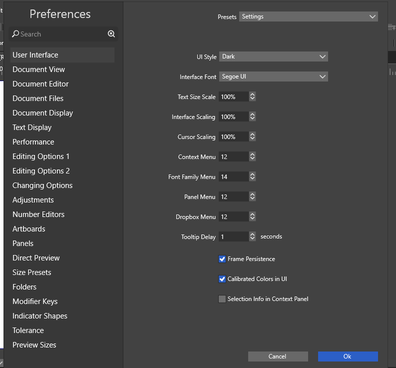
@VectorStyler
it could be a panel problem other than screen resolution? -
@Subpath I think on Windows there is also a system settings that scales all apps up.
And it is used on High DPI screens. -
i do not use a high DPI screen
therefore I have never heard of such a possibility
but will have a look around

