VectorStyler
    • Categories
    • Unread
    • Recent
    • Tags
    • Popular
    • Register
    • Login

    Context panel: how to reorganize

    Scheduled Pinned Locked Moved Questions and Support
    5 Posts 4 Posters 4.7k Views 3 Watching
    Loading More Posts
    • Oldest to Newest
    • Newest to Oldest
    • Most Votes
    Reply
    • Reply as topic
    Log in to reply
    This topic has been deleted. Only users with topic management privileges can see it.
    • B Offline
      B-Vs-V
      last edited by

      I know that everything can be customized in VS but I'm not too comfortable with the documentation to modify notably the context panel. How to move the icons closer to each other and add more (in AD, just click and drag)? Then, is it possible to reset with the default functions easily?
      Thanks.

      0_1678955738043_Context panel.jpg

      W11 Pro 25H2 - 12th Gen Intel(R) i7-12700K 3.61 GHz - RAM 64 Go - NVIDIA GF GTX 4070 Ti - Intuos - Dell UP3216Q / Eizo ColorEdge
      W11 Pro 25H2 - 12th Gen Intel(R) i7-12700KF 3.60 GHz -RAM 64 Go - NVIDIA GF GTX 3080 - IntuosPro- ProArt PA329C

      VectorStylerV S 2 Replies Last reply Reply Quote 0
      • VectorStylerV Offline
        VectorStyler @B-Vs-V
        last edited by

        @Pat The only way to customize the context panel for now is to use the Customize Toolboxes and select "Context Panel" in the Toolbox drop down.

        There is no command to reset only the context panel to default (the workspace can be reset to default, but that will reset the menu, shortcuts, toolbox and others also).

        To keep a default context panel, use the Toolbox Presets drop down to save and then reuse the default one.

        The customization of context panel (and tool box) will be improved in the future.

        1 Reply Last reply Reply Quote 1
        • S Offline
          Subpath @B-Vs-V
          last edited by Subpath

          @Pat

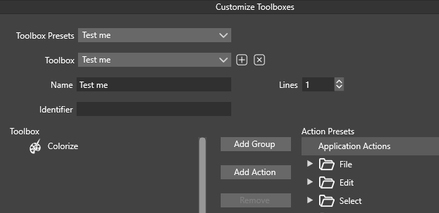
          As an alternative. Create a new toolbox. I think it does not take up much space and you can display it or close it as needed.

          Select "View > Customize > Customize Toolbox" and click on the "+" sign next to the toolbox field.
          0_1678976297843_Toolbox-1.png

          Functions can then be dragged and dropped into the new toolbox and also removed.
          Of course its also possible to create different toolboxes for different needs.

          To call your Toolbox choose "Menu > Panels" its below "Toolbox".

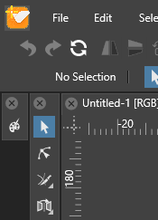
          Here is a picture of my toolbox with "Colorize" in it.
          0_1678976335824_Toolbox-2.png

          Win 11
          CPU: AMD Ryzen 5 9600X, 6-core.
          GPU: Nvidia Geforce RTX 5070.

          1 Reply Last reply Reply Quote 2
          • BoldlineB Online
            Boldline
            last edited by

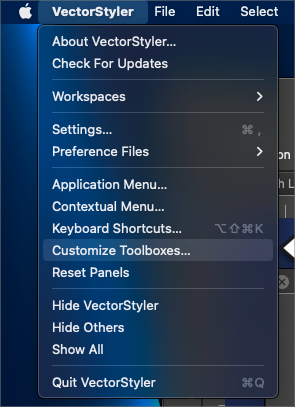
            If you're on Mac, it's under the main "Vectorstyler" menu at the top left side
            0_1678978670366_38cced6d-896a-4739-9cd8-0aafd1f56553-BLD 2023-03-16 at 10.57.09.png

            🍎 macOS Tahoe 26.2, Mac mini (M1, 2020), Chip Apple M1, Memory 16 GB
            Cintiq 27QHD Display and LG Ultra HD Display

            1 Reply Last reply Reply Quote 2
            • B Offline
              B-Vs-V
              last edited by

              @Subpath @Boldline Thank you both for your replies. I'm on W & it is under View > Customize...

              W11 Pro 25H2 - 12th Gen Intel(R) i7-12700K 3.61 GHz - RAM 64 Go - NVIDIA GF GTX 4070 Ti - Intuos - Dell UP3216Q / Eizo ColorEdge
              W11 Pro 25H2 - 12th Gen Intel(R) i7-12700KF 3.60 GHz -RAM 64 Go - NVIDIA GF GTX 3080 - IntuosPro- ProArt PA329C

              1 Reply Last reply Reply Quote 1
              • First post
                Last post
