VectorStyler
    • Categories
    • Unread
    • Recent
    • Tags
    • Popular
    • Register
    • Login

    Weird frame

    Scheduled Pinned Locked Moved Questions and Support
    6 Posts 4 Posters 5.3k Views 4 Watching
    Loading More Posts
    • Oldest to Newest
    • Newest to Oldest
    • Most Votes
    Reply
    • Reply as topic
    Log in to reply
    This topic has been deleted. Only users with topic management privileges can see it.
    • IngolfI Offline
      Ingolf
      last edited by

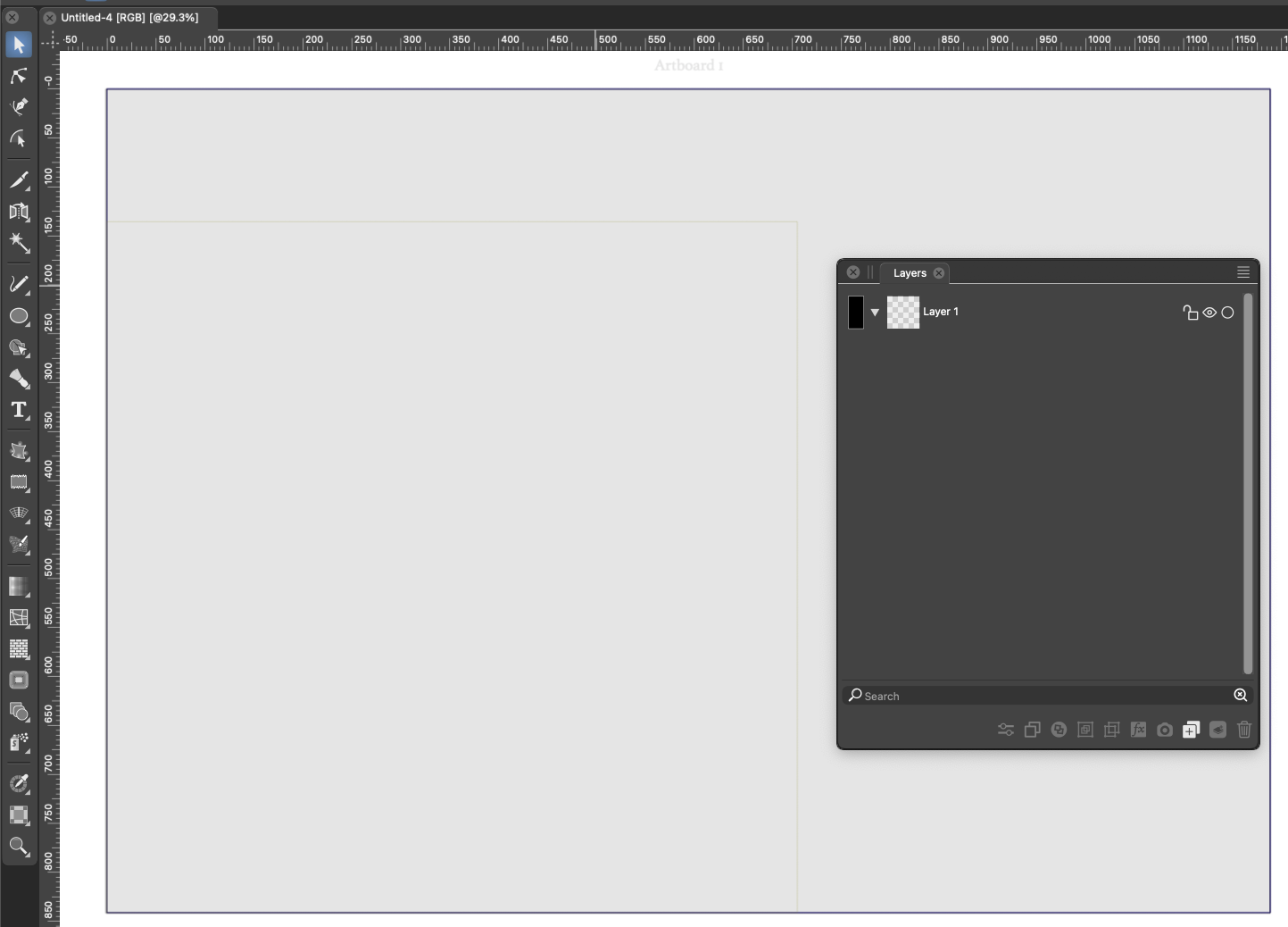
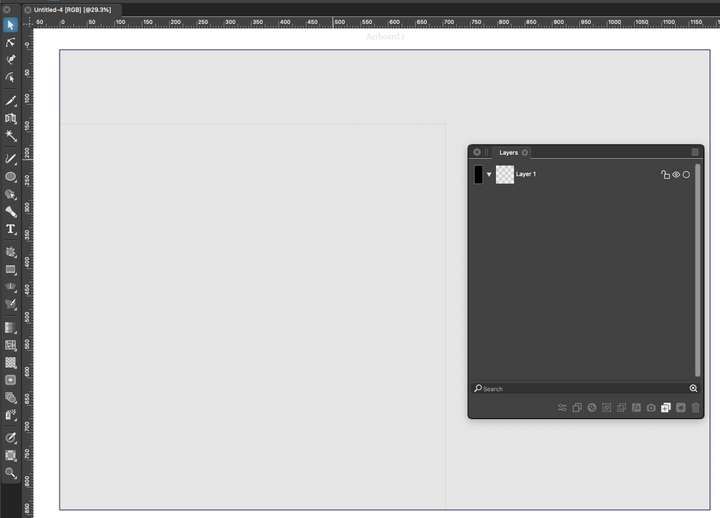
      What the duck is this frame I see when I create a new document now?
      0_1691106810795_a513ff22-879b-4eb9-8aa0-8f453edbeb54-image.png

      I see it in all new documents whatever size.

      🍏 macOS Sequoia Apple Silicon

      b77B VectorStylerV 2 Replies Last reply Reply Quote 0
      • P Offline
        pentool
        last edited by pentool

        That's the outline of the canvas. In this case your canvas is smaller than the artboard. (Or you set your artboard size to be bigger than the canvase - whichever you prefer). I can repro this, too.

        MacBook Pro 13" early 2015 8G | Intel Iris Graphics 6100 1536 MB | macOS Monterey 12.7.6

        IngolfI 1 Reply Last reply Reply Quote 0
        • b77B Offline
          b77 @Ingolf
          last edited by b77

          @Ingolf If you modified the color of the canvas to white, the color of the
          artboard to light grey (like in the screenshot) then you saved a document
          template in Preferences/Settings > Document Files > New Template,
          every new document will look like that template.

          MacBook Pro (Intel) running Monterey 12.6.4

          P 1 Reply Last reply Reply Quote 1
          • P Offline
            pentool @b77
            last edited by pentool

            @b77 said in Weird frame:

            @Ingolf If you modified the color of the canvas to white, the color of the
            artboard to light grey (like in the screenshot) then you saved a document
            template in Preferences/Settings > Document Files > New Template,
            every new document will look like that template.

            The question is, where do you modify the color of the canvas?

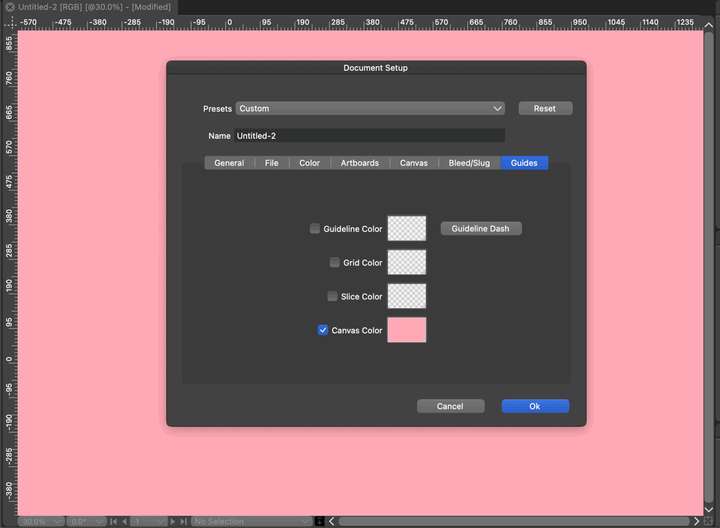
            Here, I changed the canvas color in Document Setup > Guides tab (the Document Setup is in the Context Toolbar at the top). Not sure why the canvas color is under "Guides" but whatever.
            0_1691110712072_1.png

            However, that color is not the canvas color! I have changed my canvas to be 100x100 and placed a rectangle (gray) on the artboard that covers the canvas. You see the artboard is much bigger than the canvas so only the 100x100 portion of the rectangle is visible.
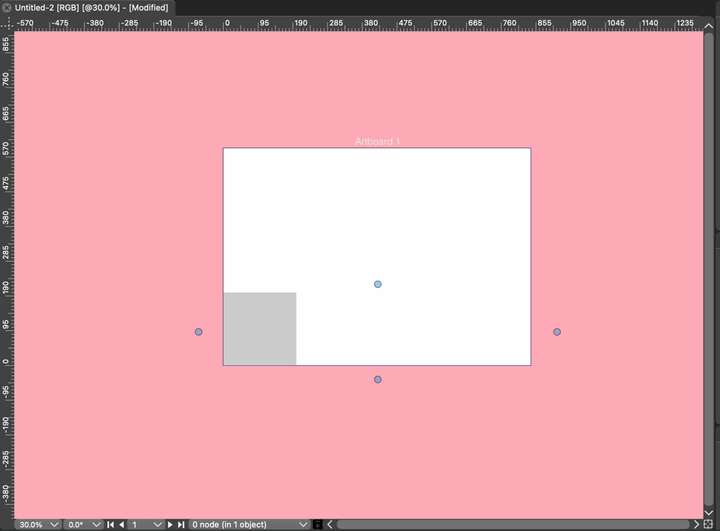
            0_1691110827120_2.png

            And when you move the rectangle out of the canvas area, you can see the canvas is white. And you can see its faint outline in the bottom left corner, just like in the case of @Ingolf .So why is the document background pink when I set that for the canvas?
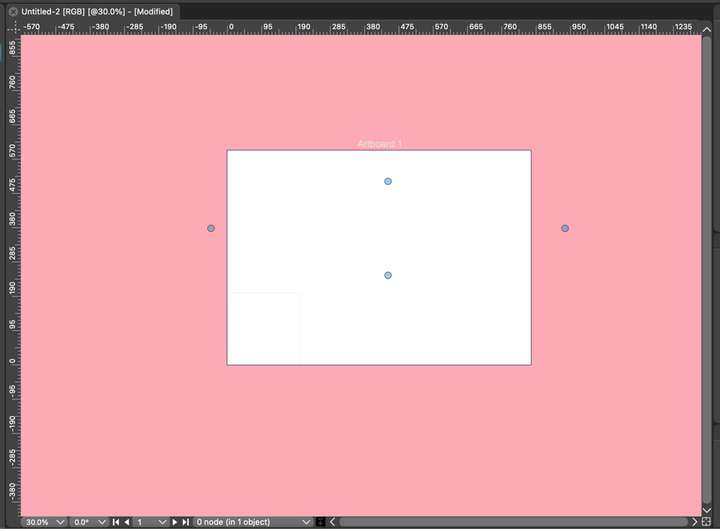
            0_1691110880370_3.png

            MacBook Pro 13" early 2015 8G | Intel Iris Graphics 6100 1536 MB | macOS Monterey 12.7.6

            1 Reply Last reply Reply Quote 0
            • IngolfI Offline
              Ingolf @pentool
              last edited by

              @pentool Thx again!

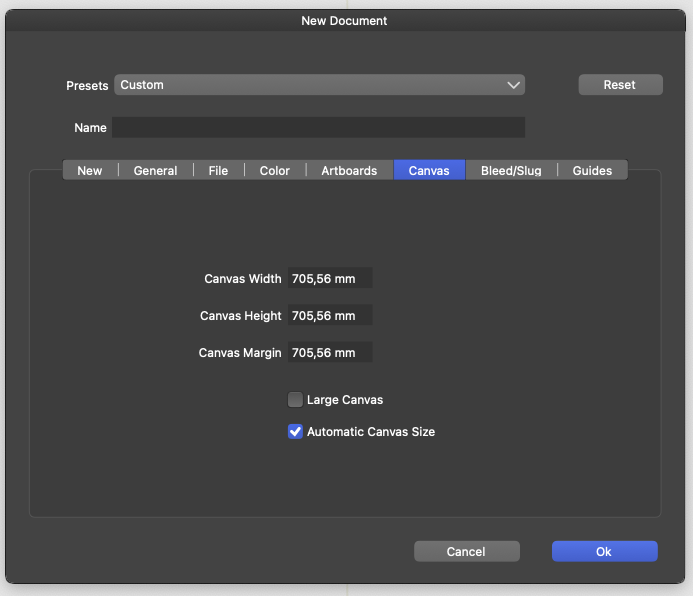
              Automatic canvas size solved the issue for me.

              0_1691112486393_85c49e0f-b1a4-47a8-9d58-b75385a453c8-image.png

              🍏 macOS Sequoia Apple Silicon

              1 Reply Last reply Reply Quote 0
              • VectorStylerV Offline
                VectorStyler @Ingolf
                last edited by

                @Ingolf I will try to replicate this.

                1 Reply Last reply Reply Quote 0
                • First post
                  Last post