Create your own palette
-
I'm missing the option to create my own palette. In other words, create a new, empty, custom palette - unless I'm just not seeing this option.
I can add color to the default palette but that's not what I want. I want to create my own, separate color palette for the document and possibly export it.
I tried to select the first color swatch, then SHIFT-click the last one so I can select all and delete them, but it seems I cannot even SHIFT-select all the default swatches, so I have to delete them one-by-one...? That's somewhat painful...
MacBook Pro 13" early 2015 8G | Intel Iris Graphics 6100 1536 MB | macOS Monterey 12.7.6
-
@pentool The document has one color palette that is stored with the document.
Other color palettes can be created by selecting some colors and then saving the selected colors to a palette file and opening that palette file. But these will then not be stored in the document.
-
@VectorStyler I can see the value of an option to "create new color palette" that would then allow for adding colors to that palette using the hamburger menu options that already exist - create from selection, create from canvas, create from document, dragging colors in, etc. The pieces are already in place for that.
A newly created palette would not replace the default palette of that in-use VS document file but would allow for easy creation of palettes that could then be swapped out with the default or used as the new default in future documents.
A new palette could come with the reg black and the "none" by default.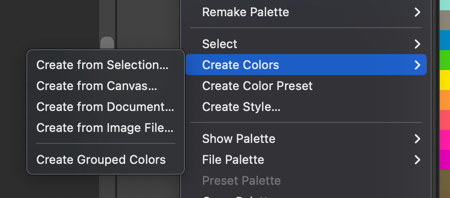
-
@pentool said in Create your own palette:
but it seems I cannot even SHIFT-select all the default swatches, so I have to delete them one-by-one...? That's somewhat painful...
I agree it should be easy to shift click all colors between the first chosen color and the last with the mouse.
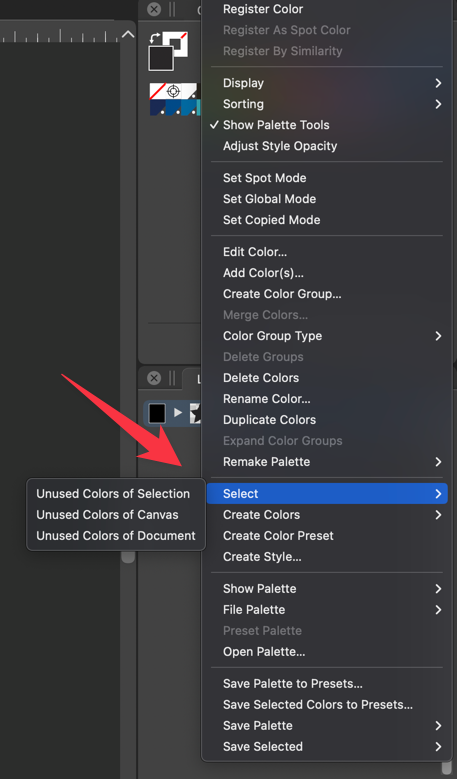
There is a current option in the palette hamburger menu to select all applicable colors in the palette at one time based on certain parameters
-
The idea here is that if you get a brand guide from a client specifying, say, 5 colors, you want to create a palette that contains only these colors. I don't need 128 other "default" colors. Just the brand colors for this specific project. There doesn't seem to be an easy way to accomplish this.

