Select All Objects while working in the Node Tool

-
@VectorStyler said in Select All Objects while working in the Node Tool:
@Ayo Meanwhile a workaround for closing a lots of curves:
Use Select (menu) -> Shape Type -> Open Curves, this will select all open shapes. Then the Close Path button is active.Use Select (menu) -> Shape Type -> Open Curves, great
that is a nice option to have
-
@Ayo said in Select All Objects while working in the Node Tool:
can't handle/overide a grouped path
Just a suggestion but this issue may correspond to one I made earlier?
Working in the Node Tool and select all 'Cmd-A' gives me the visual feedback image 1
while select all 'drag maquee select' gives me image 2, which is the feedback I would expect.
The radiobutton readout in the layers panel is also strangely inexplicably different.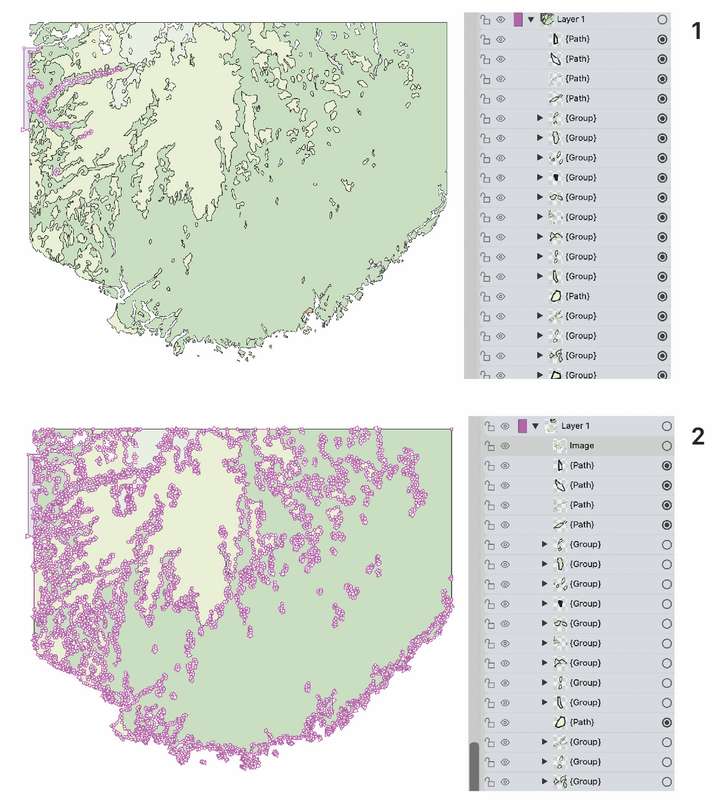
-
@Ayo said in Select All Objects while working in the Node Tool:
The radiobutton readout in the layers panel is also strangely inexplicably different.
In case (2) the paths inside the groups are selected, but the groups are not.
-
@VectorStyler
Point is:
Assignment 'select All' one way or the other, should that differ?
('Cmd-A' or 'drag maquee select')
Cmd-A within a selection (all the nodes of a selected object) is another thing. -
@VectorStyler
Second:
Is left the proper visual representation of right? Or vice versa?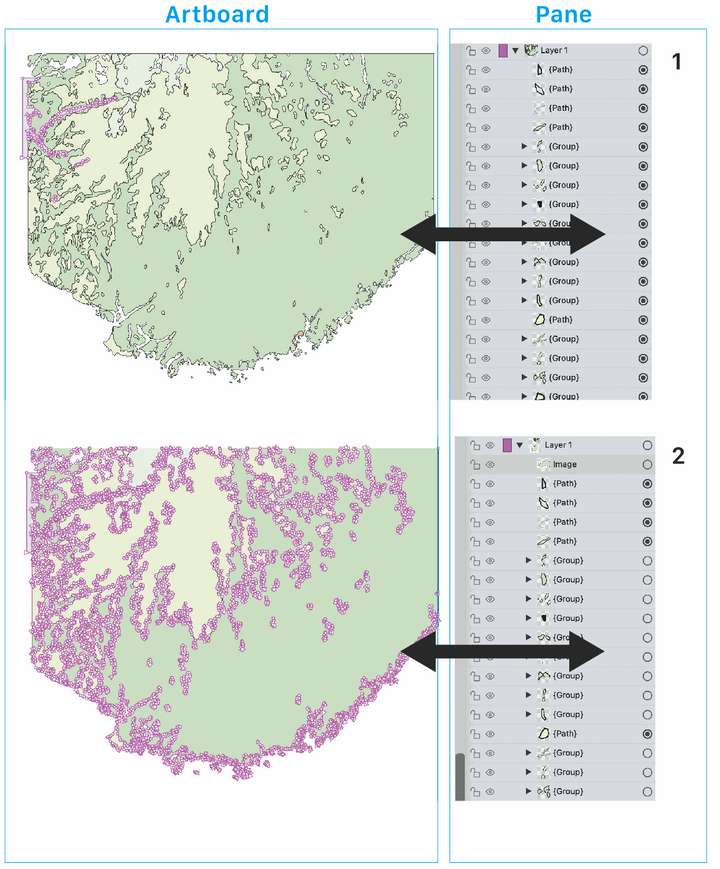
-
@Ayo said in Select All Objects while working in the Node Tool:
Assignment 'select All' one way or the other, should that differ?
There is a bit of difference between "Select All" for objects and "Select All" for Nodes.
In the first case (objects), the groups are selected (not their members).
In the second case the members of the groups are selected (not the groups), unless the group has a clipping shape. -
@Ayo said in Select All Objects while working in the Node Tool:
Is left the proper visual representation of right? Or vice versa?
Not sure of case (1), was it selected as Objects or as Nodes?
Case (2) looks right, all nodes seem to be selected, if you look into the Groups in the Layers panel, the objects inside should be marked.But there is an other idea here: should the dot indicate if a member object is selected? Maybe with a light grey spot?
-
@VectorStyler
Both 'Select All' selection examples are while working in Node Tool mode.- 'Cmd-A'
- drag marquee select
In my understanding, you should get the same result in a different way.
Your theoretical explanation may be correct, but as a careless user I have to deal with what I see and get in return in the form of visual feedback on my own actions. There is no developer sitting next to me. So...
WYSYWYGShould 'should the dot indicate if a member object is selected? Maybe with a light gray spot?' NO please no more vague highlighting in the layers pane!
Selection indicators on the artboard are more direct and easier to read and understand than scrolling and counting dots in the layers panel. In my opinion you should be able to work with the layers closed/layers only in these types of integral actions.
Have to think about it...
-
@Ayo said in Select All Objects while working in the Node Tool:
Both 'Select All' selection examples are while working in Node Tool mode
Got it. I will test this more.
-
@Ayo I didn't have time to record these past few days, but now I took some time to record it. This is a very simple problem, and VS can handle it perfectly. Just select (you can choose any selection method), connect the Paths, and it's that easy.
-
@Li-Xiao
Impressed and glad this works for you.
For me, VS crashes every time I try to replicate this (1.2beta).Further
I think this is lucky improper use of the function.
Otherwise it's a naming problem.Combine > Connect Paths is far from Close path(s) in my view.
-
@Ayo Sometimes there are different paths to reach the destination. I just chose an additional route. As long as we reach the destination, wouldn't it be better if there's a faster method? For me, I prefer having multiple ways to achieve the same goal. In case one method encounters a bug, I can switch to another method. This is the best approach before the bug is fixed. Of course, everyone has their own way, as long as the goal is achieved. Thank you for your many suggestions. They will make VS even better.

