VectorStyler
    • Categories
    • Unread
    • Recent
    • Tags
    • Popular
    • Register
    • Login

    How to assign a blend
    Scheduled Pinned Locked Moved Questions and Support
    19 Posts 3 Posters 16.3k Views 3 Watching
    Loading More Posts
    • Oldest to Newest
    • Newest to Oldest
    • Most Votes
    Reply
    • Reply as topic
    Log in to reply
    This topic has been deleted. Only users with topic management privileges can see it.
    • AyoA Offline
      Ayo @b77
      last edited by

      @b77 Thanks. Strange place.

      0_1698410711749_7d7177f4-497a-4117-82b7-f0991f7c35a3-image.png
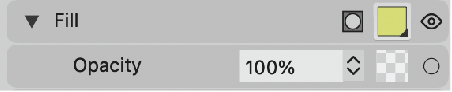
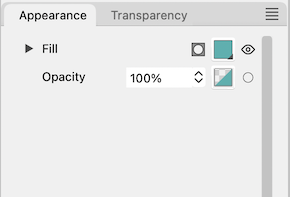
      Hovering over the symbol says "Opacity'. Because the opacity can be controlled in the selector to the left of the symbol, it looks more like a miniature that belongs to the opacity selector. No sign, symbol, triangle corner or what so ever to invite to click or search for blending mode (and more).

      0_1698410749134_7abda5e7-b82f-4985-a659-5a579baf9512-image.png
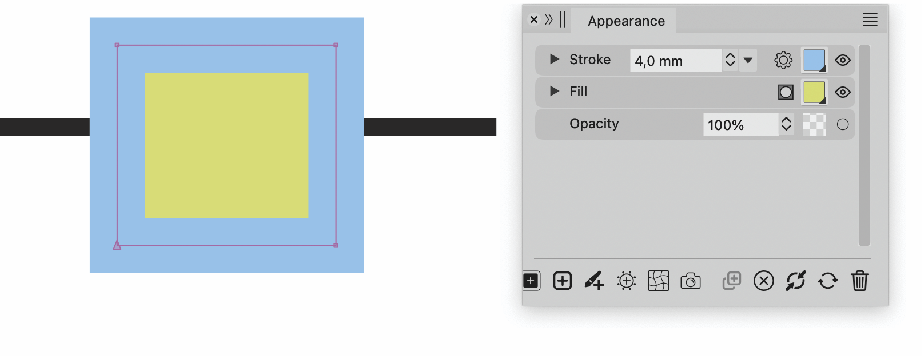
      Stroke has the setting gear. That's inviting!
      I would understand something like that better with a better tooltip description.

      0_1698410660923_4474e8cd-f20a-4b9c-877f-8452aa5ddc1f-image.png

      VectorStylerV 1 Reply Last reply Reply Quote 0
      • VectorStylerV Offline
        VectorStyler @Ayo
        last edited by

        @Ayo I will update the tooltip. There is no icon here, because it is a preview of the transparency mask.

        AyoA 1 Reply Last reply Reply Quote 0
        • AyoA Offline
          Ayo @VectorStyler
          last edited by

          @VectorStyler said in How to assign a blend:

          Also: open the Transparency panel, highlight the Fill in the Appearance panel and select the Blend Mode in the Transparency panel

          That's really too much hassle. b77's workaround is more logically concentrated within 1 panel.

          Second; I don't really like highlighting that is not always stable. In the layers or snapping on/off toggle kind of button lights as well.

          1 Reply Last reply Reply Quote 0
          • AyoA Offline
            Ayo @VectorStyler
            last edited by

            @VectorStyler said in How to assign a blend:

            because it is a preview

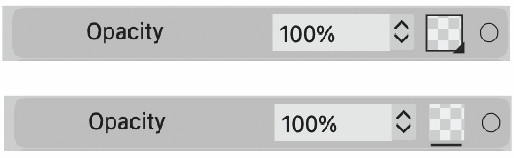
            That is exactly the point! And it looks like a preview but it is a link as well! Make that clear. Invite!

            By a triangle or classic underlining or what else is possible
            0_1698411913228_2e8293b3-a485-4119-9b8e-784d36d3d691-image.png

            AyoA 1 Reply Last reply Reply Quote 1
            • AyoA Offline
              Ayo @Ayo
              last edited by

              @Ayo or plus...
              0_1698412223960_dee9efe1-f265-4b5b-b3c1-0774d73319a8-image.png

              AyoA 1 Reply Last reply Reply Quote 1
              • AyoA Offline
                Ayo @Ayo
                last edited by

                @Ayo
                An additional thought...
                Since there is no no opacity setting readout in the appearance panel. Would it be useful to have an indicator that shows that the opacity setting is somewhere other than default or none?
                Masks provide a preview but blend options do not.

                Like so...

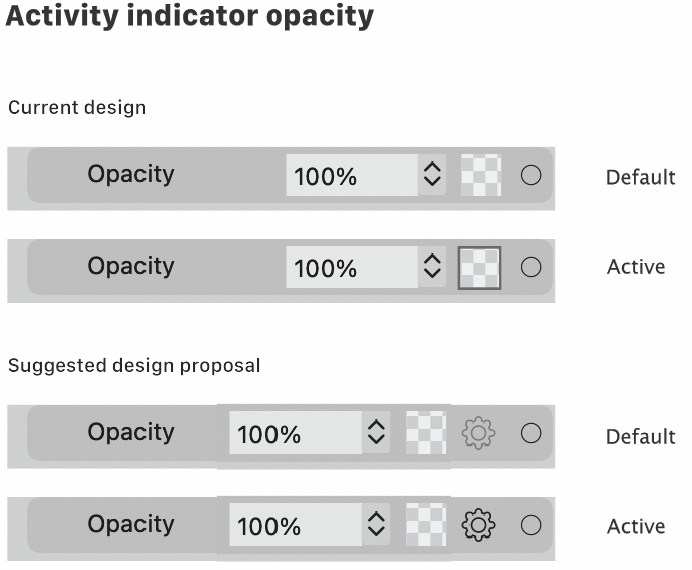
                0_1698751865633_54774bcb-80d5-49bf-b251-96cf4cbe250e-image.png

                b77B 1 Reply Last reply Reply Quote 0
                • b77B Offline
                  b77 @Ayo
                  last edited by b77

                  @Ayo Sorry, to me it's not clear what you suggest. πŸ™‚

                  This is in the Appearance panel in the current design, right?
                  Under what condition is the opacity button getting a black outline?

                  Also: what is a cog icon supposed to indicate?

                  MacBook Pro (Intel) running Monterey 12.6.4

                  AyoA 1 Reply Last reply Reply Quote 0
                  • AyoA Offline
                    Ayo @b77
                    last edited by

                    @b77 said in How to assign a blend:

                    This is in the Appearance panel in the current design, right?
                    Also: what is a cog icon supposed to indicate?

                    Must be clear from the thread above.

                    Under what condition is the opacity button getting a black outline?

                    There you go!
                    You call it an opacity button but it is and looks like a preview! Therefore a cog.

                    Under what condition? Shows that the opacity setting is somewhere other than default or none.

                    b77B 2 Replies Last reply Reply Quote 0
                    • b77B Offline
                      b77 @Ayo
                      last edited by

                      @Ayo Sorry, this thread is not fresh in anybody's mind β€” it was started 4 days ago.

                      Can you recap please?

                      Why should there be two buttons β€” a checkerboard button and a cogwheel button?

                      What is each one supposed to be doing?

                      Thanks! πŸ™‚

                      MacBook Pro (Intel) running Monterey 12.6.4

                      AyoA 1 Reply Last reply Reply Quote 0
                      • AyoA Offline
                        Ayo @b77
                        last edited by

                        @b77
                        Forget it. Consider it unwritten. Will delete it if it gets too complicated. Maybe I should keep my mouth shut for a while.

                        1 Reply Last reply Reply Quote 0
                        • b77B Offline
                          b77 @Ayo
                          last edited by b77

                          @Ayo OK, I know what you mean.

                          There's no need for a preview square (non-button) and a separate button for this.

                          The opacity button could look like this:
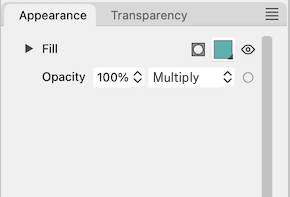
                          0_1698755017373_fddfb.png

                          MacBook Pro (Intel) running Monterey 12.6.4

                          AyoA 1 Reply Last reply Reply Quote 1
                          • AyoA Offline
                            Ayo @b77
                            last edited by

                            @b77 said in How to assign a blend:

                            The opacity button could look like this:

                            The opacity button is here a preview with button property

                            b77B 1 Reply Last reply Reply Quote 0
                            • b77B Offline
                              b77 @Ayo
                              last edited by b77

                              @Ayo

                              The opacity button is here a preview with button property

                              Is a separate checkerboard square needed to preview the
                              actual opacity value? If that is what you mean.

                              MacBook Pro (Intel) running Monterey 12.6.4

                              AyoA 1 Reply Last reply Reply Quote 0
                              • AyoA Offline
                                Ayo @b77
                                last edited by

                                @b77

                                I will try to summarize for you in the hope that my point will be clear.
                                .
                                I started this thread with the question:
                                How to assign a blend (for instance multiply) to only the fill of on top object or only it's stroke?
                                I couldn't find a button for this in the Appearance panel.
                                .
                                You pointed me to click the Opacity button. That was the solution.
                                .
                                Hovering the symbol says 'Opacity'. I advised Vectorstyler to make a better tooltip description like 'Edit transparent attributes' or so.
                                .
                                Vectorstyler pointed out to me that it was no icon but a preview of the transparency mask.
                                .
                                I told Vectorstyler that being a preview was the cause of my confusion. I saw a preview so I didn't suspect there was a link to transparency attributes. That's why I couldn't find it.
                                .
                                I then recommended Vectorstyler to make it clear that it is also a link for careless users like me. Or instead an extra setting icon (like a gear or something). Then you have a preview and separately a settings button.
                                .
                                That's 1
                                .
                                Yesterday I stubbled across the fact that I couldn't see whether or not I had applied a blend/transparency effect to an object. Illustrator gives me an opacity-blend readout in the Appearance panel. But vector styler gives no feedback. You have to dig into the settings to check.
                                .
                                Therefore my final suggestion for an activity indicator based on the existing opacity bar and based on the bar I proposed with an extra setting icon.
                                .
                                That's 2
                                .
                                Pfff...

                                b77B 1 Reply Last reply Reply Quote 2
                                • b77B Offline
                                  b77 @Ayo
                                  last edited by b77

                                  @Ayo Thanks!

                                  Well then… isn't it better to have two dropdown menus here?

                                  0_1698764498167_fddfb.png

                                  MacBook Pro (Intel) running Monterey 12.6.4

                                  AyoA 1 Reply Last reply Reply Quote 1
                                  • AyoA Offline
                                    Ayo @b77
                                    last edited by Ayo

                                    @b77
                                    Very clear and beautiful!
                                    but there are more groups than Blend Mode on the menu

                                    1 Reply Last reply Reply Quote 0
                                    • First post
                                      Last post