Kind of Shape Library
-
My idea looks somewhat similar to Shape Presets but differs
from the Shape presets. Which is why I suggested creating a
separate panel for that Library.With the Shape presets you can only replace one Shape with another
and to do this a shape must be selected on the canvas.
Which is not my Intention.My idea can be thought of more like a very large clipboard storage.
In which you can store/save created shapes/forms in order to bring
them back onto the canvas if you want them.The whole thing is intended to prevent a form from having to be created
again and again. Or have specific shapes ready, for example for architecture
or other areas.In the meantime, I thought about my idea again and will post my thoughts
here then....I see many some similarities to Affinity Designer's "Assets" Panel...
I see that similarities too and I think it's the closest to that idea. -
@Subpath
Your additional thoughts helped to add clarity. Thank you for that.
So to extend the Affinity Assets Panel example, the same could be said for Styles as well. Having a way to easily add Shapes (assets) from a panel to the artboard/canvas as well as being able to add them in bulk into the assets panel would be very handy, especially if there were auto-names like "asset0000", "asset0001", etc. User can of course rename them after.So I was thinking about the difference between a shape and a preset and I came up with a quick visual diagram to help my understanding of the type of things the shape (asset?) panel would incorporate. Please, good community, edit and critique this idea as it is not fully formed, just a starting point to this conversation:
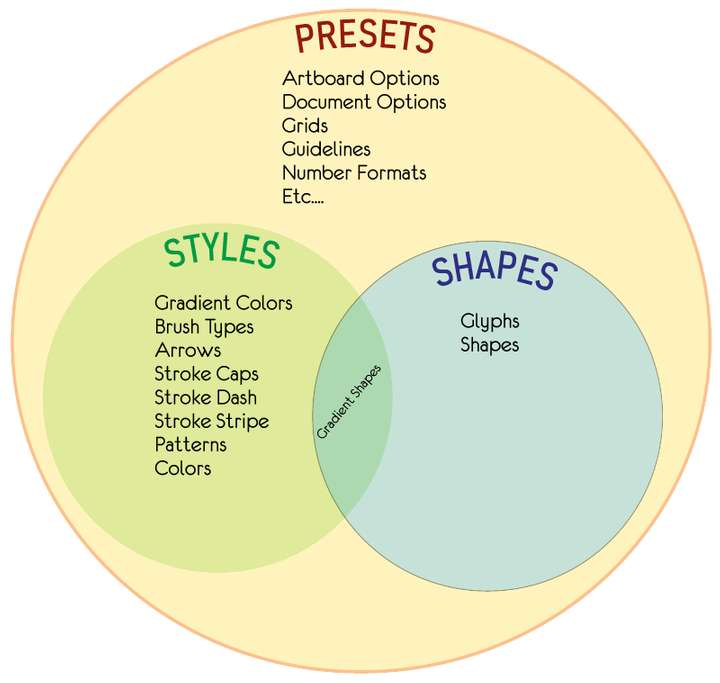
Know that I didn't include all of them, just a few examples, however it seems like there are few things that fit under shapes. I threw glyphs in there, thinking about shapes that were categorized as a typeface (a custom shape that could be inserted into a text element, but not an entire font on it's own). Font file glyphs would of course be accessible from the Glyphs Panel.
I attached the .vstyler file below in case anyone wants to edit or reform the Venn diagram quickly for discussion, without having to take the time to create it from scratch:


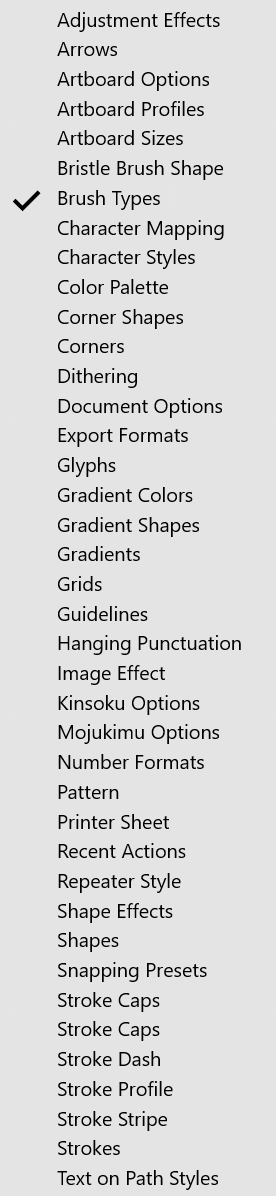
Also here is a screen-grab list of preset categories to help the conversation:
-
Just a small note on style vs presets:
Most of these attributes can be saved both as presets or as styles.
The main difference between styles and presets is that styles are always kept in the document and always linked, so when a style content changes all its uses are updated.
Presets can be saved outside of the document, and always selected by value (not linked), so if a preset changes, its uses are not updated. -
@VectorStyler
Those three sentences reveal a ton on how VS works regarding the difference between these elements. Thanks for that! -
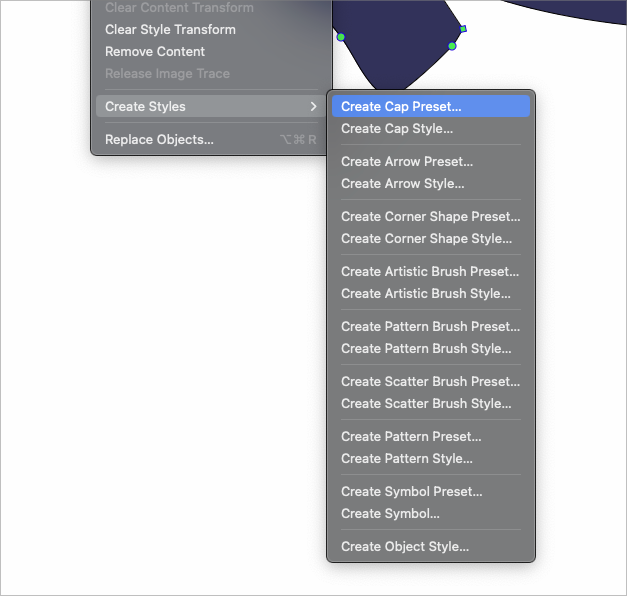
@Victor-Vector I'm glad you brought this topic up and created the venn diagram. To me, presets and styles being intermixed in the VS user interface is a little overwhelming and confusing to me. It's hard to wrap my head around them because there's nothing tangible about either in the way I see them.
I'm not an expert on how this should all be organized, but I believe it would be less confusing if the presets and styles were completely separate from one another, not listed together in the same section. Maybe a presets folder and styles is a secondary folder inside? Just thoughts
-
@Boldline I agree, it was/is confusing to me too, and while I get that Styles and Shapes are kind of like a subset of presets, they beg to have their own place where they are easily accessed, like @Subpath's clipboard analogy.
A thought just occurred to me on what @VectorStyler said:
The main difference between styles and presets is that styles are always kept in the document and always linked, so when a style content changes all its uses are updated.
Presets can be saved outside of the document, and always selected by value (not linked), so if a preset changes, its uses are not updated.Based on the idea that "if a style is updated it all its uses are updated", am I wrong in thinking that a Shape that is a "Style" is actually a "Symbol"?
If so, this is exciting, from a purely geeky organizational way, because it means these things could potentially be organized and implemented in a very elegant format, providing the user understands how each element is defined.
-
Finally,
I came to the conclusion that “Assets” in
Affinity Designer was the closest thing to my idea.
.
.
I refine my points, according on that, here:The Video here is how "Assets" is working
in Affinity Designer 1. Still have a copy of it.Here the Video
.
.
So here my refinded thoughts:Possible Content for this kind of Asset Panel
could be Shapes, open Curves, Textlines.
( will call it here just Shapes )1
A panel that is only used as a Shape Library,
so that a user only calls just that Panel.
Just like Affinity Designers Asset Panel.2
To call that Library maybe add a Icon in the Tool Box
maybe where Smart Shapes already are.3
Ideally, it should take only one click to store a shape
and one click to place a shape on the Canvas.
( But less clicks as possible )
Drag and drop should als be possible.4
I also think it may be helpful too if a user could select
a bunch of shapes from the canvas and put it in the Library.4b
And also select a bunch of shapes in the Library to put it
onto the canvas ideally side by side and not one of another5
Saving a new shape.
On the one hand, it could be done with automatic naming.
If and when the name is the same, a counting number could
be automatically placed after the name.6
A kind of batch feature would be nice so you could easely
add a bunch of shapes into the library. Or just import
all selected Shapes from a Folder -
Just a question. In the assest panel in AD you have complete illustrations. And in Vectorstyler as for I know you can only save a separate shape as preset. So how do you see this? (personally I would like to see and save complete illustrations).
-
@FastVector said in Kind of Shape Library:
So how do you see this? (personally I would like to see and save complete illustrations).
Do not mind. I think the video makes this clearer.
There I show that you can also save groups of objects in the Assets panelBy the way, you are very welcome to add your own wishes/Ideas here.
-
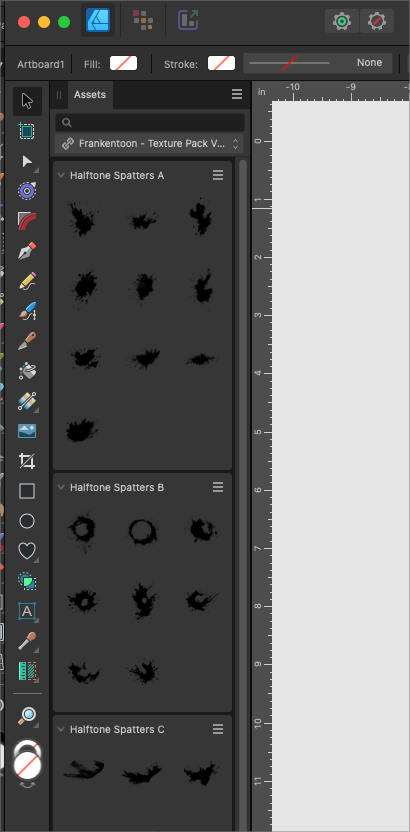
@Subpath @FastVector I would welcome an Asset Manager" much like what Affinity Designer provides. In my copy of Affinity Designer 2, it was easy to add halftones and splatters and the like to the Asset Library and then open them and pull them out at will and drag them onto the document.
Here is an video example of how easy it is to drag the assets into an Affinity Designer file
-
Thanks for the video. Think it's the same as in Affinity Designer 1.
But while it's easy to drag and drop designs from the panel onto the canvas,
it's not possible to drag and drop designs into the assets panel.
Which would be one of my wishes for something like this in Vectorstyler.


