Add a "pin tab" option to the iconized tool panels on right side of UI
-
With the iconized panels, I love that they can be shrunk and opened as needed and then immediately shrink back to icons automatically when clicking away from them.
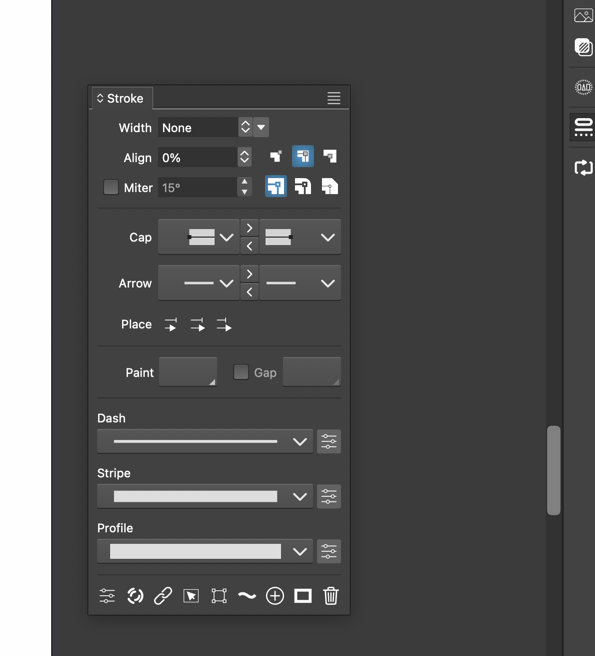
However, I'd love an option to be able to temporarily leave a panel open until I close it out. I know this can already be done if I go to the panels window and choose what panel to open. However, even from there, I do not see an option to manually close the panel out. I can only click on an iconized panel to get the panel I was using to close outI guess I'm missing the option of the arrow to shrink back the open panel and maybe a "pin" option to make it stay open until I close it myself.
If there's something I am missing in this, I'm happy to learn and try it out.
-
@Boldline The iconified and opened panels should not closed when clicking away. At least here they stay open.
Could be some issue in the workspace.
-
@VectorStyler thank you. I set the workspace back to default and everything worked again as expected. I set it back to my saved workspace and it all works there now as well. I guess the workspace needed to be refreshed after I updated to the official 1.2 release build? I remember a similar thing happened after a build release update a while back - the transform tool was lacking the newly added tools. once I refreshed the workspace, it was corrected

