VectorStyler
    • Categories
    • Unread
    • Recent
    • Tags
    • Popular
    • Register
    • Login

    Confused about transform
    Scheduled Pinned Locked Moved Questions and Support
    15 Posts 4 Posters 10.3k Views 3 Watching
    Loading More Posts
    • Oldest to Newest
    • Newest to Oldest
    • Most Votes
    Reply
    • Reply as topic
    Log in to reply
    This topic has been deleted. Only users with topic management privileges can see it.
    • syllieS Offline
      syllie @Subpath
      last edited by

      @Subpath yep I've seen that, that is largely what I do too. The issue is just the strange transforms. But it may have had to do that I came from Inkscape. It is just basic calculations, move over x, move over y (or align on artboard, one inside, one outside and then move horizontally/vertically). I've done it tons of times, but ran into a bit of issues recreating an existing pattern with all its awkward dimensions.

      Windows 10 Pro | 22H2

      S 1 Reply Last reply Reply Quote 0
      • S Offline
        Subpath @syllie
        last edited by

        @syllie

        @VectorStyler can certainly explain better what the
        matter with values when transforming

        Win 11
        CPU: AMD Ryzen 5 9600X, 6-core.
        GPU: Nvidia Geforce RTX 5070.

        1 Reply Last reply Reply Quote 0
        • VectorStylerV Offline
          VectorStyler @syllie
          last edited by

          @syllie said in Confused about transform:

          I was not able to use math in the transform boxes. I assumed I could just type +600 but it replaced the dimensions completely (is this even possible? if so: how to input?)

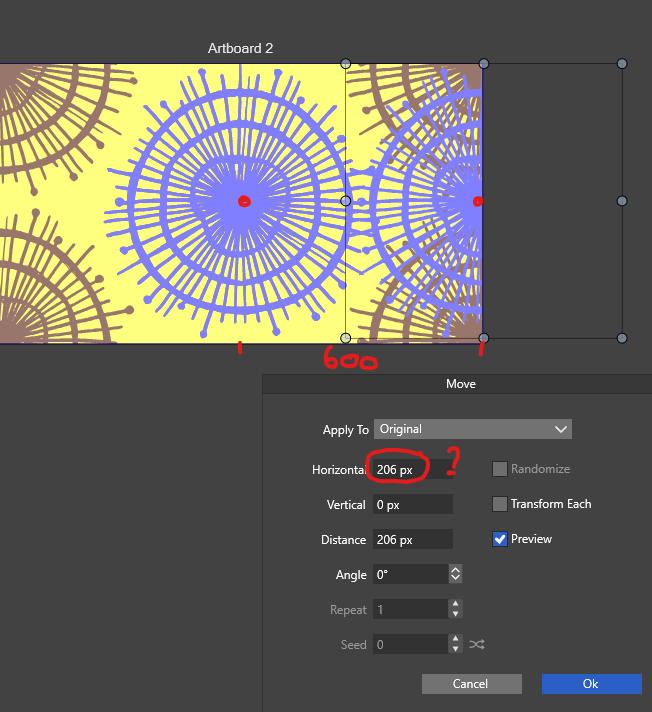
          In the Move view the Horizontal (and Vertical) fields are relative movements, so no need for the +600, that would only modify the current value in the field.
          Just type the relative movement amount in this field.

          The settings in the transform panel baffle me ( I tried it with a manual copy, a clone, and a copy from both the transform > move and transform > transform panel). I know it should be 600px, but I need to input 206px to get it done.

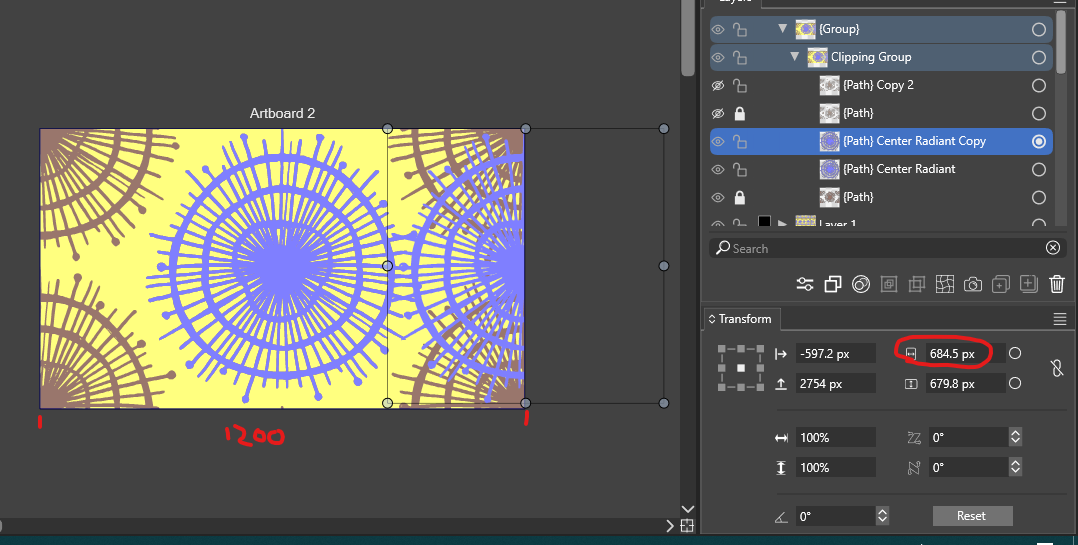
          The circled field is the Width of the selected object. The fields in the first column (left and up arrow labels) are the actual (not relative) positions. Here you can type something like +600 to add to the current position for relative movement.

          For a more automated workflow, you can also use repeaters.

          Also wondering if it is possible to use the center of an object (pivot / origin center) as a snapping point?

          Yes, but it will be the center of the object, not the pivot point (which can be different). Enable the Snap to Objects mode for this.

          syllieS 1 Reply Last reply Reply Quote 1
          • syllieS Offline
            syllie @VectorStyler
            last edited by

            @VectorStyler I'd love to know what settings to use, as I was not able to do this at all. I tried any and all snapping options. This should be like a 2 seconds job. In my sample I cloned the center shape 4 times and I want to move them to the corners to create a seamless pattern.

            https://go.screenpal.com/watch/cTVYnKnfjyh

            Windows 10 Pro | 22H2

            VectorStylerV S debraspicherD 3 Replies Last reply Reply Quote 0
            • VectorStylerV Offline
              VectorStyler @syllie
              last edited by

              @syllie From what I understand from the recording you want to snap the center of an object to a corner.
              This is the Snap to Object in the snapping panel: https://share.cleanshot.com/s7y4qdGH

              syllieS 1 Reply Last reply Reply Quote 1
              • S Offline
                Subpath @syllie
                last edited by

                @syllie

                As @VectorStyler shows in his video with a circle and
                rectangle shape. The the same will work with Artboards,
                if you set "Snap to Artboard"

                Win 11
                CPU: AMD Ryzen 5 9600X, 6-core.
                GPU: Nvidia Geforce RTX 5070.

                1 Reply Last reply Reply Quote 1
                • syllieS Offline
                  syllie @VectorStyler
                  last edited by

                  @VectorStyler I see. Thanks for the demo too! It works, but it is extremely fiddly as soon as there are other objects on the canvas. There is no feel for a clear 'snap' at all. The behaviour is the same when working in an isolated view, the snapping still looks and seems to give priority to other objects on the canvas. https://go.screenpal.com/watch/cTVYihnfQfv

                  Windows 10 Pro | 22H2

                  VectorStylerV 1 Reply Last reply Reply Quote 1
                  • VectorStylerV Offline
                    VectorStyler @syllie
                    last edited by

                    @syllie if there are other objects and they result in a smaller snapping movement, then that is what is used.
                    But you can restrict snapping to inside the view area by zooming in.

                    It is also possible to set a specific object to snap to with the [+] button in the panel.

                    1 Reply Last reply Reply Quote 1
                    • debraspicherD Offline
                      debraspicher @syllie
                      last edited by

                      @syllie I find myself trying to do snap to center quite a bit also and have trouble with getting it to trigger even on relatively basic files. As you say, it's a simple snapping decision but it's constantly fighting other snapping relationships to achieve it and sometimes it doesn't trigger at all. Something like a rolling list of snapping candidates like in Affinity would make this more straightforward if it's a matter of having too many objects to connect to.

                      Windows 11 Build 26200.7171 (25H2)
                      AMD Ryzen 7 9700X with Gigabyte X870E Aorus Pro Ice
                      32GB RAM @ 6000MHz
                      PNY NVIDIA RTX 5070 Ti 16GB; Display 1: 4K @150%; Display 2: 4K @200%
                      Wacom Intuos Pro L (2025); Wacom Intuos Pro M; Epson ET-8550; Siser Romeo

                      VectorStylerV 1 Reply Last reply Reply Quote 2
                      • VectorStylerV Offline
                        VectorStyler @debraspicher
                        last edited by

                        @debraspicher Send me some examples where this occurs.

                        debraspicherD 1 Reply Last reply Reply Quote 1
                        • debraspicherD Offline
                          debraspicher @VectorStyler
                          last edited by

                          @VectorStyler I'll get some examples next time I start fiddling especially now that I know the zoom matters for snapping


                          Windows 11 Build 26200.7171 (25H2)
                          AMD Ryzen 7 9700X with Gigabyte X870E Aorus Pro Ice
                          32GB RAM @ 6000MHz
                          PNY NVIDIA RTX 5070 Ti 16GB; Display 1: 4K @150%; Display 2: 4K @200%
                          Wacom Intuos Pro L (2025); Wacom Intuos Pro M; Epson ET-8550; Siser Romeo

                          1 Reply Last reply Reply Quote 1
                          • First post
                            Last post