How to rotate an object around an offset pivot?
-
After a bit of rough time, I am finally trying to pick things up again and it appears I have forgotten a lot of functionality and basically need to relearn tools again. So expect some more basic questions as I have difficulties figuring things out.
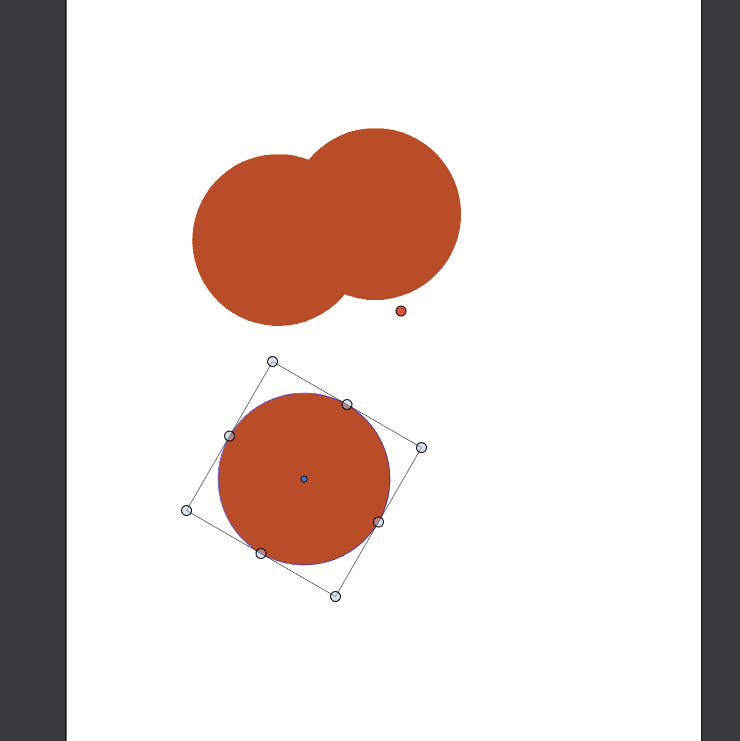
I am sure this is a simple setting that I am missing, but I am after the quick 'rotate a shape around an offset pivot point', as demonstrated in this example (note I only referred to this post to avoid me making a vid):
Re: Is there a way to transform/rotate shapes but with an offset?I have created a circle, moved the pivot point to directly below it. Used the transform screen (Shift+Alt+R) to set a 30deg rotation, and use a copy, all looks good. When hitting Ctrl+D my shape and pivot point moves with each new copy. What am I doing wrong? I am very confused about the local transformations. Pointers appreciated.
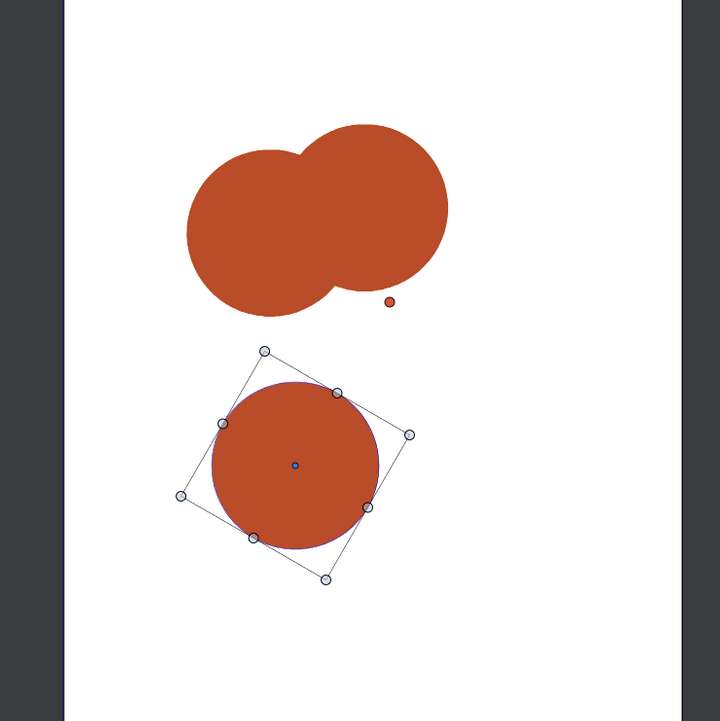
(and yes I know we can set the number of copies in that same transform - but I am clearly missing something here).
-
@syllie said in How to rotate an object around an offset pivot?:
When hitting Ctrl+D my shape and pivot point moves with each new copy.
This will only rotate around the previous pivot if the previous rotation was done on the canvas, not from the transform screen.
But you can use the Transform panel to set the initial rotation. First make sure you use the pivot in the Transform panel by deselecting the current corner pivot know (click on the active pivot knob in the upper-left corner of the panel).
-
Thank you for your quick reply.
@VectorStyler said in How to rotate an object around an offset pivot?:
This will only rotate around the previous pivot if the previous rotation was done on the canvas, not from the transform screen.
Okay - understood and this works
But you can use the Transform panel to set the initial rotation. First make sure you use the pivot in the Transform panel by deselecting the current corner pivot know (click on the active pivot knob in the upper-left corner of the panel).
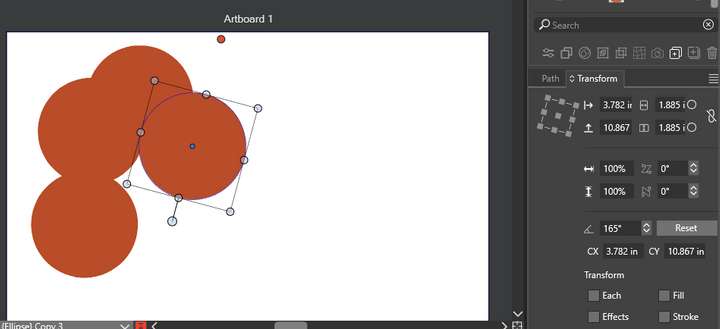
I do not understand this part. So I have my circle, pivot point moved south, the pivot knobs in the transform panel deactivated. Set an initial rotation of 30deg and then using Ctrl+D is not giving the same result, as the pivot point rotates with the object.
-
@syllie I think that rotation knob mode (the handle on the selection frame) causes this issue. You can disable that from the context panel (the transform tool options icon).
I can also replicate this issue here and I will try to fix it ASAP.
-
@VectorStyler Oh! interesting. I only enabled that to make testing of your first approach easy. Without that rotation knob, and the pivot point knobs in the transform panel deactivated, it works exactly as you said. Thanks for getting back on this.

