Alternative Ideas for gradient creation
-
Alternative Ideas for gradient creation.
Vectorstyler offers a lot of Gradient options. But creating multi stop
Gradients is not really fun. That's why I've collect some ideas to make
creating multi-level gradients a little easier and fun for users.I dont know if those Ideas are really good or well thought but we have
have to start from somewhere.
.
.First Idea:
Create a gradient from a bunch of selected Objects, colored of course.Select all Objects and choose create Gradient from selected Objects.
Gradient Stops can be set evenly, in the direction of objects are created,
as a user can arrange them later on.
.
.Second Idea:
However, for this Idea a obstacle would first need to be removed.
Vectorstyler currently does not copy colors that appear multiple times
into a color palette. When creating a color palette from selected objects,
colors that appear multiple times are only added once.
See this Thread here:
https://www.vectorstyler.com/forum/topic/5688/multiple-occurrences-of-the-same-color-are-not-included-when-creating-a-color-palette.Oddly enough, duplicating colors in a color palette is possible,
as is copying the same color to another palette via drag and drop.Using the colors from a Color Palette and read them from left to right
of a color palette was my second idea. The Stops can be set evenly
for creation as the user can arrange them laterBut this make only sense if the obstacle above is solved.
.
.Third Idea:
Create a gradient form a multi blend.
Multiblends between Objects are already possible in Vectorstyler.The start and end Objects could be used as repective gradient stops
again Stops can be set evenly and user can arrange them later.
.
.Fourth Idea:
Create a the colors for Gradient from a bitmap.Creating a color palette from a bitmap is already possible.
I think it would be nice to have this for Gradients too.The user should be able to choose how many Gradient Stops he like
to have and VectorStyler should create the Gradient accordently
from a Bitmap.Win 11
CPU: AMD Ryzen 5 9600X, 6-core.
GPU: Nvidia Geforce RTX 5070. -
@Subpath For the 1.4 backlog
-
@Subpath or simply :
- select multiple colors from palette and drag them onto the gradient panel : places them in the order selected on gradient scale
- alt-drag : add additional colors to existing gradient as more stops, including already used colors
-
I'm open to additional ideas; they're welcome.
But selecting colors in the palette first and then drag and drop
them into the Gradient panel seems a bit cumbersome.
If I could simply use "Create Gradient from Color Palette" instead.One of my main ideas for this whole thing is actually "Create Gradient from selected Objects."
This would allow me to use larger color areas with larger objects, giving me a better impression
of the colors. Selecting colors and choosing colors in the Gradient Panel or the Color Panel is
a bit too fiddly in my eyes.Yes, you could copy Gradient Stops via the ALT Key which is nice to have.
-
After further attempts, I understand your suggestion that
colors from the color palette can already be transferred
to an object with a gradient via drag and drop.Dragging and dropping selected colors from a palette into
the gradient editor doesn't work.At my first attempts i was slightly misleading because the
object with the gradient initially became a solid fill at first.
However, when you then apply the gradient via the gradient tool
to this object again, the gradient with the selected colors appears.So, thanks for this tip.
-
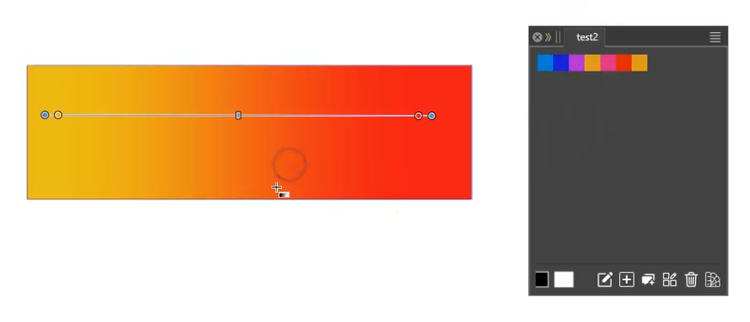
Here a step by step guide for other Users:
How to use colors from a color palette for gradient colors
Create or select an object with a gradient.
.
.
Select the colors in a color palette while holding
down the Shift or Ctrl key (Windows).Drag and drop the colors from the color palette onto the object
with the gradient.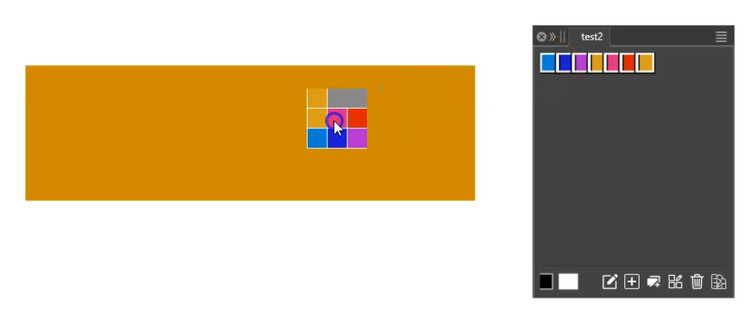
.
.
The object's fill will change to a solid color.
Drag the gradient again with the Gradient Tool, and
the gradient will now display the colors you selected.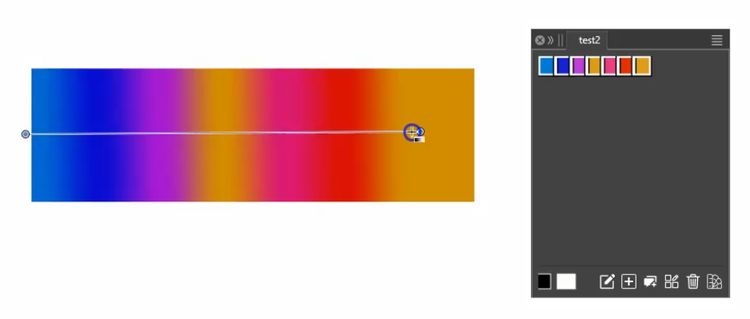
-
@Subpath oh that's cool ! thanks for the tip, I did not know this existed already

-
Thank you, because that's what gave me the idea to try it.
Although I thought you'd know it and point it out.As I already wrote, it's quite misleading that the gradient object
initially receives a solid color fill and then you have to create
the gradient again with the new colors.As I wrote in my thread "Houston, I have a problem...", it's quite often
the case that a feature one need is already build in.
I always wonder how @vectorstyler knew before hand what I would need.But my suggestions about creating a gradient are still valid.
-
S Subpath referenced this topic on
