Detail Optimizations for Version 1.3
-
@VectorStyler said in Detail Optimizations for Version 1.3:
@monsterfox said in Detail Optimizations for Version 1.3:


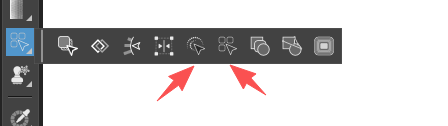
@VectorStyler It has come to my attention that certain transformation functions like rotation and scaling in the transformation panel cannot be operated in the same way as the separate transform function in the move tool. Could this feature be added?!
Can you explain what is the difference here, what is needed to be added?
Currently, the Rotation panel has a Transform Separately option, but it doesn’t support incremental operations like the one in the Move panel. For example, when selecting multiple objects, checking Transform Separately in the Rotation panel and setting a rotation of 5 degrees should make each object rotate 5 degrees incrementally one after another. This would greatly expand the panel’s usability. The same logic should apply to Scale and Shear as well.
-
@monsterfox said in Detail Optimizations for Version 1.3:
Currently, the Rotation panel has a Transform Separately option, but it doesn’t support incremental operations like the one in the Move panel. For example, when selecting multiple objects, checking Transform Separately in the Rotation panel and setting a rotation of 5 degrees should make each object rotate 5 degrees incrementally one after another. This would greatly expand the panel’s usability. The same logic should apply to Scale and Shear as well.
Is this possible to do in the Transform dialog?
-
@VectorStyler It’s different. The Transform dialog is for making multiple copies of a single object and applying transformations to them. In my case, I already have multiple selected objects of different sizes—these are material patterns for different shoe sizes.
The logic should still follow the Move dialog: when Transform Each is checked, entering parameters should apply incremental transformations (rotation, skew, scale, etc.) to multiple objects in order from largest to smallest. This would greatly improve efficiency; otherwise, we’d have to adjust each object one by one.
-
@VectorStyler https://youtu.be/k-LGovaaMhk?feature=shared
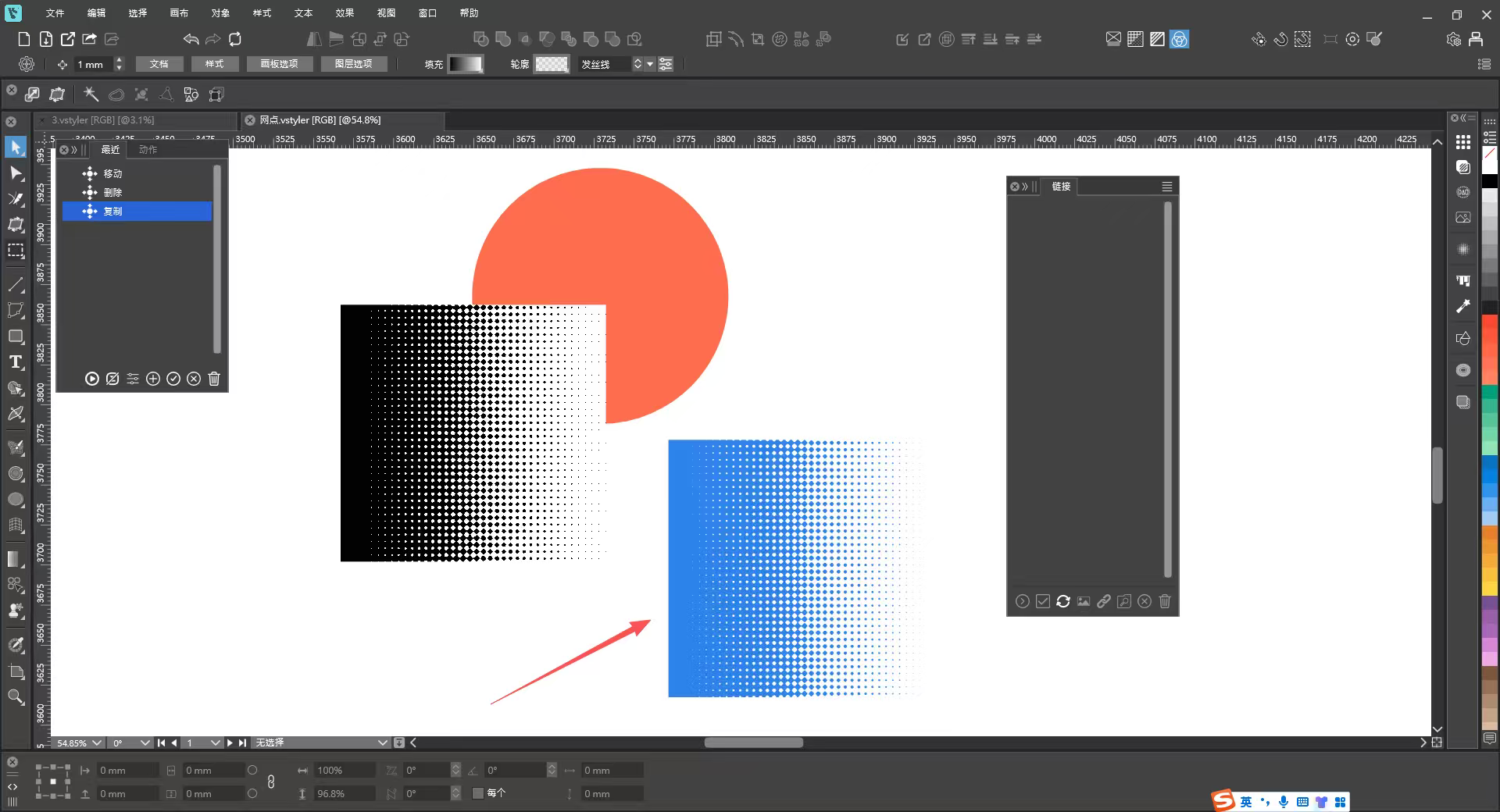
1_网点-1.vstyler
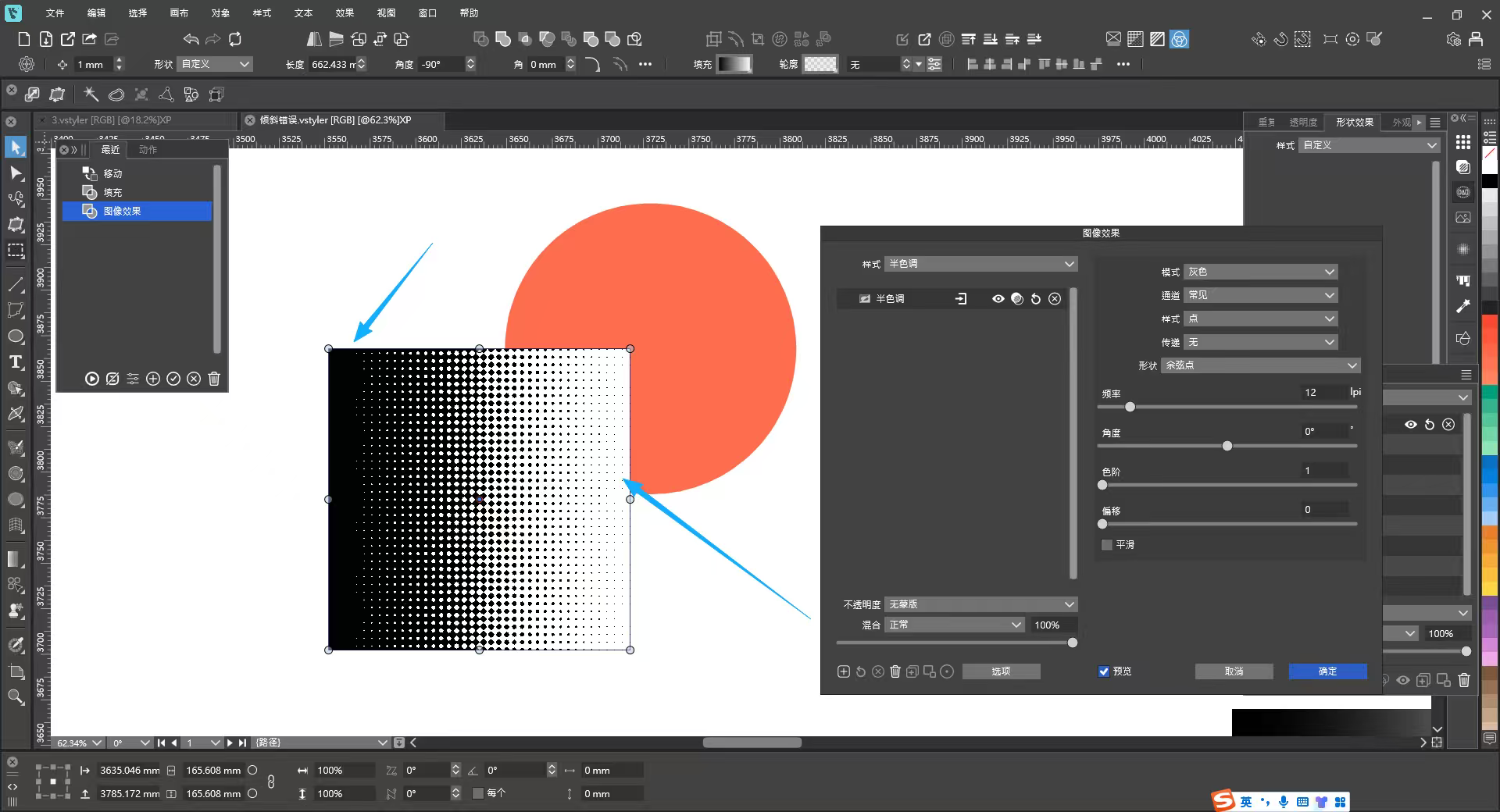
The halftone effect still has two issues at present:1. The color of halftone graphics cannot be changed.
2. As can be seen from the effect in the image, the background cannot be made transparent, with a visible white background.There is a blue halftone graphic in the file, which is a vectorized halftone effect. It would be perfect if the halftone effect could be rendered like this.
-
@monsterfox said in Detail Optimizations for Version 1.3:
This is about the Halftone image effect:
1. The color of halftone graphics cannot be changed.
I will try to add this if possible (later)
2. As can be seen from the effect in the image, the background cannot be made transparent, with a visible white background.
This cannot be done with the image effect, but the vector halftone effect should be able to do it.
-
@VectorStyler
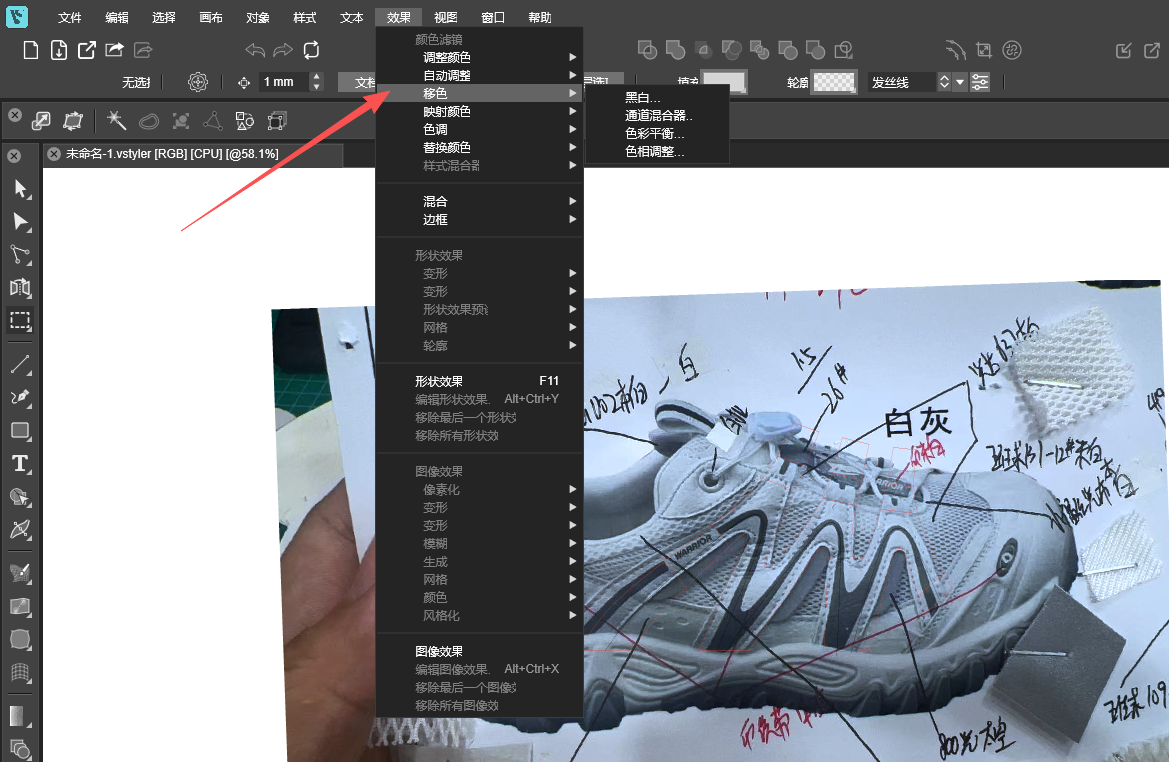
The translation of "Shift Colors" is flawed; it is recommended to translate it as "偏移颜色". -
@VectorStyler
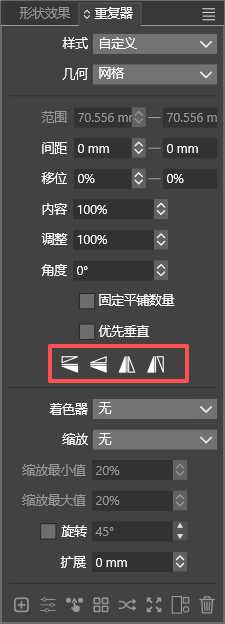
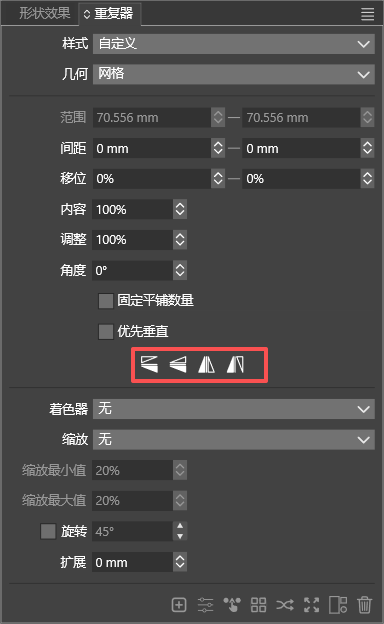
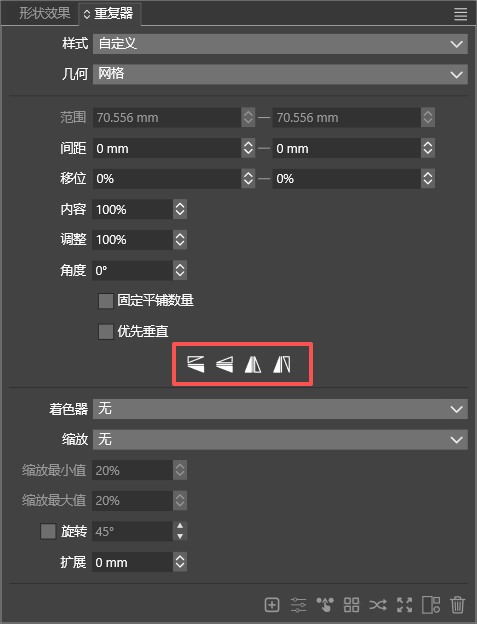
Can you modify these four icons to equally distribute them adaptively according to the width of the panel. Otherwise, the overall look will be mismatched when the panel is stretched wider. -
@monsterfox said in Detail Optimizations for Version 1.3:
Can you modify these four icons to equally distribute them adaptively according to the width of the panel.
I will do so.
-
@VectorStyler https://youtu.be/7PfHii2fm9o
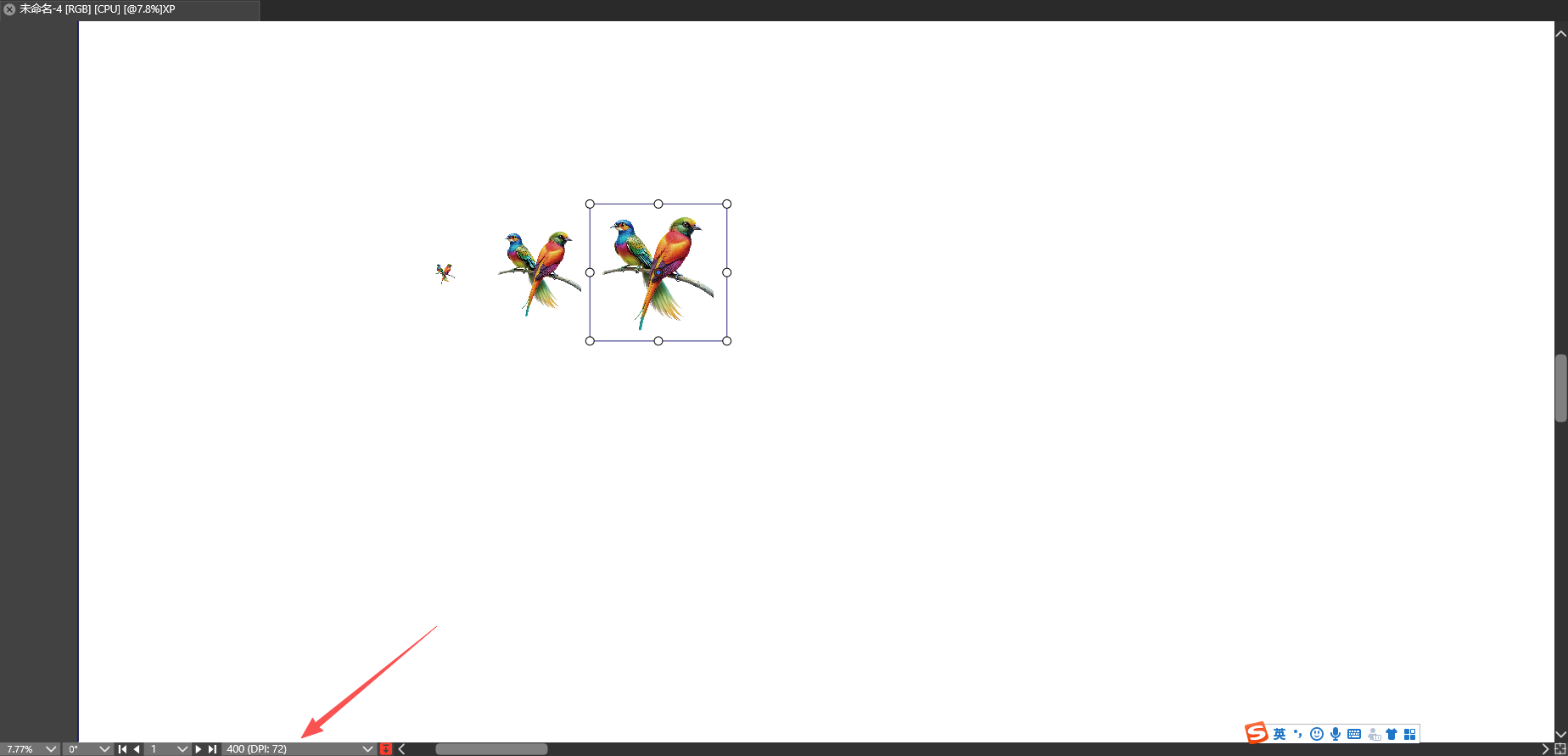
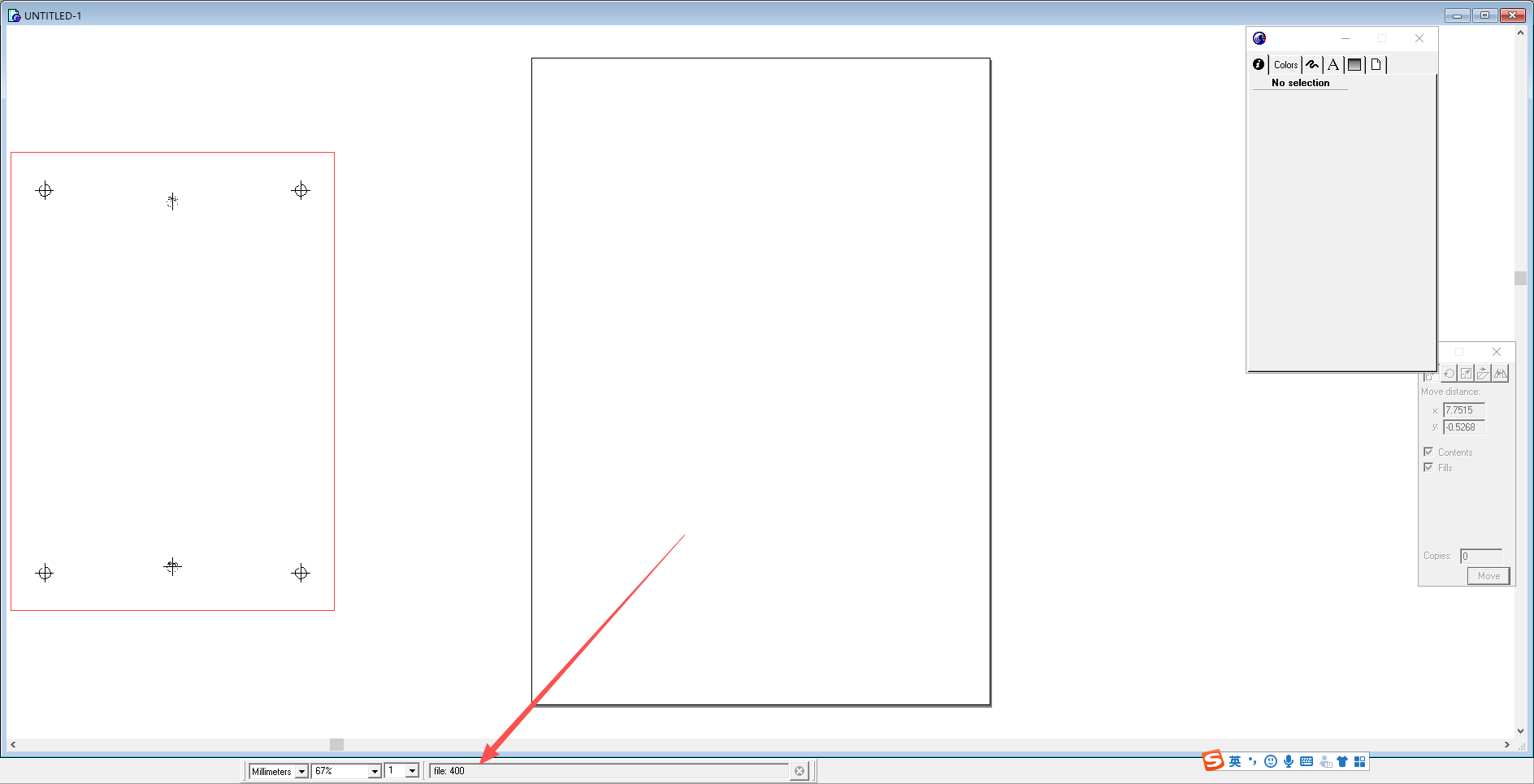
When importing images in FreeHand 9, the current imported‑image filename can be viewed in the bottom info bar. VectorStyler does not have this feature. Could you please add this capability? Thank you. -
@monsterfox said in Detail Optimizations for Version 1.3:
When importing images in FreeHand 9, the current imported‑image filename can be viewed in the bottom info bar. VectorStyler does not have this feature. Could you please add this capability? Thank you.
It show the file name, that is the "400" text, and attaches the DPI info.
-
@VectorStyler Please check the video. In FreeHand 9, the filename is displayed when importing, before you click on the canvas. VectorStyler does not support this yet. When importing multiple files, it would be much more convenient if there was text showing the name of the currently imported image.
-
@monsterfox This can be done only after the image was imported