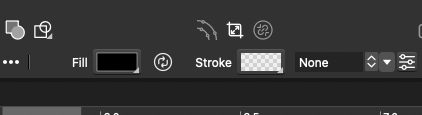
Show the active Fill or Stroke target in the Style Picker toolbar
-
I ran into this while trying to match one shape’s fill color to another. I selected the shape I wanted to recolor, pressed I for the Style Picker, and clicked the other shape’s fill. Nothing appeared to happen. When I tried Shift-clicking, it picked up the right color but applied it to the stroke. I ended up swapping the fill and stroke just to get the color where I wanted it.
I eventually realized that Stroke was still “in front” in the Color panel. The contextual toolbar showed both swatches side by side, with None next to Stroke, so I had no clear indication that Stroke would receive the sample.
Could the contextual toolbar make the active target visible while the Style Picker is in use? I can see two ways to do this:
- Show which swatch is in front. Add an outline around the active swatch or highlight its label so I can tell where the next Shift-click sample will go.
- Show it and let me switch it there. Use the same indicator and make the existing Fill and Stroke labels clickable so I can set the target directly from the toolbar.
The indicator alone would have saved me the confusion. Making the labels clickable would also let me correct the target in the same place.