Elastic Warp: Freeze selected areas and move multiple pins together
-
I’d like to request three improvements to the Elastic Warp tool:
-
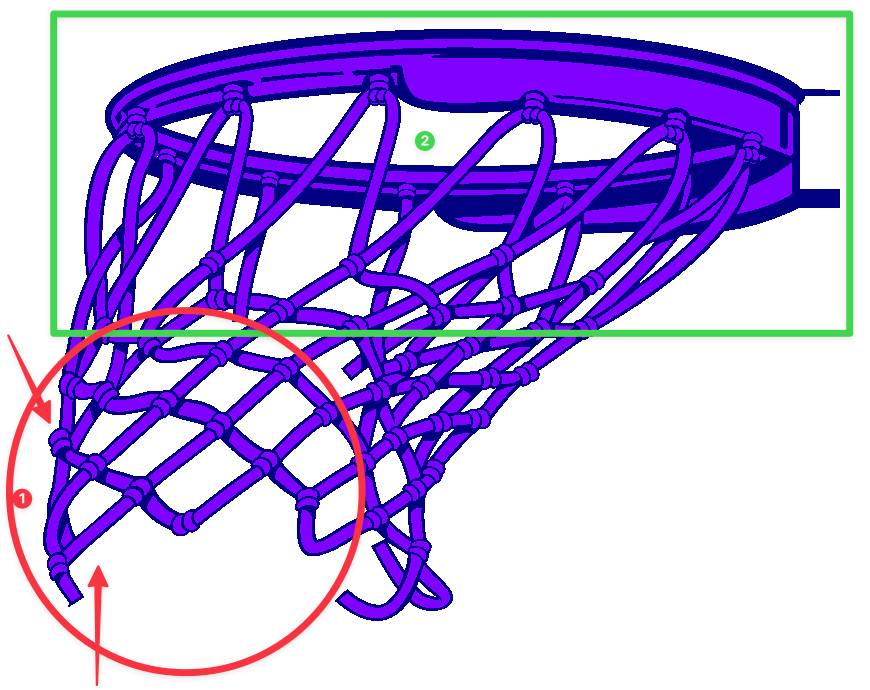
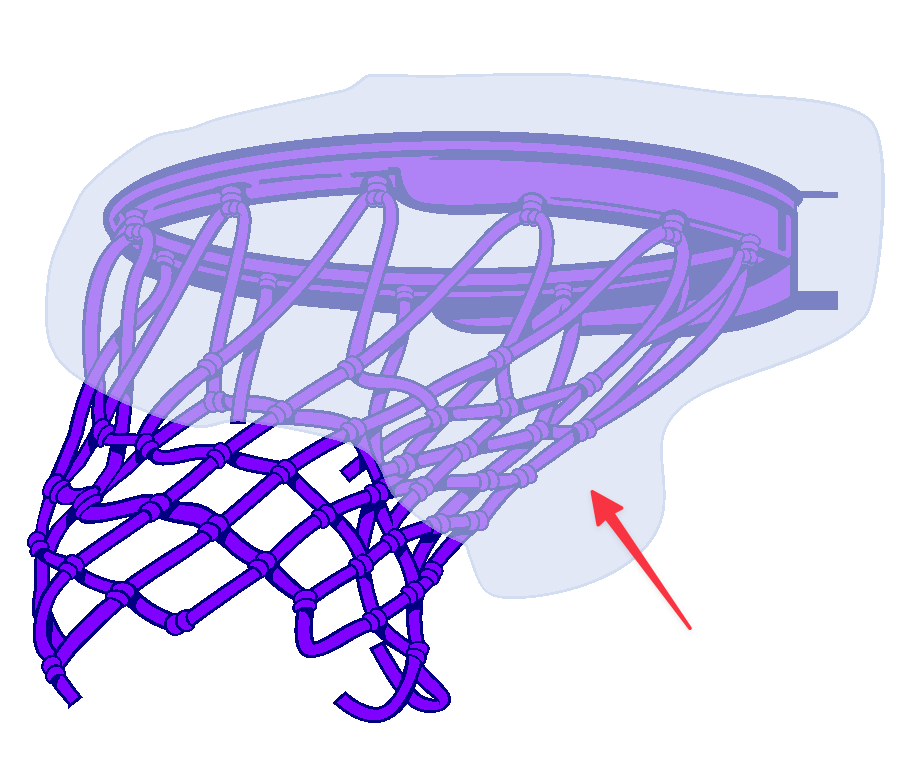
Freeze an area with a lasso. Allow the user to draw a freehand selection around part of the artwork and freeze everything inside it. The frozen area should stay in place and retain its shape while I drag pins elsewhere. For example, I could freeze a basketball rim and the top of the net (area marked #2 in green rectangle in ref image), then pull the bottom of the net down and to the left (area marked #1 in red circle in ref image). I’d also like a visible overlay while editing and a Clear Freeze command.
-
Select and move multiple pins together. Let me Shift-click or marquee-select several pins, then drag any selected pin to move the entire selection by the same amount. For example, I could select three pins across the bottom of the net and move them together while keeping their spacing. Unselected pins would stay where they were placed.
-
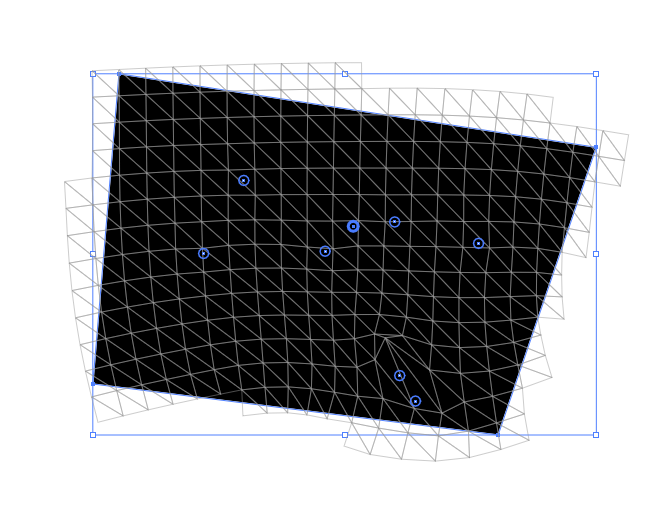
Add a Show Warp Mesh toggle. Vectorcraft & Illustrator have a triangular mesh overlay that makes it easier to see where a warp stretches or compresses the artwork. A Show Warp Mesh toggle in the Elastic Warp toolbar would let me see the mesh update live as I move pins, then hide it to inspect the artwork cleanly. UPDATE -found mesh toggle in Elastic Warp options in Shape Effects panel
Example of triangular mesh overlay:
Rough example of what lasso tool freeze could look like:
-
