VectorStyler
    • Categories
    • Unread
    • Recent
    • Tags
    • Popular
    • Register
    • Login

    Pasting new shapes dead center by default

    Scheduled Pinned Locked Moved Questions and Support
    6 Posts 3 Posters 6.9k Views 1 Watching
    Loading More Posts
    • Oldest to Newest
    • Newest to Oldest
    • Most Votes
    Reply
    • Reply as topic
    Log in to reply
    This topic has been deleted. Only users with topic management privileges can see it.
    • BoldlineB Offline
      Boldline
      last edited by

      Is there a setting I need to adjust to get the shape tool result to create and paste a new shape in the dead center of an canvas? Here is a video of what happens by default
      When I create a rectangle shape the same dimensions as the artboard to have essentially a "background color", it auto-pastes the rectangle up and to the left side of the artboard by default.
      Is there a setting I can edit to have ti default to placing it right in the middle of the artboard?

      🍎 macOS Tahoe 26.2, Mac mini (M1, 2020), Chip Apple M1, Memory 16 GB
      Cintiq 27QHD Display and LG Ultra HD Display

      VectorStylerV b77B 2 Replies Last reply Reply Quote 0
      • VectorStylerV Offline
        VectorStyler @Boldline
        last edited by

        @Boldline One thing I tested now: use PageUp/Down to go to the artboard.
        Zoom in sufficiently so that only that artboard is visible.
        Then paste.

        1 Reply Last reply Reply Quote 0
        • b77B Offline
          b77 @Boldline
          last edited by b77

          @Boldline I don't think there is a setting to create it in the middle by default.
          Also, the rectangle is created where you click, not to the left side and up side of the artboard.

          @vectoradmin By 'auto-pastes" he means "creates".

          MacBook Pro (Intel) running Monterey 12.6.4

          BoldlineB 1 Reply Last reply Reply Quote 0
          • BoldlineB Offline
            Boldline @b77
            last edited by

            @b77 @vectoradmin Thanks @b77, yes I meant "creates"

            I see what you mean @b77 about how it's not actually defaulting to upper left side in my case... it's based in part on where I double click on the artboard to open the rectangle panel. I just tried double clicking on the lower right side and it placed the rectangle closer to where I wanted it.
            When I tried to just double click on the rectangle tool without having clicked anywhere on the artboard first, it gave me the rectangle panel, but when I committed to it, nothing appeared.

            What I will probably do is create a template VS file with a rectangle the size of my artboard already centered up. that will solve the problem there

            🍎 macOS Tahoe 26.2, Mac mini (M1, 2020), Chip Apple M1, Memory 16 GB
            Cintiq 27QHD Display and LG Ultra HD Display

            b77B 1 Reply Last reply Reply Quote 0
            • b77B Offline
              b77 @Boldline
              last edited by b77

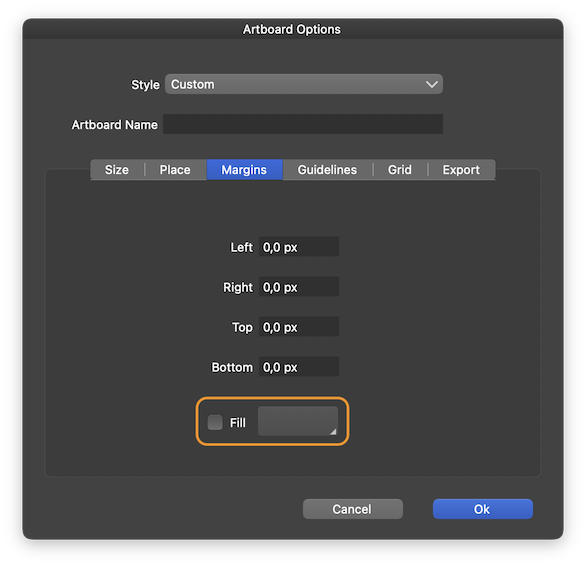
              @Boldline Option-Ctrl-A should display the Artboard Options, and under the Margins tab you can enable artboard fill:
              0_1634854883493_Artboard_Options.png

              MacBook Pro (Intel) running Monterey 12.6.4

              BoldlineB 1 Reply Last reply Reply Quote 1
              • BoldlineB Offline
                Boldline @b77
                last edited by

                @b77 Thank you for sharing that - not sure how I missed it but that is really helpful

                🍎 macOS Tahoe 26.2, Mac mini (M1, 2020), Chip Apple M1, Memory 16 GB
                Cintiq 27QHD Display and LG Ultra HD Display

                1 Reply Last reply Reply Quote 1
                • First post
                  Last post
