Resetting the Workspace on Mac
-
Hi there, folks.
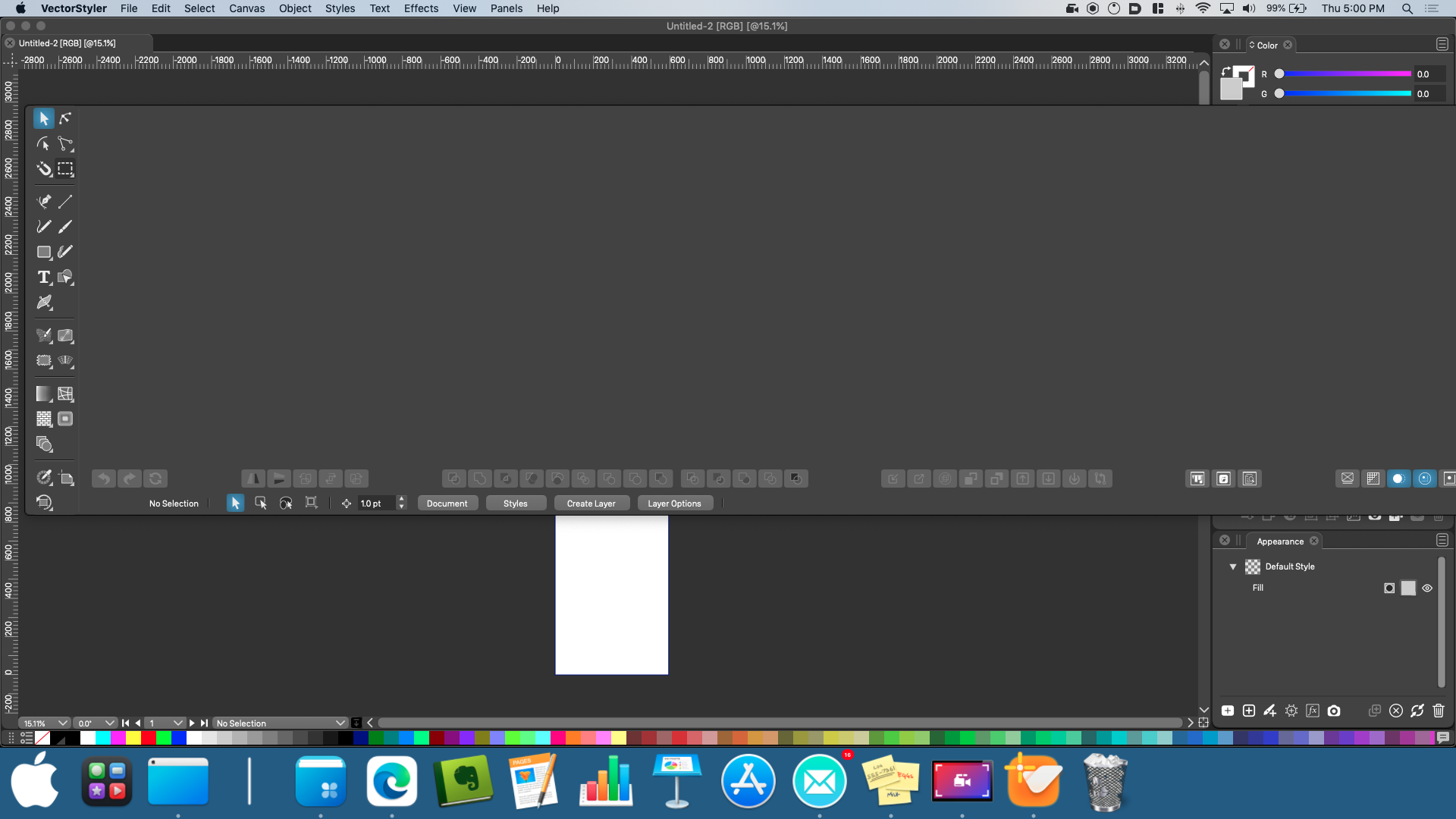
Let me start off by greeting myself. I am new here, and I am very excited to use this amazing software. I was researching the features and functions, and I really look forward to dive deeper into it. Just based off of what I observed so far, I am pretty confident that this will be a new standard program for my everyday use.Anyway, I started the trial, and I am experimenting with the different panels, but it appears that the Toolbox got docked on the Menu bar.
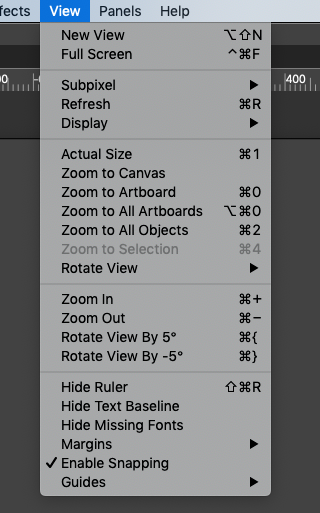
I tried clicking and dragging it off, but it won't budge. My goal is to reset the workspace to default. I came across another thread on this forum from a Windows user and noticed that there is a "Workspace" option in the View menu, but I do not have that as one of the options.
I also came across this page in the documentation about workspace files, but it does not specify where to locate them.
I look forward to your response. Cheers!
"It All Starts with Choice!"
-
@Prevalent-Arts Welcome!
To fix this, hide the toolbox from the Panels menu (Panels > Toolbox), then if you check it again it will be displayed as a floating panel you can dock again to the side.
Or you can reset the UI by holding down Command-Shift-Option when you start the app.
MacBook Pro (Intel) running Monterey 12.6.4
-
@b77 said in Resetting the Workspace on Mac:
Or you can reset the UI by holding down Command-Shift-Option when you start the app.
Resetting the app also resets the preferences and the like (learned this today actually), so it may not be the best answer unless other options fail
What about going to vectorstyler>workspaces>restore default
I've used this when my panels get messy over time from moving them around a lot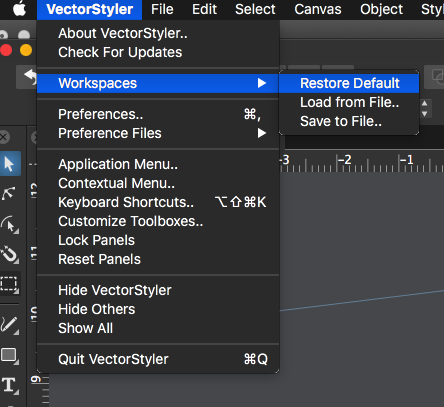
-
@Boldline You're right (should have said "reset the app'), but I suspect the OP didn't get to customize too many options in Preferences yet.

-
@b77 said in Resetting the Workspace on Mac:
but I suspect the OP didn't get to customize too many options in Preferences yet.
LOl yeah I think you're right on that!
-
@Boldline Vectorstyler > Workspaces > Restore Default also works.

-
@Prevalent-Arts Welcome to the Vectorstyler forum! I have seen some of your Affinity videos over the years and recognized your handle when it popped up in the forum today. I'm glad you've found Vectorstyler (VS). Looking forward to seeing your thoughts and ideas
-
@b77 said in Resetting the Workspace on Mac:
@Prevalent-Arts Welcome!
To fix this, hide the toolbox from the Panels menu (Panels > Toolbox), then if you check it again it will be displayed as a floating panel you can dock again to the side.
Or you can reset the UI by holding down Command-Shift-Option when you start the app.
Thank you for the fast response. The first option did the trick. The second did not for an odd reason.
@Boldline said in Resetting the Workspace on Mac:
@b77 said in Resetting the Workspace on Mac:
Or you can reset the UI by holding down Command-Shift-Option when you start the app.
Resetting the app also resets the preferences and the like (learned this today actually), so it may not be the best answer unless other options fail
What about going to vectorstyler>workspaces>restore default
I've used this when my panels get messy over time from moving them around a lotThis is exactly what I was looking for! Thank you very much!
-
@Prevalent-Arts said in Resetting the Workspace on Mac:
The second did not for an odd reason.
Must be one of those bad MacBook keyboards…
-
@b77 said in Resetting the Workspace on Mac:
@Prevalent-Arts said in Resetting the Workspace on Mac:
The second did not for an odd reason.
Must be one of those bad MacBook keyboards…
Yeah I'm not sure. But at least I now have the solution.