VectorStyler
    • Categories
    • Unread
    • Recent
    • Tags
    • Popular
    • Register
    • Login

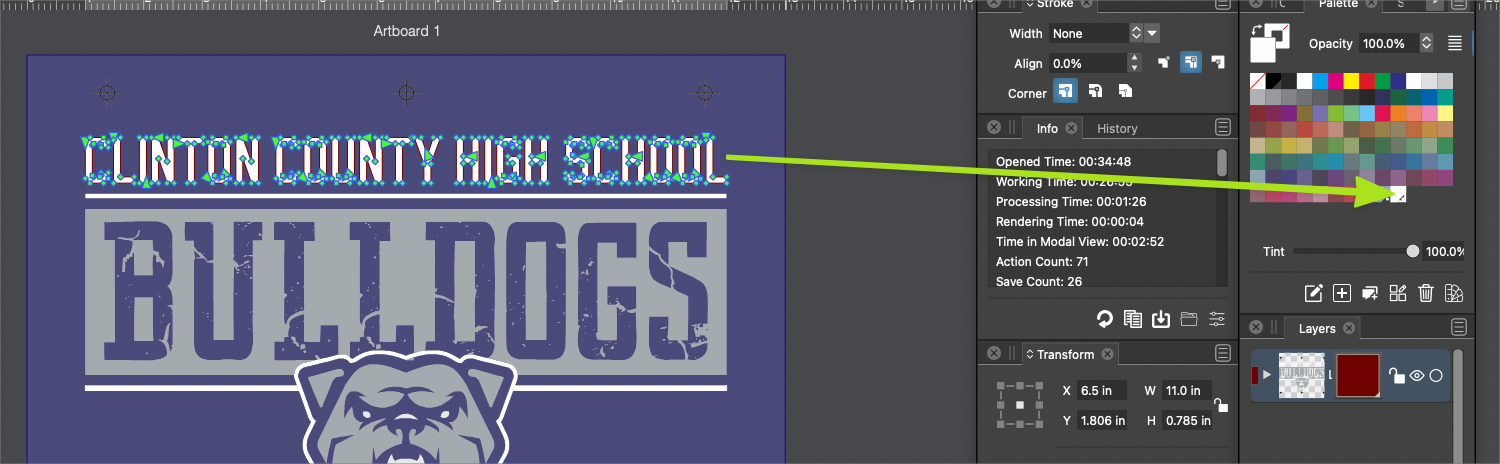
    Could the color palette indicate what color is being selected on the artboard?
    Scheduled Pinned Locked Moved Features and Ideas
    11 Posts 5 Posters 10.1k Views 4 Watching
    Loading More Posts
    • Oldest to Newest
    • Newest to Oldest
    • Most Votes
    Reply
    • Reply as topic
    Log in to reply
    This topic has been deleted. Only users with topic management privileges can see it.
    • BoldlineB Online
      Boldline
      last edited by

      Could the color palette indicate the color being selected on the artboard?
      0_1641349144723_d371db86-e2df-4b0a-b6cb-c87728cd75e6-BLD 2022-01-04 at 21.17.59.png

      🍎 macOS Tahoe 26.2, Mac mini (M1, 2020), Chip Apple M1, Memory 16 GB
      Cintiq 27QHD Display and LG Ultra HD Display

      VectorStylerV 2 Replies Last reply Reply Quote 0
      • VectorStylerV Offline
        VectorStyler @Boldline
        last edited by

        @Boldline said in Could the color palette indicate what color is being selected on the artboard?:

        Could the color palette indicate the color being selected on the artboard?

        I think in this case it does. The issue is that the indicator is also a white color.
        We need a better indicator outline here.

        b77B 1 Reply Last reply Reply Quote 0
        • b77B Offline
          b77 @VectorStyler
          last edited by b77

          @vectoradmin Just try it with a thick white contour with round joins at the corners.
          If the white contour is thick, it will overlap the surrounding colors a bit and make the selected color swatch look bigger and more visible.

          alt text

          MacBook Pro (Intel) running Monterey 12.6.4

          1 Reply Last reply Reply Quote 0
          • F Offline
            fde101 Global Moderator
            last edited by

            There are a number of ways to make the indicator more visible:

            • increase its size
            • make it invert the color behind it instead of being a solid color of its own
            • make it "pulse" between perhaps black and white (animate it)
            • give the indicator itself an outline - so make the indicator perhaps white with a black outline of its own
            1 Reply Last reply Reply Quote 0
            • IngolfI Offline
              Ingolf
              last edited by

              Animations in a user interface is generally a no go for a variety of reasons from usability to accessibility (where it is a sin) - unless you are dealing with a cursor.

              The example from @b77 would be fine with me.

              🍏 macOS Sequoia Apple Silicon

              VectorStylerV 1 Reply Last reply Reply Quote 0
              • VectorStylerV Offline
                VectorStyler @Ingolf
                last edited by

                @Ingolf Another easy way to make this type of indicators always visible is to have a two outlines, for example a 3 pixel dark and 1 pixel white.

                b77B IngolfI 2 Replies Last reply Reply Quote 1
                • b77B Offline
                  b77 @VectorStyler
                  last edited by

                  @vectoradmin A thick white-only indicator really is enough. Try it. A black-and-white mix makes it look too busy.

                  MacBook Pro (Intel) running Monterey 12.6.4

                  1 Reply Last reply Reply Quote 1
                  • IngolfI Offline
                    Ingolf @VectorStyler
                    last edited by

                    @vectoradmin said in Could the color palette indicate what color is being selected on the artboard?:

                    @Ingolf Another easy way to make this type of indicators always visible is to have a two outlines, for example a 3 pixel dark and 1 pixel white.

                    That would probably be better. You would all be surprised to know how many with an imparied vision that does use programs like even drawing programs. The more contrast there is, the better.

                    🍏 macOS Sequoia Apple Silicon

                    1 Reply Last reply Reply Quote 1
                    • VectorStylerV Offline
                      VectorStyler @Boldline
                      last edited by

                      @Boldline This should be available in build 1.1.024

                      b77B 1 Reply Last reply Reply Quote 0
                      • b77B Offline
                        b77 @VectorStyler
                        last edited by

                        @vectoradmin This doesn't work here… the white contour is displayed only when you assign a color to an object, then after you deselect and select it again, its color is not highlighted in the color bar and neither in the Color Palette panel: https://recordit.co/3KbW5Gs2by

                        MacBook Pro (Intel) running Monterey 12.6.4

                        VectorStylerV 1 Reply Last reply Reply Quote 0
                        • VectorStylerV Offline
                          VectorStyler @b77
                          last edited by

                          @b77 said in Could the color palette indicate what color is being selected on the artboard?:

                          @vectoradmin This doesn't work here… the white contour is displayed only when you assign a color to an object,

                          This works from Global and Spot colors only for now, found the issue with regular colors, will be fixed.


                          1 Reply Last reply Reply Quote 1
                          • First post
                            Last post