"Lock all Other Layers" option or layer isolation mode
-
@Boldline How about…
- Shift- or Option-clicking the 'padlock' button would lock all the other layers;
- Shift- or Option-clicking the 'eye' button would hide all the other layers.
Both these actions would isolate the layer that remains unlocked or visible, since you can't select objects on locked or hidden layers.
And Shift- or Option-clicking the 'padlock' or 'eye' button of the remaining layer should unlock or unhide all the other layers.
The more difficult part is locking or hiding all layers above or below. Do you usually deal with many layers?
-
@b77 those are good suggestions! I'm all for keeping it easy.
I'm most interested in being able to quickly access one layer only - that was why I was thinking about the isolation of a layer. I could see both layer isolation and lock all other layers both being good additions for different reasons.
if the other layers get locked - and then unlocked later, I'd think there'd have to be an option to only unlock what was previously unlocked -
You're right, for special cases where you want some layers to stay locked even after "reverse" Shift-click it's difficult to have an elegant solution. Are you thinking about a special 'Isolate' button or command?
If those layers are one under the other, it's not that difficult to click-and-drag vertically over the 'lock' or 'eye' buttons to lock or hide them back again.
Anyway, I can't think of a faster way to isolate a layer than Shift-clicking its 'eye' or 'lock' button.
……………………………………………
I guess 'Lock All Layers Above / Below' and 'Hide All Layers Above / Below' could be added as options in the Layers panel menu.
-
@b77 said in "Lock all Other Layers" option or layer isolation mode:
Anyway, I can't think of a faster way to isolate a layer than Shift-clicking its 'eye' or 'lock' button.
That might be the best solution. I like your idea
-
@Boldline Isolating a layer is possible in the Layers panel: select the layer and select "Enter Isolation Mode" from the panel menu.
@b77 I will add the lock/hide clicks to the backlog, but there is one problem to sort out: what happens if there are some layers / objects that have been locked or hidden before. When Shift+unlocking the layer, these otherwise locked objects or layers will be unlocked.
There is one feature request already in the backlog, an option (for example in layers panel) that would allow selection in highlighted layers only. Somewhat similar to isolation mode, without the dimming. Would make it behave like Graphics app.
-
@vectoradmin said in "Lock all Other Layers" option or layer isolation mode:
There is one feature request already in the backlog, an option (for example in layers panel) that would allow selection in highlighted layers only. Somewhat similar to isolation mode, without the dimming. Would make it behave like Graphic app.
Yes, if the app can have that option (by default or not), and with Cmd-click selecting anything on any unlocked layer, it would be awesome.
-
@vectoradmin said in "Lock all Other Layers" option or layer isolation mode:
@b77 I will add the lock/hide clicks to the backlog, but there is one problem to sort out: what happens if there are some layers / objects that have been locked or hidden before. When Shift+unlocking the layer, these otherwise locked objects or layers will be unlocked.
Yes, I get that. Well… at least if the locked layers are also hidden, when they get unlocked along with the others, they stay hidden.
-
@b77 @vectoradmin I was thinking about this today as I worked on a project that involves some clipping paths within it. I'm trying to edit
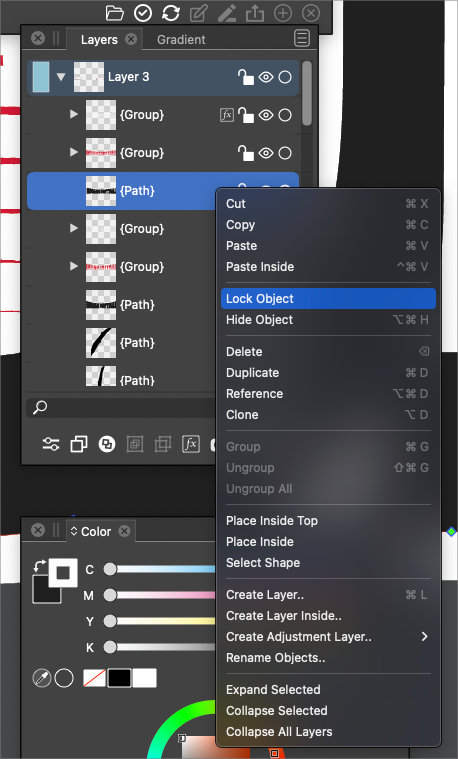
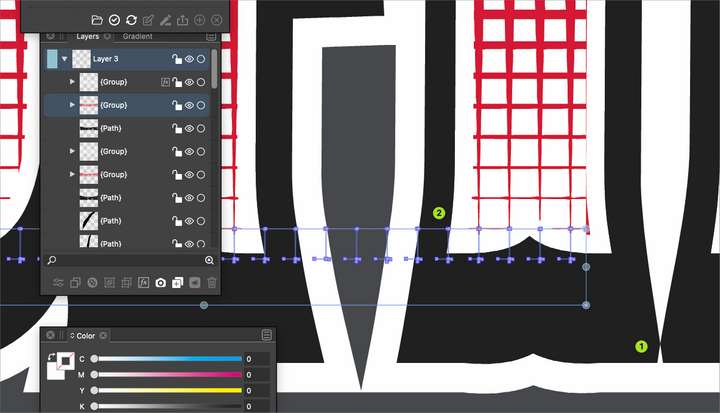
In this image below, I am trying to modify the nodes of the black fill with white stroke. VS keeps trying to select the vector I clipped inside the piece above but within the same layer. I naturally want to go into the layer panel and select this sublayer and tell it "lock all others" so I could just focus on the one part I was working with. I went ahead and locked the sublayer with the clipping path manually and that did the job. it would still be nice to be able to "lock all others" etc.
In terms of if there are already things locked when you go in and want to lock more layers/sublayers. I would expect they stay locked until you manually unlock them or hit the "unlock all layers" -
@Boldline Added the "lock all others" action for the context menu to the backlog.
When editing clipped shapes: if the clipping shape is hard to select, select the group first with the transform tool and then activate the Node tool.
Typically clipping shapes of a group are not filled, so selecting them with the node tool can be a bit of a challenge, but if you hover over where their outline should be, the outline and the nodes become visible. -
@vectoradmin For some reason the secondary image did not post in my most recent comment you replied to on here. I'll add it there retroactively to avoid confusion and here as well
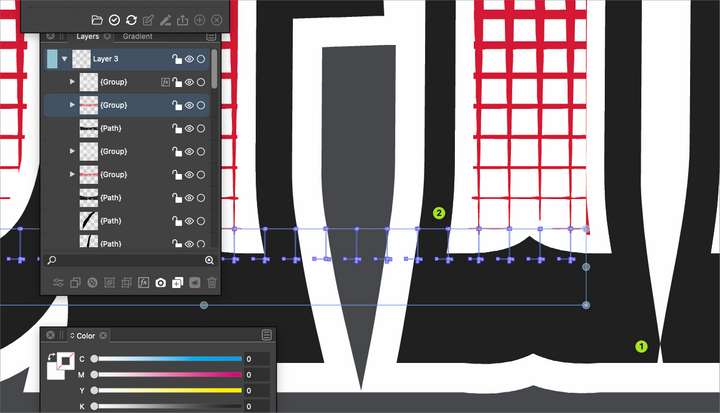
Right now with this situation, my issue is that sometimes the clipping vector wants to be selected when I am trying to grab things behind it all
In the attached image, I was trying to modify the black fill and white stroke (1) but it kept thinking I wanted to select the white box pattern inside the item above (2)