VectorStyler
    • Categories
    • Unread
    • Recent
    • Tags
    • Popular
    • Register
    • Login

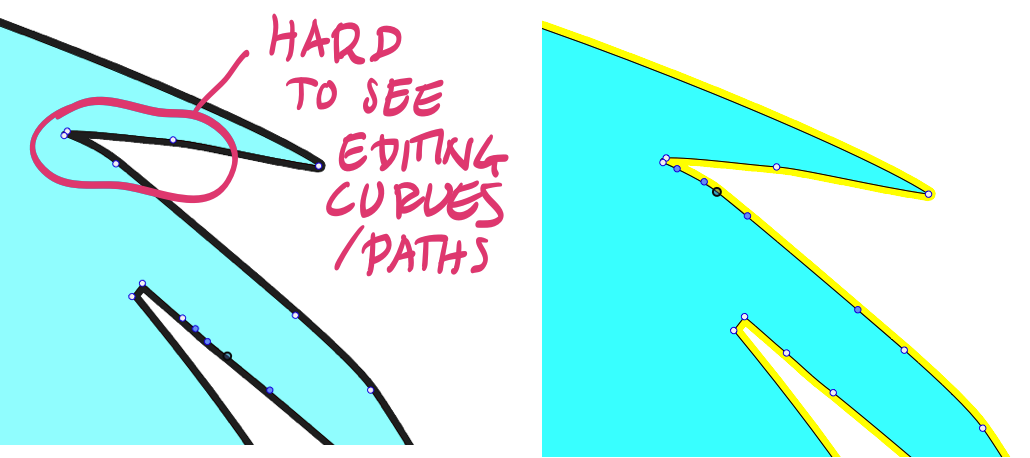
    How do I change the UI color of the editing curves?
    Scheduled Pinned Locked Moved Questions and Support
    8 Posts 3 Posters 7.4k Views 3 Watching
    Loading More Posts
    • Oldest to Newest
    • Newest to Oldest
    • Most Votes
    Reply
    • Reply as topic
    Log in to reply
    This topic has been deleted. Only users with topic management privileges can see it.
    • RaaskotR Offline
      Raaskot
      last edited by

      On black (or dark strokes) it's very tough to distinguish points and paths.
      Tried browsing the Preferences and the UI with no success.
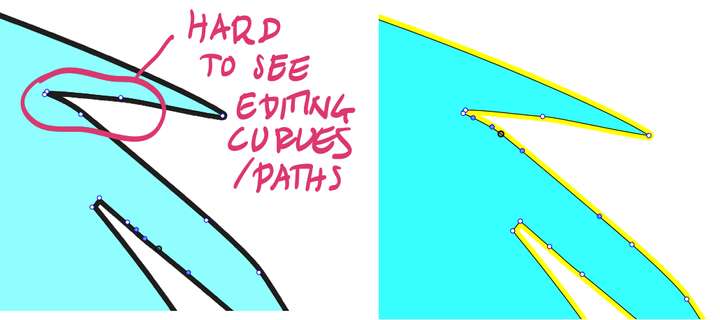
      0_1648724983858_9b31824c-60c3-4cb3-a4ee-6c655443cb77-billede.png

      VectorStylerV S 2 Replies Last reply Reply Quote 0
      • VectorStylerV Offline
        VectorStyler @Raaskot
        last edited by

        @Raaskot The default color is the Layer color (can be adjusted in the Layers panel, by clicking on the color knob just before the Layer name).

        It can also be set to another custom color (and width) in Preferences -> User Interface -> Indicator Shapes by selecting the "Node Editing Outline" mode and setting the "Indicator Outline" to Color and then selecting the color and the width.

        1 Reply Last reply Reply Quote 1
        • RaaskotR Offline
          Raaskot
          last edited by Raaskot

          I have tried your suggestion but it doesn't apply. Also attempting the Preferences-approach didn't help. Tried switching "layer" and "color" in dropdown.

          https://recordit.co/AWgDvcBeTM

          VectorStylerV 1 Reply Last reply Reply Quote 0
          • VectorStylerV Offline
            VectorStyler @Raaskot
            last edited by

            @Raaskot What is the active tool (in the toolbox) when the nodes are shown?

            1 Reply Last reply Reply Quote 0
            • S Offline
              Subpath @Raaskot
              last edited by Subpath

              @Raaskot

              As an Alternative for that, you could also switch at anytime
              to "Outline Preview" Mode (Ctrl+y, on windows)
              Its in the upper right Corner.


              0_1648727793650_Preview-1.png
              0_1648727801682_Preview-2.png

              0_1648727813771_Preview-3.png
              0_1648727823630_Preview-4.png

              Win 11
              CPU: AMD Ryzen 5 9600X, 6-core.
              GPU: Nvidia Geforce RTX 5070.

              RaaskotR 1 Reply Last reply Reply Quote 2
              • RaaskotR Offline
                Raaskot
                last edited by Raaskot

                Tried initially shape editor. Secondly the transform tool. I guess this confused my observations.

                The latter seems to affect the color when "layer" is on in Prefererences, but switching til "color" left nothing. Also tried to set indicator outline width but with no effect.

                https://recordit.co/LkAGbuEOVS

                1 Reply Last reply Reply Quote 0
                • RaaskotR Offline
                  Raaskot @Subpath
                  last edited by

                  @Subpath
                  Outline Preview mode: Thanks, I know 🙂
                  But still UI layer color display would be preferable.

                  S 1 Reply Last reply Reply Quote 1
                  • S Offline
                    Subpath @Raaskot
                    last edited by

                    @Raaskot , ok 🙂

                    Win 11
                    CPU: AMD Ryzen 5 9600X, 6-core.
                    GPU: Nvidia Geforce RTX 5070.

                    1 Reply Last reply Reply Quote 0
                    • First post
                      Last post