How to close or connect end points.
-
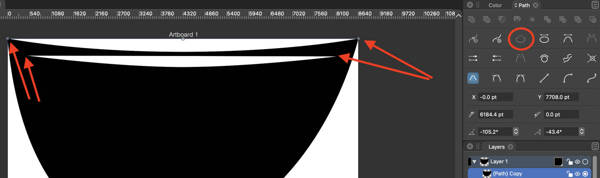
I'm brand new to Vector Styler. How do I close the end points of this shape? I have tried selecting the nodes with the node tool, but the close paths tool is greyed out. Can't seem to connect them.
-
@chillywilly Welcome on board!
Make sure both objects are open. Everything works for me. -
Thanks so much for the video demo. My lines were part of a larger shape. I deleted all the other points, leaving only these two curved lines, which would be considered independent if they weren't part of the original compound shape. The ends of each curve are open on both sides, so there are four open points. I guess Vectorstyler doesn't see them as available. I want to work with this exact shape without modifying it. When I select two end points only, the close path button is greyed out.
-
@chillywilly You need to select two nodes then use 'Join' (shortcut: J) to connect them with a segment: https://recordit.co/89SKNsYOPh
If this doesn't help, it's best to upload the file here on the forum so we can see why it doesn't work.
-
@b77 It looks so easy when you both do it. lol! Unfortunately, it's not working for me. You might notice that both the Close the Join tools are greyed out in the screenshot I posted. I don't have the privileges to upload a file here. If you want, try taking a compound path shape and deleting node points to leave two curved lines and see if the Join tool isn't greyed out for you.
-
@chillywilly That's exactly what I did — the shape in the quick video is a compound (composite) path.
Are two nodes selected though? In your screenshot it looks like you're not in node editing mode.
Node editing is done with the Shape Editor tool (shortcut: A). Switch to it, select two nodes (either directly with click-and-drag over them, or with click then Shift-click), and the 'Join' button should be available.
Quick video here: https://recordit.co/eSm2eCJNxZ