Easy grouping of objects
-
To group the selected objects, select the Group command from the Edit menu, or press Command+G.
- I don't see a Group command from Edit (Windows) ?
- Marked layers do not allow for grouping so I have to select the individual objects
Why is this necessary? In my workflow I draw/make a lot - a lot - of individual objects I later group together in an ordered hierarchy of content objects for the sake of sanity and simplicity. I routinely select a handful or more objects and group them, name the group. Done. I do this all day long when manually drawing or tracing complex art.
Having to select the layers that way before grouping them makes no sense to me? Did I miss something?

-
@Ingolf 'Group' is in the Object menu. It groups objects, not layers (objects reside on a layer).
-
@b77 Ah, but still, it was just me using the wrong term. When I select the objects like this the Group command from the Objects menu is disabled.
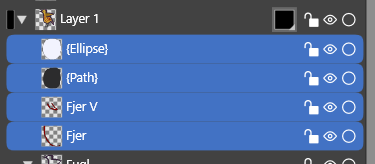
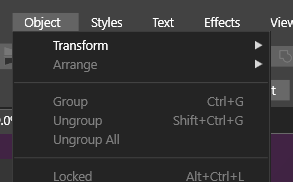
Selecting multiple objects this way can be done easily with the SHIFT key pressed. As in all other programs.
-
@Ingolf The selection made in the Layers panel not the same as the selection on the canvas.
To group in the layers panel, use the fourth icon at the bottom.To use the layers panel to make selections on the canvas, click on the small circles at the end of each row (dragging selects multiple objects).
-
@vectoradmin I see.
Is it possible to add a right click menu to the layers panel with some of these options readily available ? Context sensitive kinda. So I can easily group whatever is marked with blue than can actually be grouped?
To group in the layers panel, use the fourth icon at the bottom.
Again, then the objects can indeed be grouped, just not with a keyboard shortcut. The user must know the difference and I am not sure I understand the value of this approach. It could be me, though, I am still new to the program, but the more fluid a program makes a workflow, the more productive one gets.
Bug. BTW if I right click a layer (does nothing) there is no tooltip afterwards when hovering the icons below.


