VectorStyler
    • Categories
    • Unread
    • Recent
    • Tags
    • Popular
    • Register
    • Login

    Can't get trace to work logically

    Scheduled Pinned Locked Moved Questions and Support
    23 Posts 3 Posters 36.4k Views 3 Watching
    Loading More Posts
    • Oldest to Newest
    • Newest to Oldest
    • Most Votes
    Reply
    • Reply as topic
    Log in to reply
    This topic has been deleted. Only users with topic management privileges can see it.
    • VectorStylerV Offline
      VectorStyler @ambros
      last edited by

      @ambros Essentially @b77 explained all:

      It is important to remember, that the trace is "live", linked to the image and can be updated (retraced).
      It has to be expanded and ungrouped to have the vectors.

      Here is what I get with tracing:
      0_1637848320190_imagetrace1.vstyler

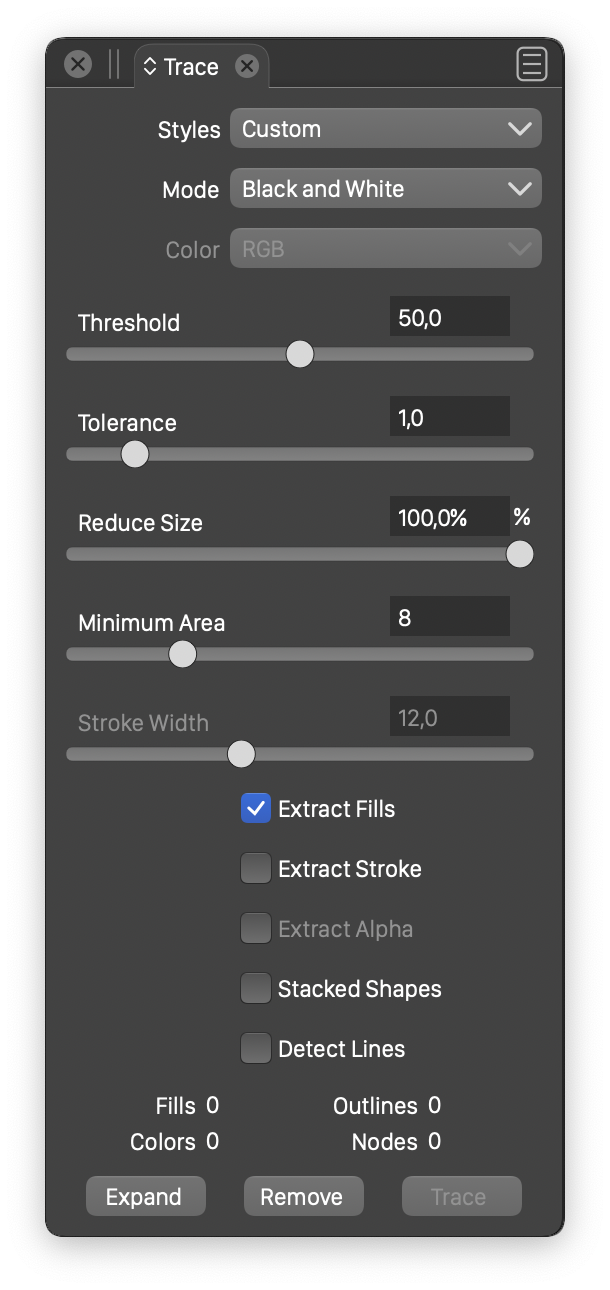
      These are the settings I used:

      0_1637848356933_tracepanel1.png

      Also: the forum file size issues are still persisting.

      1 Reply Last reply Reply Quote 0
      • ambrosA Offline
        ambros
        last edited by

        Yes, thanks both @b77 @vectoradmin . I got there in the end.. although I am not sure what you mean about the thin white contour - i didn't see that on mine I don't think ?
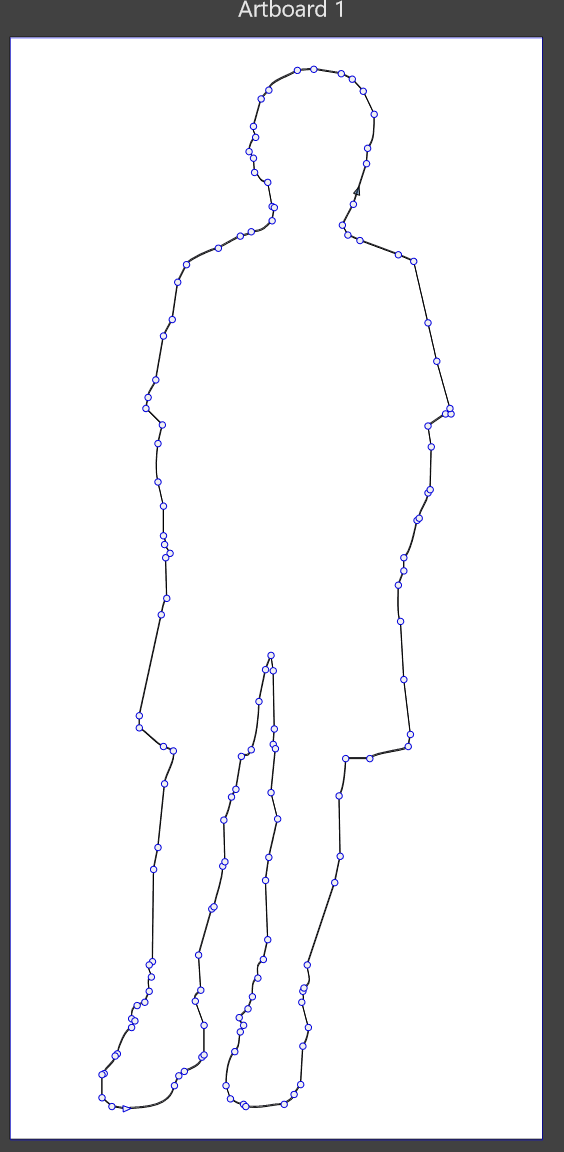
        0_1637848795189_Traced.png

        Windows 11 Home 21H2

        • 11th Gen Intel(R) Core(TM) i9-11900H @ 2.50GHz 2.50 GHz
        • 16Ghz RAM
        • Nvidia GeForce 3060TX
        b77B 1 Reply Last reply Reply Quote 0
        • VectorStylerV Offline
          VectorStyler @ambros
          last edited by

          @ambros One option that might also be useful:
          If you do not need the "live" feature of the trace, then uncheck the "Keep with Image" in the Trace panel menu.
          In this case, there will be no need for expand, but an ungroup is still needed to get to the resulting curves.

          ambrosA 1 Reply Last reply Reply Quote 0
          • b77B Offline
            b77 @ambros
            last edited by b77

            @ambros said in Can't get trace to work logically:

            I am not sure what you mean about the thin white contour - i didn't see that on mine I don't think?

            The white background of the image was cleared in such a way that there is still a thin white contour around the black drawing.

            If you view the image over a black background (you can change the forum's skin to 'Cyborg' from your account's Settings), you will see this clearly. 🙂

            MacBook Pro (Intel) running Monterey 12.6.4

            1 Reply Last reply Reply Quote 1
            • ambrosA Offline
              ambros
              last edited by

              Thanks @b77 got it

              Windows 11 Home 21H2

              • 11th Gen Intel(R) Core(TM) i9-11900H @ 2.50GHz 2.50 GHz
              • 16Ghz RAM
              • Nvidia GeForce 3060TX
              1 Reply Last reply Reply Quote 0
              • ambrosA Offline
                ambros @VectorStyler
                last edited by

                @vectoradmin Yes thank you that is useful

                Windows 11 Home 21H2

                • 11th Gen Intel(R) Core(TM) i9-11900H @ 2.50GHz 2.50 GHz
                • 16Ghz RAM
                • Nvidia GeForce 3060TX
                1 Reply Last reply Reply Quote 0
                • ambrosA Offline
                  ambros
                  last edited by ambros

                  Problem has re-materialised.
                  Initially I couldn't get anything to work. Expand was grayed out on the trace panel despite having 2000+ nodes.
                  So I closed down vectorstyler and restarted and that got it working - expand was no longer greyed out
                  Then I tried to ungroup..
                  I have selected traced elements and carried out 'ungroup all' (** note for some reason the right button mouse context menu has stopped working for this .. I HAVE to use the menus now)

                  SO I have a series of paths visible in the layers panel but I can't edit / open / select or use them

                  Windows 11 Home 21H2

                  • 11th Gen Intel(R) Core(TM) i9-11900H @ 2.50GHz 2.50 GHz
                  • 16Ghz RAM
                  • Nvidia GeForce 3060TX
                  b77B 1 Reply Last reply Reply Quote 0
                  • ambrosA Offline
                    ambros
                    last edited by ambros

                    Ah OK.. so I have found that if I click on a layer I can then edit that element,
                    Why on earth I can't select the same element in the document itself is beyond me - that is SO unintuitive.
                    ALL I want to do (it feel likes 'ever') is double click on an element and edit it. This for whatever reason is not possible

                    Windows 11 Home 21H2

                    • 11th Gen Intel(R) Core(TM) i9-11900H @ 2.50GHz 2.50 GHz
                    • 16Ghz RAM
                    • Nvidia GeForce 3060TX
                    1 Reply Last reply Reply Quote 1
                    • b77B Offline
                      b77 @ambros
                      last edited by b77

                      @ambros Simple clicking (not double-clicking) on the round circle of any object in the Layers panel should select it.
                      Or you can select it on the canvas by clicking it with the Transform tool (shortcut: V), assuming it's not grouped with some other object(s).

                      If this doesn't help, please post the file if you can.

                      MacBook Pro (Intel) running Monterey 12.6.4

                      ambrosA 1 Reply Last reply Reply Quote 1
                      • ambrosA Offline
                        ambros @b77
                        last edited by ambros

                        @b77 said in Can't get trace to work logically:

                        @ambros Simple clicking (not double-clicking) on the round circle of any object in the Layers panel should select it.

                        Thank you for the reply @b77 - Yes, I found that out (that selecting the layer/object in the layers panel enables it to be selected) But I have the options "Select Highlighted" and "Highlight Selected" both checked in the layers panel.
                        I had thought that enabled the behaviour that I could just click on an element itself (within the artboard / canvas) and edit it.

                        The issue with having to click on the layer - is that I have hundreds of paths (each on a separate layer) in the layers panel.. how on earth am i supposed to be able to find the one i need to click in order to be able to edit it ?

                        By far the easiest and best way to select something in a document is to click on the item itself. the disconnect of looking at an object in front or you on the screen, and then have to scroll through a list of all objects in the document layers panel in order to edit it is bloody crazy to be honest.

                        The shortcut 'V' enables the 'arrow tool' (I would personally call this the 'select' tool.
                        If I click on an item in the document using that tool, I cannot select any of the items on the screen (except by using that self same tool to select the layer)

                        Windows 11 Home 21H2

                        • 11th Gen Intel(R) Core(TM) i9-11900H @ 2.50GHz 2.50 GHz
                        • 16Ghz RAM
                        • Nvidia GeForce 3060TX
                        1 Reply Last reply Reply Quote 0
                        • ambrosA Offline
                          ambros
                          last edited by

                          Ah HA!!

                          If I click on this icon (members of composite select) and THEN use the arrow tool I CAN select the elements in the document :
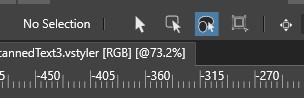
                          0_1638282079967_Screenshot 2021-11-30 142112.jpg

                          Windows 11 Home 21H2

                          • 11th Gen Intel(R) Core(TM) i9-11900H @ 2.50GHz 2.50 GHz
                          • 16Ghz RAM
                          • Nvidia GeForce 3060TX
                          VectorStylerV 1 Reply Last reply Reply Quote 1
                          • VectorStylerV Offline
                            VectorStyler @ambros
                            last edited by

                            @ambros That is not a good way to select objects. It selects shapes inside composite shapes (a bit complicated), but it will also select regular shapes.

                            If you want to select inside a group, than the second icon (arrow with rounded rectangle) is better.

                            But the Node tool (second in the toolbox), should select paths inside groups also.

                            ambrosA 1 Reply Last reply Reply Quote 0
                            • ambrosA Offline
                              ambros @VectorStyler
                              last edited by

                              @vectoradmin said in Can't get trace to work logically:

                              But the Node tool (second in the toolbox), should select paths inside groups also.

                              That was what I was trying to do basically.. so neither of the other options worked...
                              Thanks for the reply though

                              Windows 11 Home 21H2

                              • 11th Gen Intel(R) Core(TM) i9-11900H @ 2.50GHz 2.50 GHz
                              • 16Ghz RAM
                              • Nvidia GeForce 3060TX
                              VectorStylerV 1 Reply Last reply Reply Quote 0
                              • VectorStylerV Offline
                                VectorStyler @ambros
                                last edited by

                                @ambros Could you send me a VS file with the result from a trace, where the Node tool cannot be used? It would help in replicating the issue.
                                You can send it to csraba at vectorstyler.com

                                1 Reply Last reply Reply Quote 0
                                • ambrosA Offline
                                  ambros
                                  last edited by

                                  Yes Of Course

                                  Windows 11 Home 21H2

                                  • 11th Gen Intel(R) Core(TM) i9-11900H @ 2.50GHz 2.50 GHz
                                  • 16Ghz RAM
                                  • Nvidia GeForce 3060TX
                                  1 Reply Last reply Reply Quote 1
                                  • First post
                                    Last post