Selection mode that locks any option aside from moving the shape/object
-
At times, I am trying to move objects with the transform tool and cursor that are REALLY tiny or might have thin lines that are hard to click on easily. Too often it's easy to accidentally skew or warp the scale of the object by mistake, thinking you have it directly selected. other times it's way too easy to accidentally select the red dot that allows for custom rotation.

We have other options for easier selections of difficult tasks (I still think they belong hidden in the toolbar under the transform tool lol), what about an selection option that disables all the other editing options aside from moving? or give options to what that selection option can control?
There are plenty of times I just want to move objects around and not have to stress over selecting the small object in an exact way to get it to cooperate.
I know for a fact this is an issue with all vectoring programs - and I've seen too many others struggle with this very thing, to the point they give up and just use the shift-arrow to get it to move without skewing or warping or scalingi want to clarify that I'd still want to be able to hold down shift for example, as a modifier and keep things aligned as it moves, stuff like that... more disabling all the editing options of the selected shape itself so it can be moved with ease
🍎 macOS Tahoe 26.2, Mac mini (M1, 2020), Chip Apple M1, Memory 16 GB
Cintiq 27QHD Display and LG Ultra HD Display -
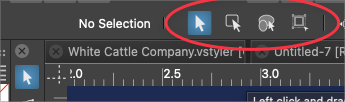
@Boldline I added this to the backlog, but this would not be suitable next to those selection modes.
Those are "what we want to select" mode options.And this would be a tool for "what we want to do".
So the "Move tool" would work better among these (next to scale, skew, rotate tools):

-
@vectoradmin thanks for explaining it. I agree with you on that new location. I think it would work well amongst the "what we want to do" section. I'm always hesitant to want to add new full tools and fill up more space in VS. I'm always a proponent of seeing if the function can be added appropriately to an existing tool.
Playing Devils advocate for a moment, Is it was better to make it a keyboard modification than a full tool? Or would that interfere with the other move modifiers we'd be using such as shift to constrain direction of move, etc.?
I have a few other thoughts on VS productivity that I'm going to make an independent post and link back to here as it ties in some. -
@Boldline said in Selection mode that locks any option aside from moving the shape/object:
Is it better to make it a keyboard modification than a full tool?
Modifiers are a bit overloaded, especially for the transform tool. Lets try this new tool mode, especially as it can be done with zero coding, so hopefully no regression

-
@vectoradmin sounds great! I'm excited to try it out whenever you get the chance to add it to a future build
You make a great point that modifiers are limited and I agree those need to be protected as well. Probably more so than worrying about taking up more space with another tool in the toolbar. -
@Boldline said in Selection mode that locks any option aside from moving the shape/object:
I know for a fact this is an issue with all vectoring programs - and I've seen too many others struggle with this very thing, to the point they give up and just use the shift-arrow to get it to move without skewing or warping or scaling
i want to clarify that I'd still want to be able to hold down shift for example, as a modifier and keep things aligned as it moves, stuff like that... more disabling all the editing options of the selected shape itself so it can be moved with ease
I wanted to add to this thread to call out what I thought was a brilliant function of VectorStyler in the Context Panel:

This (in red) has greatly helped me with the issue @Boldline is describing, as I can fine-tune my arrow keys to get around this.
That said, I also agree that an object "Move Only" mode is a good idea and not something many vector graphics apps have. nice idea!
As for placement of the "Move Only" Tool, may I suggest an additional location?
Considering how it is so close in function to the "Edit the object movement amount by keyboard" (image above) perhaps it can also nestle between this and "what we want to select" mode options? See green arrow in image above. This would put it close to where @Boldline originally thought.
But yes, it still should also be placed on the tool bar where @vectoradmin suggested, in the "what we want to do" area... -
Thinking on it more, This move tool is probably not going to be used often enough by most people to require a keyboard shortcut anyway. Just adding it to the vertical toolbar and potentially the UI itself is plenty
-
I was prompted by this conversation thread to go spend more time with the "what we want to do" section of the vertical toolbar - to get a sense of what adding the move tool would be like there. I must admit I have never really done much with these tools until now because most of them can be easily accessed by way of the standard transform tool. It made sense to me to have multiple methods to access tools but my preference had always been to just use the shortcuts tied to the transform tool.
What stood out to me this time, was noticing that each tool did only what it was advertised to do - and nothing more. If I was scaling, that was literally the only thing I can do with that tool - I could not even move the location on the artboard of the selected item I was scaling!
This gave the tools listed there a new value in their simplicity - if I only wanted to focus solely on scaling or flipping it or skewing or rotating, I could do that without worrying I was accidentally tweaking it in another way. These tools offer singular focus already - which is what we also want with a move tool - it fits right in with everything in that section already. The standard transform tool gives us all of that at once while this section gives us that singular focus - the thing missing until now was a "move" singular option.
I feel like this is coming full circle!
-
@Victor-Vector said in Selection mode that locks any option aside from moving the shape/object:
I also agree that an object "Move Only" mode is a good idea and not something many vector graphics apps have. nice idea!
This idea hit me as I was watching a client of mine via a screen share call struggle in VS to move a small item on his artboard. He tried several times and eventually gave up frustrated. He was accidentally warping it and grabbing the red dot by mistake... he resorted to the keyboard and shift key... that's when it hit me that we just need to be able to grab something and move it without making sure we click it accurately on the item itself - a one trick pony.
I can see myself using it often as I arrange individual groupings and paerts around on the screen to get a composition finalized. -
Yes, and the keyboard shortcut for the proposed Move Only Tool is already the arrow keys and SHFT + arrow keys, so that seems covered.
To your point about dedicated tools for move, scale, rotate: the Blender 3D software has something similar where there is this handy gizmo that allows the user to translate (move), scale, and rotate within the same tool interface, and then there are individual tools to do the same things exclusively.
-
@Boldline There is a "Move" tool next to the separate Scale, Skew and Rotate tools, in build 1.1.024
-
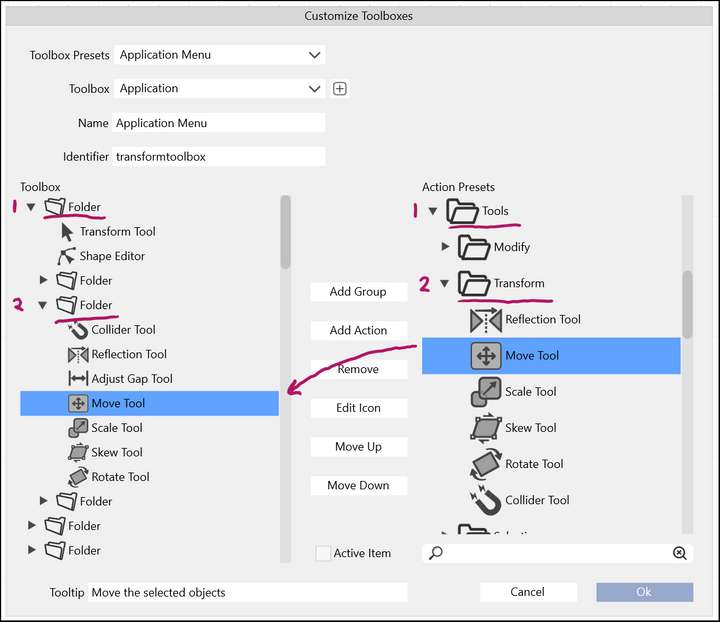
For those not using the Default Toolbox, you may add the new Move Tool here, under View > Customize > Customize Toolboxes: