Pen tool often gives me an overextended section when I try to click on the last node placed
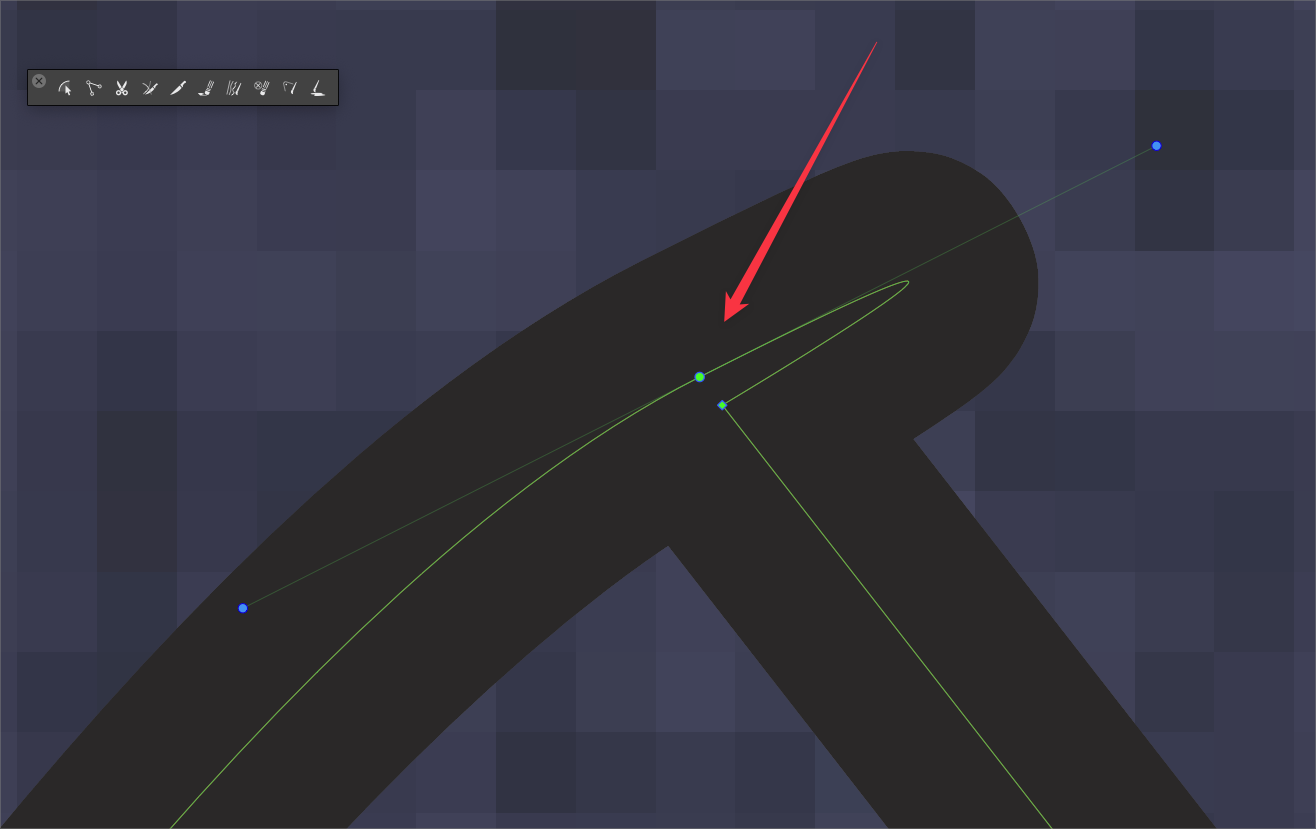
-
@Ingolf It converts the node to a cusp so your next point after that does not have a bend in between but a corner instead.
-
@Boldline said in Pen tool often gives me an overextended section when I try to click on the last node placed:
@Ingolf It converts the node to a cusp so your next point after that does not have a bend in between but a corner instead.
Then I would suggest showing a cusp node instead when hovering it - like the boolean features can show a preview when hovering one of the boolean operations icons. I actually didn't know clicking the node would convert it into a cusp - but I would have with such a preview, I think.
-
@Ingolf said in Pen tool often gives me an overextended section when I try to click on the last node placed:
I actually didn't know clicking the node would convert it into a cusp - but I would have with such a preview, I think.
Try it in affinity designer as you create a path with the pen tool. Start a path and make some sections of the path that have a curve to them and then click on the node you just made and then keep going to your next click where the next node should be. The node you clicked on before the second time will be a cusp
This has been the standard behavior in Illustrator as well
-
@Boldline said in Pen tool often gives me an overextended section when I try to click on the last node placed:
@Ingolf said in Pen tool often gives me an overextended section when I try to click on the last node placed:
I actually didn't know clicking the node would convert it into a cusp - but I would have with such a preview, I think.
Try it in affinity designer as you create a path with the pen tool. Start a path and make some sections of the path that have a curve to them and then click on the node you just made and then keep going to your next click where the next node should be. The node you clicked on before the second time will be a cusp
This has been the standard behavior in Illustrator as well
It is a great concept - I never discovered it. Designer shows a line symbol next to the pointer when hovering the last created node, I thought it was as DELETE NODE symbol (looks like a minus sign) so I never clicked. That is why I think showing a cusp node while hovering instead of the actual node is a better idea in this scenario.
-
@Ingolf I'm glad you are discovering it now!
 it will no doubt, speed up your workflow in Affinity and in VS. I'm not against the idea of having the node show as a cusp when hovered over - I think I would need to test it out myself i real life to know for sure how I feel. It makes sense, I just wonder if it will be too "busy" and not subtle enough.
Right now there's no indication at all when you hover over the most recently placed node in VS to show it could change - so whether it's the same look and snapping pull as when you close a path in VS or something more like what you're suggesting, I think it will help
-
@Boldline said in Pen tool often gives me an overextended section when I try to click on the last node placed:
Right now there's no indication at all when you hover over the most recently placed node in VS to show it could change - so whether it's the same look and snapping pull as when you close a path in VS or something more like what you're suggesting, I think it will help
It don't think it too should use the blue circle symbol that closes a path with the pen tool - then the symbol has several meanings and then you have to click to know. Then we are entering Linux territory and waving goodbye to the usability.
All the colors and symbols are a bit like colors in good old WordPerfect symbolizing something. You had to read the f... manual, memorize them all or start print preview to know for sure what it meant. That is why I like concice feedback from software like showing the cusp symbol. Anyway, the blue circle meaning 'Close shape' should be reserved for indicating close.
Hints in the status bar a'la AD or Inkscape are the second best help (tooltips would drive you nuts) but they too can drown in options with just a limited space to show them, so I getting more and more interested in hints like the node showing what a click with result in directly on the drawing. If alt-clicking it has another effect than just clicking it, this can be displayed when holding alt first, only displaying that hint when relevant.
But sure, something should show that clicking the node does something.
-
@Ingolf I think it depends if the blue circle is reserved solely for "close shape" or it just implies an action is available. There would be no confusion between the two if they were shared, because one involves the node recently made and the other involves circling back to the first node made.
As I mentioned, another option is a change of color with the node hovered over
Showing a node cusp symbol when hovering might work if no other options are going to be added, as you mentioned a shift or alt click, etc
The little symbols next to the cursor might be another good solution but I worry they'd be hard to see when working quickly -
I disagree - I stand by my words above.
-
@vectoradmin I found that if I removed my custom preferences file and returned to the default set, I was able to get better control over my attempts using the shortcut to click again to make a cusp out of the last node created. So I'm wondering if there is a setting in my preferences that is working against me with this effort? If I send you the preferences file again, would you be willing to take a look and try making cusp points using my preferences and see what happens?
Secondly, in testing things out, the last node placed is always an arrow shape by default, showing the direction the path is taking. I could see it possibly switching over to whatever shape is being used in the customized preferences for the cusp tool.
I still advocate for a very slight magnetic pull - the same level or slightly less than what is used or closing a path.
The way the node currently fills with a color when hovered over would work fine I'd think - along with the slight pull -
@vectoradmin I sent you by email my custom preferences file along with a file I had tested the pen tool cusp node shortcuts with my preferences file results on.
Seems like the issue is with me and not with the default settings in VS - I just need help knowing what needs to be adjusted in the preferences to make that work - and possibly, a fix for Vs so that whatever settings I am using will still give me the default results in this area
-
@Boldline Found it: when the Pen tool is active, the "Adjustment" checkbox in the context panel should be checked to allow adjustments.
-
@vectoradmin Awesome! thank you for helping me solve that problem!!! it works so much better now


