Selecting Contiguous Nodes in a Sub-path
-
This behavior of Cmd-A in node editing mode was suggested by somebody on the forum not that long ago and was implemented promptly by the developer.
We're spoiled here…
Regarding the second question… probably not possible, but why not post an example file just to be sure.
-
@Victor-Vector If a shape has multiple subpaths, select at least a node from each subpath (you can use click-and-drag) and hit Cmd-A. Maybe this is what you need.
If this doesn't help, post an example file.
-
@b77
Here is the file: 0_1653429002507_Stacked Nodes.vstylerI think the best way is to use the "Break Apart" (CTRL+K) feature...
But as @Boldline points out this is something that he has difficulty with when there are multiple nodes stacked "on top" of each other, so it maybe worth a solution if others are wishing for the same thing.
@b77 indeed, we are spoiled here! @VectorStyler is very good to his users!

-
@Victor-Vector I downloaded the file and yes, one way is to break the shape apart and delete three of the four ellipses.
But you can also…
- click one node and press Shift-Arrow key to get it out of the way, then…
- click-and-drag to select the other three overlapping nodes;
- press Cmd-A, which will select the nodes of three of the overlapping ellipses;
- hit Delete;
- move the node back with Shift-Arrow key…
… and now the object is made of one ellipse.
But how did you end up with a composite object made of identical overlapping shapes?
MacBook Pro (Intel) running Monterey 12.6.4
-
@b77 said in Selecting Contiguous Nodes in a Sub-path:
click one node and press Shift-Arrow key to get it out of the way, then…
I know I jumped in with a related issue but maybe it can help - what if when splitting a stroke, the bottom node was selected by default?
-
@Boldline Do you create or encounter (via import) composite shapes with many overlapping nodes of subpaths (holes) that need to be cleared?
I don't and didn't until now, so I don't see the need for defaulting to select the bottom node in a stack of overlapping nodes. It can even be confusing, I think.
Unless it's something else you mean, in which case I don't understand until I see an example file.
-
@b77 I was more speaking of the more common situation where you split a path and end up with two nodes sitting overtop one another - each node connected to the end of each new piece of the now divided path. As luck would usually have it, I need to delete or move the bottom node and it's hard to access it. If the bottom node in those cases was selected first, it's easy to just go ahead and delete it or move it. If you needed the top node, you could click off and click the node on top
-
@Boldline The app can't figure out when you need the bottom node selected, so it defaults to selecting the top node.
It would be an improvement if after selecting both overlapping nodes, Shift-clicking would deselect the top one so you can delete only the bottom node without Shift-nudging the one on top out of the way.
-
@b77 said in Selecting Contiguous Nodes in a Sub-path:
@Boldline The app can't figure out when you need the bottom node selected, so it defaults to selecting the top node.
I agree - but it's a lot easier to manually select the top node by hand than to select the bottom one hidden below. That's why I was suggesting making VS default to selecting the hardest to click on node first when the break is made in the path because if you wanted to top one instead, just click off and then click on the top node.
It would be an improvement if after selecting both overlapping nodes, Shift-clicking would deselect the top one so you can delete only the bottom node without Shift-nudging the one on top out of the way.
I'm totally open to this solution or any other solution that makes it easy to select the bottom node so as you said, you don't have to click on one and move it out of the way and then move it back when done.
ultimayely we want the same thing -
How about using the same shortcut — Option-clicking – as when you select an object under another object:
- click selects the top node;
- Option-click selects the bottom node.
-
@b77 said in Selecting Contiguous Nodes in a Sub-path:
@Victor-Vector I downloaded the file and yes, one way is to break the shape apart and delete three of the four ellipses.
But you can also…
- click one node and press Shift-Arrow key to get it out of the way, then…
This is a very valid solution. Thanks for this suggestion. It is a good idea to use the precision of the nudge to one's advantage. Many times I get caught in a certain way of seeing things and I appreciate it when someone can show me another way.
But how did you end up with a composite object made of identical overlapping shapes?
Oh, that was just for illustration purposes. I can give you more of a real-world example where there might be nodes either stacked on one another or in close proximity. More to what @Boldline is talking about trying to select a node underneath a node. Check out this file as an example:
0_1653449050525_Overlapping nodes.vstyler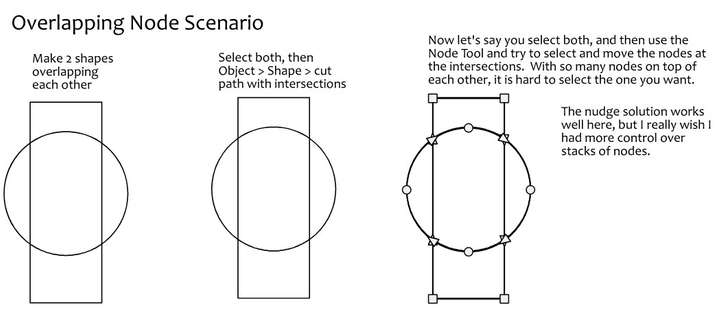
@b77, @Boldline I like your ideas of using a modifier key with a click-selecting as a way to grab a node underneath another node. Perhaps it can cycle through the node stack with each modified click, like: 1,2,3,1,2,3, etc.?
-
@Victor-Vector I added to the backlog the click+select to overlapping nodes.
I'm not sure how this would work yet. The Option+ key is not available for this. -
@VectorStyler Thank you for considering this idea.
Perhaps a modifier key and a right-click?
Currently right-click brings up a node menu when nodes are selected.
Maybe modifier key + right-click brings up a little menu showing the all the selected nodes and maybe the user can click to check them off or on? Nodes would be sorted from last to first, top to bottom?I am sure you or others may have a more elegant solution, just trying to help
...


