VectorStyler
    • Categories
    • Unread
    • Recent
    • Tags
    • Popular
    • Register
    • Login

    update 1.1.042

    Scheduled Pinned Locked Moved Release notes of past builds
    45 Posts 7 Posters 19.9k Views 5 Watching
    Loading More Posts
    • Oldest to Newest
    • Newest to Oldest
    • Most Votes
    Reply
    • Reply as topic
    Log in to reply
    This topic has been deleted. Only users with topic management privileges can see it.
    • BoldlineB Online
      Boldline @b77
      last edited by

      @b77 said in update 1.1.042:

      But when they are black like in your screenshot, indeed the highlight of the path — its spine — is not visible.

      Wouldn't this be fixed by changing your layer color indicator? I worry that if we thicken those lines, it's going to be less useful and look less professional

      🍎 macOS Tahoe 26.2, Mac mini (M1, 2020), Chip Apple M1, Memory 16 GB
      Cintiq 27QHD Display and LG Ultra HD Display

      b77B 3 Replies Last reply Reply Quote 0
      • b77B Offline
        b77 @Boldline
        last edited by b77

        @Boldline I don't insist on thicker, no.

        MacBook Pro (Intel) running Monterey 12.6.4

        BoldlineB 1 Reply Last reply Reply Quote 0
        • BoldlineB Online
          Boldline @b77
          last edited by

          @b77 lol I was just wondering if switching the layer color itself solved the problem for you. Out of curiosity, how thick would you want it to be?

          🍎 macOS Tahoe 26.2, Mac mini (M1, 2020), Chip Apple M1, Memory 16 GB
          Cintiq 27QHD Display and LG Ultra HD Display

          b77B 1 Reply Last reply Reply Quote 0
          • b77B Offline
            b77 @Boldline
            last edited by

            @Boldline said in update 1.1.042:

            Wouldn't this be fixed by changing your layer color indicator?

            You're right, but…

            Why not have the app override that color and always use something that has enough contrast no matter the color of the stroke?

            MacBook Pro (Intel) running Monterey 12.6.4

            Victor VectorV 1 Reply Last reply Reply Quote 0
            • b77B Offline
              b77 @Boldline
              last edited by

              @Boldline said in update 1.1.042:

              @b77 Out of curiosity, how thick would you want it to be?

              At least on Retina screens it seems to be 1 pixel thick. 2 px would be better, IMO.

              MacBook Pro (Intel) running Monterey 12.6.4

              1 Reply Last reply Reply Quote 0
              • b77B Offline
                b77 @Boldline
                last edited by b77

                @Boldline said in update 1.1.042:

                Wouldn't this be fixed by changing your layer color indicator?

                Actually, no. It's the same standard blue, no matter what the layer color is.

                @VectorStyler Can this be changed somewhere?

                MacBook Pro (Intel) running Monterey 12.6.4

                BoldlineB VectorStylerV 2 Replies Last reply Reply Quote 0
                • BoldlineB Online
                  Boldline @b77
                  last edited by

                  @b77
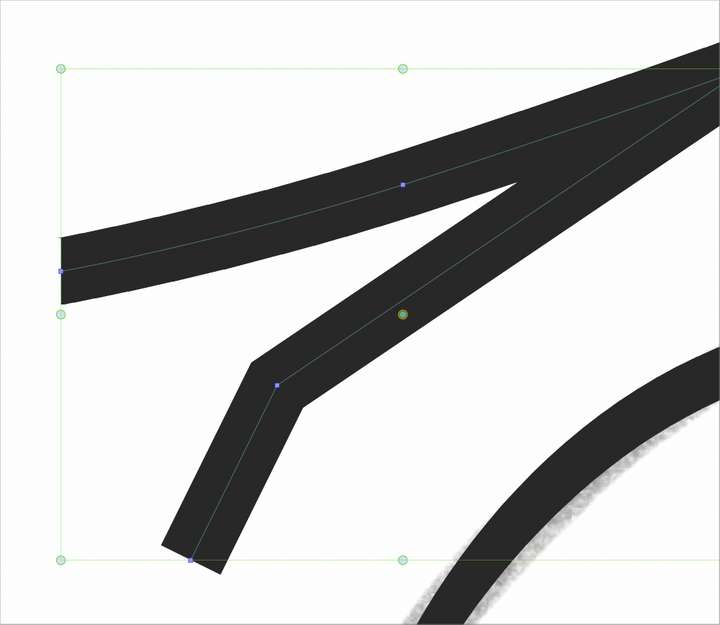
                  Using the transform tool, the path indicator is blue but my selection box is green in correlation with the layer color indicator.
                  0_1654274209396_9601a94b-0d88-431f-87ce-835db3328d8a-BLD 2022-06-03 at 12.35.58.png

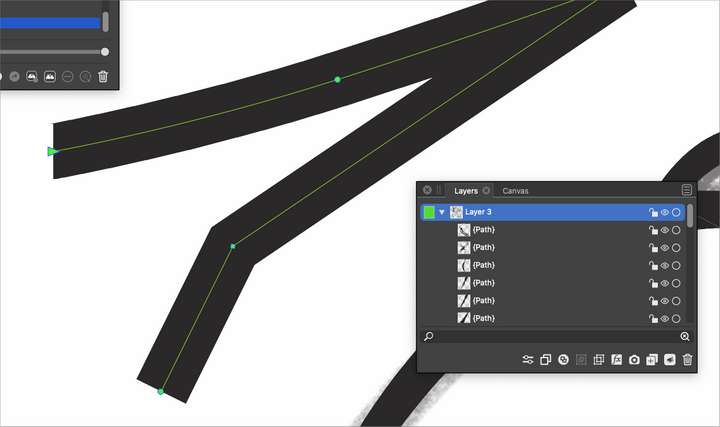
                  When I switch to the node editing tool i can see the color of my layer clearly against the black
                  0_1654274054436_814c33e4-9066-44df-b3b4-2de820ff835f-BLD 2022-06-03 at 12.33.56.png

                  🍎 macOS Tahoe 26.2, Mac mini (M1, 2020), Chip Apple M1, Memory 16 GB
                  Cintiq 27QHD Display and LG Ultra HD Display

                  b77B 1 Reply Last reply Reply Quote 0
                  • b77B Offline
                    b77 @Boldline
                    last edited by

                    @Boldline Got it, indeed it changes color in node editing mode. 👍

                    MacBook Pro (Intel) running Monterey 12.6.4

                    1 Reply Last reply Reply Quote 1
                    • Victor VectorV Offline
                      Victor Vector @b77
                      last edited by Victor Vector

                      @b77 said in update 1.1.042:

                      Why not have the app override that color and always use something that has enough contrast no matter the color of the stroke?

                      Same could be done for the node segment highlight color idea. If the highlight color was orange, for example, and the stroke color was also orange, the VS app could override that color with a contrasting one.

                      b77B 1 Reply Last reply Reply Quote 0
                      • VectorStylerV Offline
                        VectorStyler @b77
                        last edited by

                        @b77 said in update 1.1.042:

                        Actually, no. It's the same standard blue, no matter what the layer color is.
                        @VectorStyler Can this be changed somewhere?

                        Is this the path spine color? It is blue when hovering over the path, and turns to the layer color once selected.

                        1 Reply Last reply Reply Quote 0
                        • b77B Offline
                          b77 @Victor Vector
                          last edited by b77

                          @Victor-Vector said in update 1.1.042:

                          Same could be done for the node segment highlight color idea. If the highlight color was orange, for example, and the stroke color was also orange, the VS app could override that color with a contrasting one.

                          Yes, when in node editing mode (of which node selection is part of), if possible have a (low-key) color that always has enough contrast with the color of the stroke.

                          @VectorStyler Yes, the path spine color.

                          MacBook Pro (Intel) running Monterey 12.6.4

                          1 Reply Last reply Reply Quote 0
                          • First post
                            Last post