VectorStyler
    • Categories
    • Unread
    • Recent
    • Tags
    • Popular
    • Register
    • Login

    update 1.1.049

    Scheduled Pinned Locked Moved Release notes of past builds
    11 Posts 5 Posters 2.1k Views 4 Watching
    Loading More Posts
    • Oldest to Newest
    • Newest to Oldest
    • Most Votes
    Reply
    • Reply as topic
    Log in to reply
    This topic has been deleted. Only users with topic management privileges can see it.
    • b77B Offline
      b77 @VectorStyler
      last edited by

      @VectorStyler Both are fixed here. 👍

      MacBook Pro (Intel) running Monterey 12.6.4

      1 Reply Last reply Reply Quote 1
      • BoldlineB Offline
        Boldline
        last edited by

        @VectorStyler A really impressive list of fixes and a number of improvements as well! Just beginning to test and try things out in the list. Already love the ability to shift-click to deselect items individually from a selected group, the repeated step control-R option now is awesome!

        🍎 macOS Tahoe 26.2, Mac mini (M1, 2020), Chip Apple M1, Memory 16 GB
        Cintiq 27QHD Display and LG Ultra HD Display

        1 Reply Last reply Reply Quote 0
        • S Offline
          Subpath
          last edited by Subpath

          @VectorStyler

          Thanks also from me for the improvements and fixes.

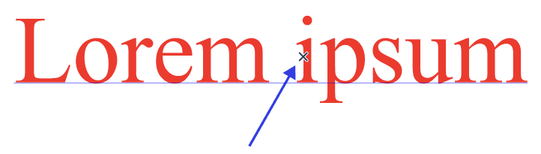
          Have one thing that I did not notice before. There is a " X kind of Pointer " on the objects.
          Can this be deselected in the preferences ? When where ?
          Find it disturbing when I select text.

          See here
          0_1658160298993_X-Pointer-1.png

          Win 11
          CPU: AMD Ryzen 5 9600X, 6-core.
          GPU: Nvidia Geforce RTX 5070.

          b77B VectorStylerV 2 Replies Last reply Reply Quote 0
          • b77B Offline
            b77 @Subpath
            last edited by

            @Subpath Disable 'Detect Hovering Node' in Preferences > Changing options.

            MacBook Pro (Intel) running Monterey 12.6.4

            b77B S 2 Replies Last reply Reply Quote 2
            • b77B Offline
              b77 @b77
              last edited by b77

              @VectorStyler If i understand correctly, this setting allows the user to grab any shape by any of its nodes and snap it to something else with that node when in Transform (V) mode. No need to switch to Shape Editing for that — awesome!

              But it seems to have a "weaker" snap with 'Snap to Shapes' than with 'Snap to Points' — maybe just because with 'Snap to Shapes' it doesn't display the confirmation indicator at the snap location like it does with 'Snap to Points'? 🙂

              /\/\/\/\/\/\/\/\/\/\/\

              EDIT: Never mind, 'Snap to Shape' can't display a small circle indicator because it snaps the node along the entire contour of the shape. 🔤

              MacBook Pro (Intel) running Monterey 12.6.4

              1 Reply Last reply Reply Quote 1
              • VectorStylerV Offline
                VectorStyler @Subpath
                last edited by

                @Subpath Should it be inactive in case of text object selection?

                S 1 Reply Last reply Reply Quote 0
                • S Offline
                  Subpath @VectorStyler
                  last edited by Subpath

                  @VectorStyler said in update 1.1.049:

                  @Subpath Should it be inactive in case of text object selection?

                  Well, it disturbs me the most with text. So, yes.

                  Win 11
                  CPU: AMD Ryzen 5 9600X, 6-core.
                  GPU: Nvidia Geforce RTX 5070.

                  1 Reply Last reply Reply Quote 0
                  • S Offline
                    Subpath @b77
                    last edited by

                    @b77 said in update 1.1.049:

                    @Subpath Disable 'Detect Hovering Node' in Preferences > Changing options.

                    Thank you

                    Win 11
                    CPU: AMD Ryzen 5 9600X, 6-core.
                    GPU: Nvidia Geforce RTX 5070.

                    1 Reply Last reply Reply Quote 1
                    • IgullI Offline
                      Igull @VectorStyler
                      last edited by

                      @VectorStyler
                      Great set of fixes for me !!! Particularly object node snapping (once the bounding box is removed LOL 🙂 ) and the ability to not leave a closed object closed when removing a part of the path using the eraser tool ! You have no idea how much time this actually saves me.
                      Apologies to @Subpath, the wee X is a figment of now being able to snap objects by dragging a node using the transform tool (as long as the node isn't near one of it's bounding box handles - that causes resizing issues - hopefully fixed next time around). You can switch off the X as @Subpath has indicated 🙂
                      I really can't see anything that AI offers me over VS now !

                      Neil

                      iMac 27" 2015 Catalina 32Gb, MacBook Pro 13" 2016 Monterey 8Gb, Mac Mini M2 2023 8Gb

                      S 1 Reply Last reply Reply Quote 1
                      • S Offline
                        Subpath @Igull
                        last edited by

                        @Igull

                        No need to apologize, I understand that it is useful.
                        And as long as there is an option to turn it off, everything is fine.

                        With text it is just quite annoying because
                        text always has many nodes and with small
                        font sizes parts are hidden.

                        Win 11
                        CPU: AMD Ryzen 5 9600X, 6-core.
                        GPU: Nvidia Geforce RTX 5070.

                        1 Reply Last reply Reply Quote 0
                        • First post
                          Last post