Eyedropper Tool Enhancement
-
Hi
some other Picker Tools are here, but dont know if these are helpful for your case.
From left to right:
Style Picker, Shape Picker, Image Effect Picker, Shape Effect Picker.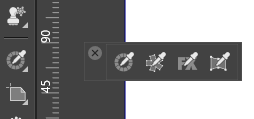
.
.
Here a short video how you could use them: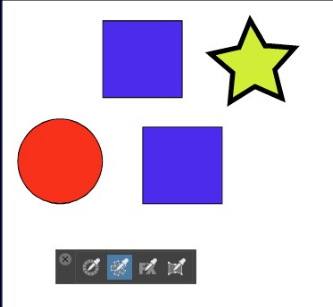
-
I often wonder if the many tours of user interfaces and menus and tools I take could be replaced by something much simpler.
What I really always need is to copy something and paste it. Sometimes the whole thing, sometimes colors or attributes. All in all, it becomes many scenarios that can end in many copy-paste features.
What I would ultimately like in the interface - which doesn't have to replace anything, but in my case would be quite useful in most of my usage scenarios, is:
- Control + C to copy (and here everything is copied)
- Control + V to paste everything
- Control + whatever to paste a subset
Here I think a dialog pops up with checkboxes. The dialog remembers the last used attributes and prefills them, so I just have to press enter.
Violá - many, many options in pull down menus not needed for me.
This is how RAW development software works, when you want to copy and paste adjustments from the previous image, but not distortion, color profile, micro contrast, but otherwise the rest. And it works fine.
Now this is Mr. Dropper Niel is talking about, but I'm thinking it's kind of the same thing he's after.
And this model is totally simple to use, understand and remember.
-
Like this - but just simpler:
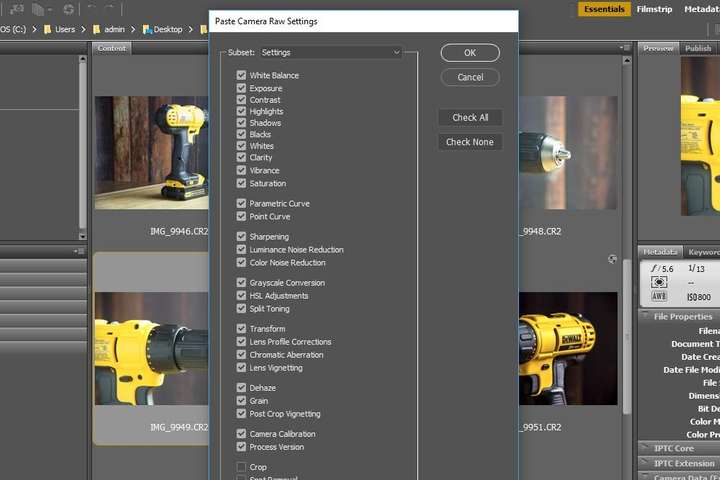
Of course, you should be able to paste all or some of these subsets with the existing keyboard shortcuts alone.
However, I'm thinking that @vectorstyler can't paste multiple subsets of atributes at once.
Of that is the case I will recommend an additional paste submenu at right click, where you can choose from a list of subsets: image effects, fill and stroke etc. so you only paste one at a time.
🍏 macOS Sequoia Apple Silicon
-
@Ingolf said in Eyedropper Tool Enhancement:
Of that is the case I will recommend an additional paste submenu at right click, where you can choose from a list of subsets: image effects, fill and stroke etc. so you only paste one at a time.
I really do like this idea - I like right click contextual menus in general and this would seem a prime candidate - much better than having a pile of differing eyedroppers - more of a universal eyedropper approach.
In general, I'm more of the right tool for the job, but this would definitely work better I think. Perhaps allowing the user to allocate what goes into their specific eyedropper menu?Nice one

Neil
-
@Igull said in Eyedropper Tool Enhancement:
@Ingolf said in Eyedropper Tool Enhancement:
I really do like this idea - I like right click contextual menus in general and this would seem a prime candidate - much better than having a pile of differing eyedroppers - more of a universal eyedropper approach.
In general, I'm more of the right tool for the job, but this would definitely work better I think. Perhaps allowing the user to allocate what goes into their specific eyedropper menu?Nice one
It is also my favorite - and a problem solver for people like me who use both win and MacOS versions of the same software. I can’t remember all the keyboard shortcuts. Easy access and simple user interface - yes please.
-
I have not gotten into understanding all of the details related to what is tied to what eyedropper. I'm very much used to the Illustrator eyedropper default where it copies essentially fill and stoke color mainly.. Right now in VS I'm fumbling around with pressing shift along with the click to get certain settings and even that is not always what I was expecting... again, I need to sit down and take some time to really understand the setup in VS
One thing I love about VS that I dislike in CS6 (maybe fixed in CC? - I have never used CC so I'm not sure) is that in VS, I can click the eyedropper on a fill color and that becomes the stroke color if I have the stroke color box active. In CS6, you can't do that - if you click on a color that happens to be a fill, it's going to make your targeted shape the same fill
It would be great if with the eyedropper tool in the vertical toolbar, the option chosen from amongst the rest would be tied to the "I" key... right now if I have another eyedropper tool active and then go away to use another tool and click "I" to get back to the eyedropper, it defaults back to the original eyedropper. Perhaps a way for the user to set which eyedropper setting they want to be the default? I'm just throwing out ideas...
I agree in part with @Ingolf on his description using a different paste modifiers - that could be interesting. Though we are very low on available keyboard shortcuts. That limitation will be lifted when the ability for three key shortcuts gets added. -
-
@VectorStyler said in Eyedropper Tool Enhancement:
@Igull @Ingolf In the Edit -> Attributes menu there are some copy paste actions for various parts of the object.
But some of the attributes (like collision distances) are not included here.
Yep - but that is the place I was referring to with this sentence:
"I often wonder if the many tours of user interfaces and menus and tools I take could be replaced by something much simpler."
Simple meaning simpler, local: mouse/pointer stays in canvas with and above objects during many adjustments. The menu system is not helpful when you do something several times. Shortcuts are better, but you can't always remember them all.
-
@Ingolf said in Eyedropper Tool Enhancement:
Simple meaning simpler, local: mouse/pointer stays in canvas with and above objects during many adjustments
I think this should be possible, and some UI/UX ideas (and maybe new things) are welcome. There was some popup / shortcut suggestion that is already in the backlog.
-
@VectorStyler said in Eyedropper Tool Enhancement:
@Ingolf said in Eyedropper Tool Enhancement:
Simple meaning simpler, local: mouse/pointer stays in canvas with and above objects during many adjustments
I think this should be possible, and some UI/UX ideas (and maybe new things) are welcome. There was some popup / shortcut suggestion that is already in the backlog.
I'll share some later this week
Pretty inspired by other major programs - not only graphics - so it is no just crazy ideas from deep inside my mind. -
@VectorStyler Here is a little mockup of how a paste styles/attributes/whatever menu could work.
While I was at it, I made an example of how I would have set up right-click menus, the example is a remodeled "Right click path with transform tool" menu. I've left out some things I don't think belong in the menu. I kept Undo Redo Repeat, but I never liked them there. Perhaps non-mouse users do. I would removed them until someone actually asked them to be there.
I know your right click menus are really really dynamic - but this is just inspiration for how to group contents and in what order.
This link goes to an interactive model:
https://wireframepro.mockflow.com/view/vs-paste-object-attributesBelow are the two menus:
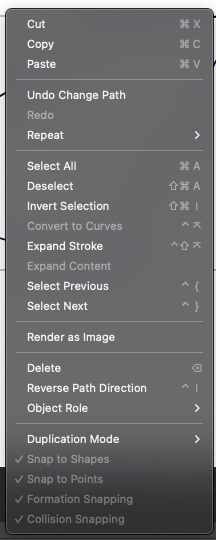
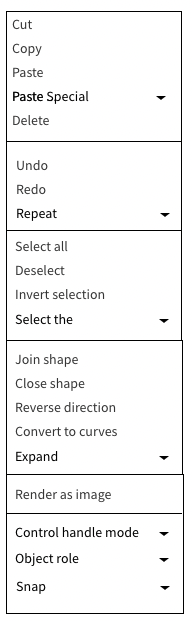
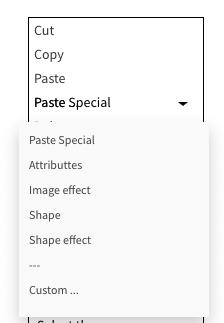
A an example of a paste custom range of attributes dialog will follow.
-
@Ingolf
Yes, pretty much that idea. I think the individual really has to choose what's relevant for their purposes - my no selection context menu for instance only has 10 items - the multi selection has 15. I'm still refining what I need as I go along, but I'm getting a bit more au fait with VS now
Neil -
I’d find that really useful as well. When working from reference images, I often need to sample multiple colors quickly, and having a more capable eyedropper would save a lot of back-and-forth.
As a workaround, I sometimes use colorpickerimage.org to grab exact color values from images before bringing them into my design workflow. Still, having this built directly into VectorStyler would be much smoother.



