VectorStyler
    • Categories
    • Unread
    • Recent
    • Tags
    • Popular
    • Register
    • Login

    update 1.1.068

    Scheduled Pinned Locked Moved Release notes of past builds
    19 Posts 7 Posters 3.2k Views 6 Watching
    Loading More Posts
    • Oldest to Newest
    • Newest to Oldest
    • Most Votes
    Reply
    • Reply as topic
    Log in to reply
    This topic has been deleted. Only users with topic management privileges can see it.
    • IngolfI Offline
      Ingolf
      last edited by

      I also have a custom icon arrangement - and I can't add it from customize toolboxes on this Windows installation, can't find it, searching for Mono doesn't give me any results either.

      Added Display options as a workaround for now.

      🍏 macOS Sequoia Apple Silicon

      1 Reply Last reply Reply Quote 1
      • BoldlineB Online
        Boldline
        last edited by Boldline

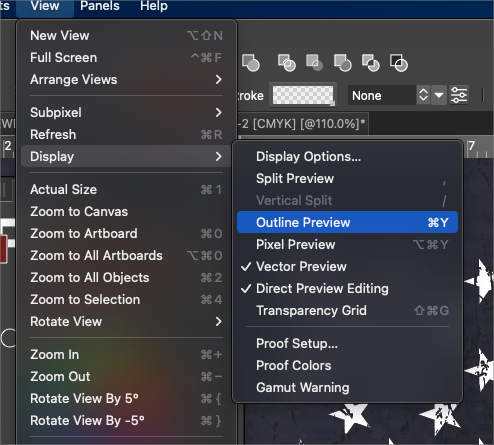
        Throwing my thoughts in the ring - I don't love the monotone option as a new button on the UI unless it was going to include a dropdown to swap to any of the other modes listed in the display options>mode section currently. Down the road, I could see this being useful as an option for people to add to their customized contextual or UI menus - those who want easy access to swap around their display options

        It makes more sense to me to leave it in the display option panel and like @b77 suggested, View>Display>Monotone.
        Its going to be otherwise confusing that it's included with all the other modes in the display options panel itself, but not as an icon in the UI or listed with the rest of them under View>Display>
        0_1669850986927_8b2c901c-9b8c-499b-8a5c-979c7f28c43c-BLD 2022-11-30 at 18.29.37.png

        🍎 macOS Tahoe 26.2, Mac mini (M1, 2020), Chip Apple M1, Memory 16 GB
        Cintiq 27QHD Display and LG Ultra HD Display

        1 Reply Last reply Reply Quote 0
        • J Offline
          Jayanta Das @VectorStyler
          last edited by

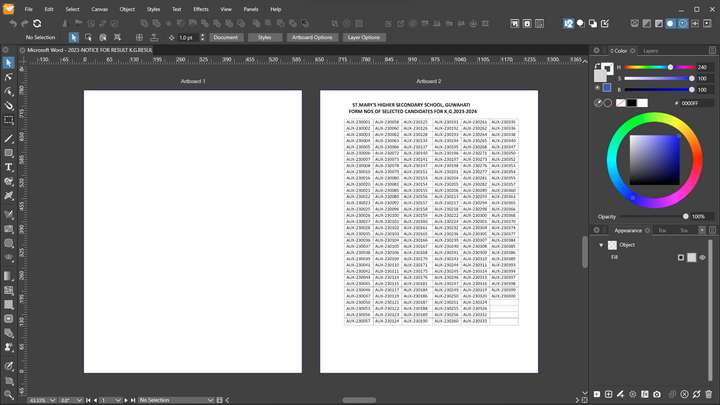
          • Use correct PDF page size when importing multiple pages onto a single canvas.

          Import a two pages pdf in VS, First page shows blank.
          0_1669868944925_Screenshot_20221201_095713.png

          Mac Mini M4 Pro | 24Gb
          WIndows 11 | Intel i5 11Gen
          Wacom Intuos Pro

          VectorStylerV 1 Reply Last reply Reply Quote 0
          • VectorStylerV Offline
            VectorStyler @Jayanta Das
            last edited by

            @Jayanta-Das said in update 1.1.068:

            Import a two pages pdf in VS, First page shows blank

            Send me this PDF file, I will try to replicate the problem.

            J 1 Reply Last reply Reply Quote 0
            • J Offline
              Jayanta Das @VectorStyler
              last edited by

              @VectorStyler Sent

              Mac Mini M4 Pro | 24Gb
              WIndows 11 | Intel i5 11Gen
              Wacom Intuos Pro

              VectorStylerV 1 Reply Last reply Reply Quote 1
              • VectorStylerV Offline
                VectorStyler @Jayanta Das
                last edited by

                @Jayanta-Das said in update 1.1.068:

                @VectorStyler Sent

                Got it!

                1 Reply Last reply Reply Quote 1
                • H Online
                  Harry @VectorStyler
                  last edited by

                  @VectorStyler said in update 1.1.068:

                  • Monochrome preview mode.

                  Thanks for adding this!

                  Here are my 0,02$ to make you all happy 🙂

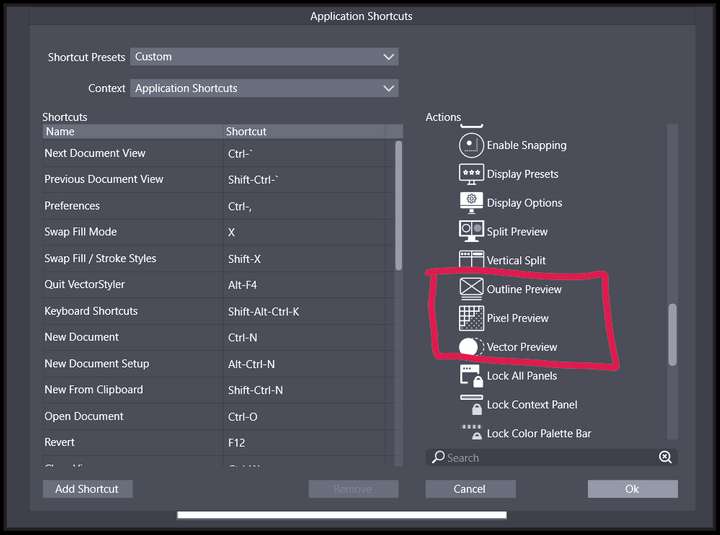
                  1. leaving display icons in main toolbar
                  2. adding "Monochrome" option to View/Display pop up menu as @Boldline suggested
                  3. adding "Monochrome" to other Display options in View/Customize/Keyboard Shortcuts/View:
                  0_1669888370750_2518cbe6-459b-4f77-8767-2e50952d3cae-image.png

                  Win 11, XP Pen Deco 01 V2 graphic tablet

                  BoldlineB VectorStylerV 2 Replies Last reply Reply Quote 2
                  • BoldlineB Online
                    Boldline @Harry
                    last edited by

                    @VectorStyler I could see these options consolidated under one icon on the UI much like you did with the alignment and transform options

                    0_1670439054200_bde44fbe-9dd9-4bbb-b7a9-8fea4816c725-BLD 2022-12-07 at 13.49.06.png

                    🍎 macOS Tahoe 26.2, Mac mini (M1, 2020), Chip Apple M1, Memory 16 GB
                    Cintiq 27QHD Display and LG Ultra HD Display

                    VectorStylerV 1 Reply Last reply Reply Quote 0
                    • VectorStylerV Offline
                      VectorStyler @Harry
                      last edited by

                      @Harry These will be fixed in the next build.

                      1 Reply Last reply Reply Quote 0
                      • VectorStylerV Offline
                        VectorStyler @Boldline
                        last edited by

                        @Boldline said in update 1.1.068:

                        I could see these options consolidated under one icon on the UI much like you did with the alignment and transform options

                        Would this one icon open a menu?

                        1 Reply Last reply Reply Quote 0
                        • b77B Offline
                          b77
                          last edited by b77

                          @VectorStyler Yes, it would open a menu. But there is no need for a special icon — just the one of the current preview mode will do.

                          On the other hand, one button might prove limiting in the future, if one of the preview modes has additional options.

                          So I'm not necessarily advising for one icon.

                          MacBook Pro (Intel) running Monterey 12.6.4

                          BoldlineB 1 Reply Last reply Reply Quote 1
                          • BoldlineB Online
                            Boldline @b77
                            last edited by Boldline

                            @b77 I agree it would not need a special icon - whatever is currently in use would be shown as active.

                            How would that be different than the other options that are currently using one icon to represent a dropdown of options? If options are added, wouldn't it be a lot like what alignment panel offers?
                            A lot of the options currently in the UI are either-or. you are either using monochrome, or pixel or vector view or you're not (unless you turn on the dual view) they take up a lot of space as they are currently.
                            There's always the chance that things need to be adjusted later as new options or ideas are added. That said, we've had pixel view, vector view, outline mode for a long time and now monochrome view, and nothing has been added to them in terms of extra settings. The more immediate need is keeping the UI spacing clean, especially from rarely used settings

                            🍎 macOS Tahoe 26.2, Mac mini (M1, 2020), Chip Apple M1, Memory 16 GB
                            Cintiq 27QHD Display and LG Ultra HD Display

                            b77B 1 Reply Last reply Reply Quote 1
                            • b77B Offline
                              b77 @Boldline
                              last edited by b77

                              @Boldline I was thinking of a simple menu, not a panel, and what if one of the preview modes will get different options itself.
                              But as they are now, things can be simplified.

                              MacBook Pro (Intel) running Monterey 12.6.4

                              1 Reply Last reply Reply Quote 1
                              • First post
                                Last post