VectorStyler
    • Categories
    • Unread
    • Recent
    • Tags
    • Popular
    • Register
    • Login

    Button for Select > Options > Allow Locked Objects

    Scheduled Pinned Locked Moved Features and Ideas
    6 Posts 4 Posters 5.7k Views 3 Watching
    Loading More Posts
    • Oldest to Newest
    • Newest to Oldest
    • Most Votes
    Reply
    • Reply as topic
    Log in to reply
    This topic has been deleted. Only users with topic management privileges can see it.
    • G Offline
      gotanidea
      last edited by

      The Select > Options > Allow Locked Objects feature is very useful, but it would be easier to access if there is a button on the top bar to toggle it on or off.

      Maybe we can put it next to the Enable Snapping button?

      b77B VectorStylerV 2 Replies Last reply Reply Quote 1
      • b77B Offline
        b77 @gotanidea
        last edited by b77

        @gotanidea Not sure it's so often needed to warrant a button in the context panel, IMO.

        You can customize the context panel (VectorStyler > Customize Toolboxes > Toolbox: Context panel).

        MacBook Pro (Intel) running Monterey 12.6.4

        G 1 Reply Last reply Reply Quote 2
        • VectorStylerV Offline
          VectorStyler @gotanidea
          last edited by

          @gotanidea said in Button for Select > Options > Allow Locked Objects:

          but it would be easier to access if there is a button on the top bar to toggle it on or off.

          The action is available when customizing the toolbar, it can be found in the "Select" group of actions.

          1 Reply Last reply Reply Quote 1
          • G Offline
            gotanidea @b77
            last edited by

            @b77 and @VectorStyler : Thanks, I didn't know about the customization

            1 Reply Last reply Reply Quote 0
            • BoldlineB Online
              Boldline
              last edited by

              I noticed when I went in to play around with customizing the context menu, all of the folders on the left side are named "Folder". The contents within each folder seem to be labeled correctly.
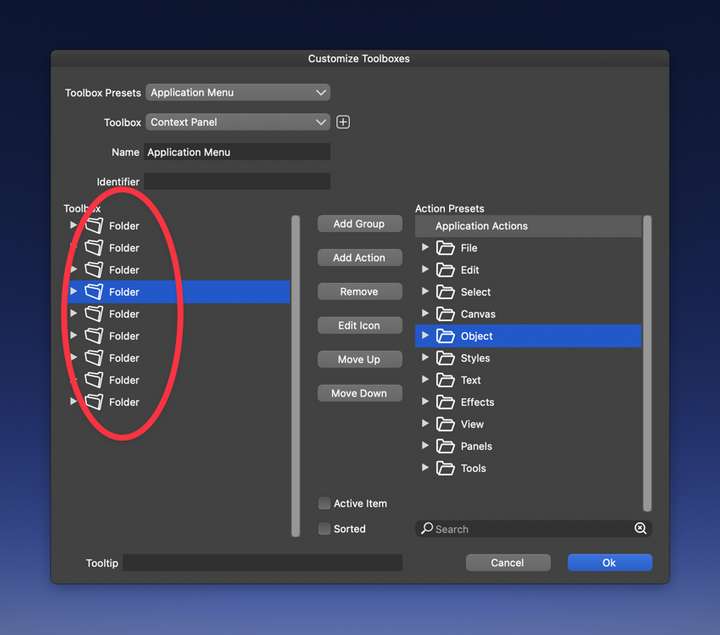
              0_1686449208383_2f411823-accd-4e00-93b7-951123bf5f28-CleanShot 2023-06-10 at 22.06.01.png

              🍎 macOS Tahoe 26.2, Mac mini (M1, 2020), Chip Apple M1, Memory 16 GB
              Cintiq 27QHD Display and LG Ultra HD Display

              VectorStylerV 1 Reply Last reply Reply Quote 1
              • VectorStylerV Offline
                VectorStyler @Boldline
                last edited by

                @Boldline said in Button for Select > Options > Allow Locked Objects:

                all of the folders on the left side are named "Folder".

                Yes, these were not named as the name is not used anywhere else in the UI. I will add some default names for these.


                1 Reply Last reply Reply Quote 1
                • First post
                  Last post