Constrain line angle
-
@Ingolf When 'Constrain Line Angle' is disabled, moving a node with Shift constrains it at 0°, 45°
and 90° relative to the node location.
When it's enabled, moving the node with Shift moves it at the angle of the segment as well.@VectorStyler There's a limitation here, if I'm not mistaken: only the angle of one segment is used,
not the angles of both connected segments, depending on the direction you drag.(Not sure, maybe it should be named 'Constrain to Segment Angle' instead?
It's a bit misleading, as if it applies only to lines (objects)). -
@pentool I tend to agree that this could be enabled by default, but at small angles it can
be difficult to make sure you are moving the node in the direction of the segment (and not
at 0° or 90°) if there is no visual indicator like let's say an orange(?) line over the segment. -
No no no. You guys misunderstand the use of this setting.
- Draw a line segment with the "Straight Line" tool. Don't draw a horizontal or vertical line. Draw it in whatever angle.
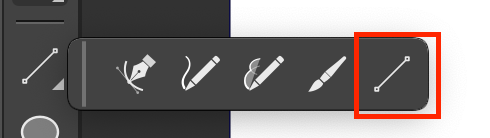
- Switch to the Node Tool.
- Click on one of the node of the line segment.
- Hold SHIFT and move the node in the same direction as the line goes. Now you can extend the line to the same direction it is pointing to. In other words, when you hold SHIFT and drag the node, you are restricting the movement of the node in the direction of the line. This is an extremely helpful setting!
Here, check it out - when I'm moving the anchor point, the SHIFT key is being held down.
https://www.youtube.com/watch?v=QQTx14WeMMIMacBook Pro 13" early 2015 8G | Intel Iris Graphics 6100 1536 MB | macOS Monterey 12.7.6
-
@b77 said in Constrain line angle:
@pentool I tend to agree that this could be enabled by default, but at small angles it can
be difficult to make sure you are moving the node in the direction of the segment (and not
at 0° or 90°) if there is no visual indicator like let's say an orange(?) line over the segment.Actually it works perfectly even at very small angles. Eg, draw a line perfectly horizontal (by hold SHIFT). In the xform panel rotate the line by 1 degrees. Select Node Tool, select a node, hold SHIFT and move the node. Perfectly moves straight in the direction of the line.
MacBook Pro 13" early 2015 8G | Intel Iris Graphics 6100 1536 MB | macOS Monterey 12.7.6
-
@pentool Not sure what I misunderstood — it works both for line objects (made of a single straight
segment) and also for one segment of many segments of an object. -
@pentool said in Constrain line angle:
Actually it works perfectly even at very small angles.
Sorry, I didn't say it doesn't work — it does work but at small angles I would prefer a visual confirmation
that I'm still on the right "trajectory" and didn't snap to horizontal or vertical angle by mistake. -
If you draw a line segment perfectly horizontal or vertical and you use the xform tool to rotate it even by 0.5 degrees, you can already see that the line is jagged.
I see you are on a MacBook Pro as well. They have very good displays so even this tiny change is visible in the line. If you switch to Outline Preview, then the jaggedness is even more prominent even at 0.5 degrees.
But I agree, if you are working with lines with thick strokes, then it's not that evident. I tend to work with thin lines so it's easier to see if the line is off when it's at a small angle.
But anyhow. I just created this post for the setting preference. Either way I'm glad I found this setting.
-
@pentool Yes, I do have a Retina display, but let's be realistic… most people don't like
to be constantly focused on small details (in this case carefully moving the node at
that one angle that is close to 0°, 45° or 90°). It slows you down.
(Hey, I could also enable 'Show Editor Popups' in Prefs > Editing Options 2 to see
the angle readout, but… see above).So it's four angles in total, that's why I prefer a visual indicator for this…
BUT… I'm not against enabling this by default anyway.
All right…
-
@b77 said in Constrain line angle:
most people don't like to be constantly focused on small details
I do. That's why I'm finding all these bugs (in the bug report section).

-
@pentool The problem here is of conflicting operations. Normally holding the Shift key constrains the movement of what is moved. Objects in the transform tool, nodes in the node tool.
But in case of lines, there is this useful feature of keeping the line angle, but it conflicts with the other one.
Not sure how to proceed with this one.
-
@VectorStyler No worries. In that case it's fine.

