Remove Icon does not function
-
Hi,
I was trying the Remove Icon function in the following two areas:
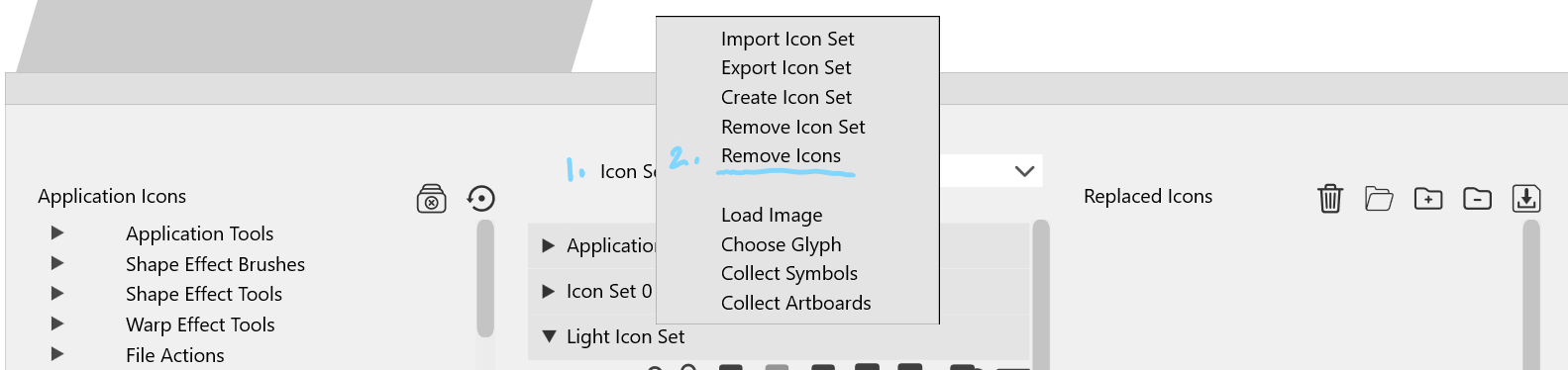
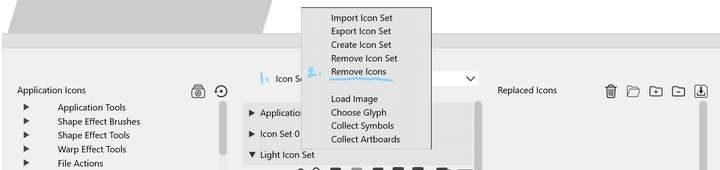
View > Customize > Customize Icons > Icons Sets > Remove Icons
and in
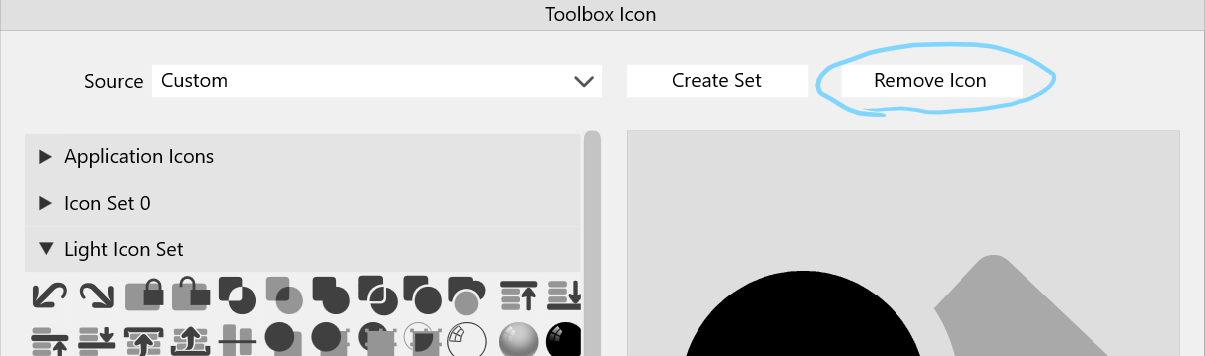
View > Customize > Customize Toolboxes > Edit Icon > Remove Icon
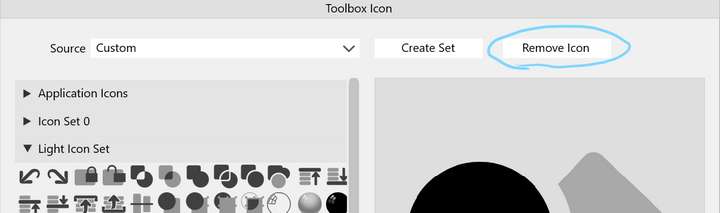
Highlighting an icon and clicking on "Remove Icons" or "Remove Icon" did not remove the icon.
Note that in Settings > Folders > Folder Mode > Icon File Folders is pointing to the [user]vector/data/settings/ folder, however my "icoset_0.vsicon" file was not present but in a different location. I copied the "icoset_0.vsicon" file to [user]vector/data/settings/ and ran VS again, attempting to delete an icon, but this does not work either.
I tried this action in VS 1.1 and it works fine. This is on Windows 11
Let me know if you need more detail, or if there is a way of getting VS to see the [user]vector/data/settings/icoset_0.vsicon file's location.
-
@Victor-Vector Deleting selected icons works here on the Mac.
Could be an issue related to installing that file manually, or deleting doesn't work on Windows.In any case, if that .vsicons file is the one I suspect, it can be loaded from the 'Customize
Icons' window, by clicking the third button here: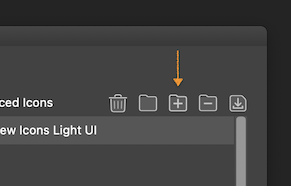
Clicking OK after importing the file assigns other icons for the UI of the app — no need
to assign them manually.If you want to also import those icons in the 'Icon Sets' column, import the same file
there with the 'Import Icon Set' command from the dropdown above the column. -
OK, after importing the .vsicon file into the 'Icon Sets' column, I can confirm
that the icons cannot be deleted and the icon set itself cannot be deleted either.Didn't replicate the issue the first time because I didn't have an imported
.vsicon file myself. -
@b77 thank you for confirming this. I tried the import icon replacement file and I had the same issue where I cannot delete it, nor does the drop down arrow next to the freshly imported set reveal any icons, even though the .vsicon file does contain icons.
-
@Victor-Vector I opened a bug on this.


