VectorStyler
    • Categories
    • Unread
    • Recent
    • Tags
    • Popular
    • Register
    • Login

    Shortcuts for color manipulation
    Scheduled Pinned Locked Moved Features and Ideas
    11 Posts 4 Posters 10.9k Views 3 Watching
    Loading More Posts
    • Oldest to Newest
    • Newest to Oldest
    • Most Votes
    Reply
    • Reply as topic
    Log in to reply
    This topic has been deleted. Only users with topic management privileges can see it.
    • 861475_VctSt8 Offline
      861475_VctSt
      last edited by

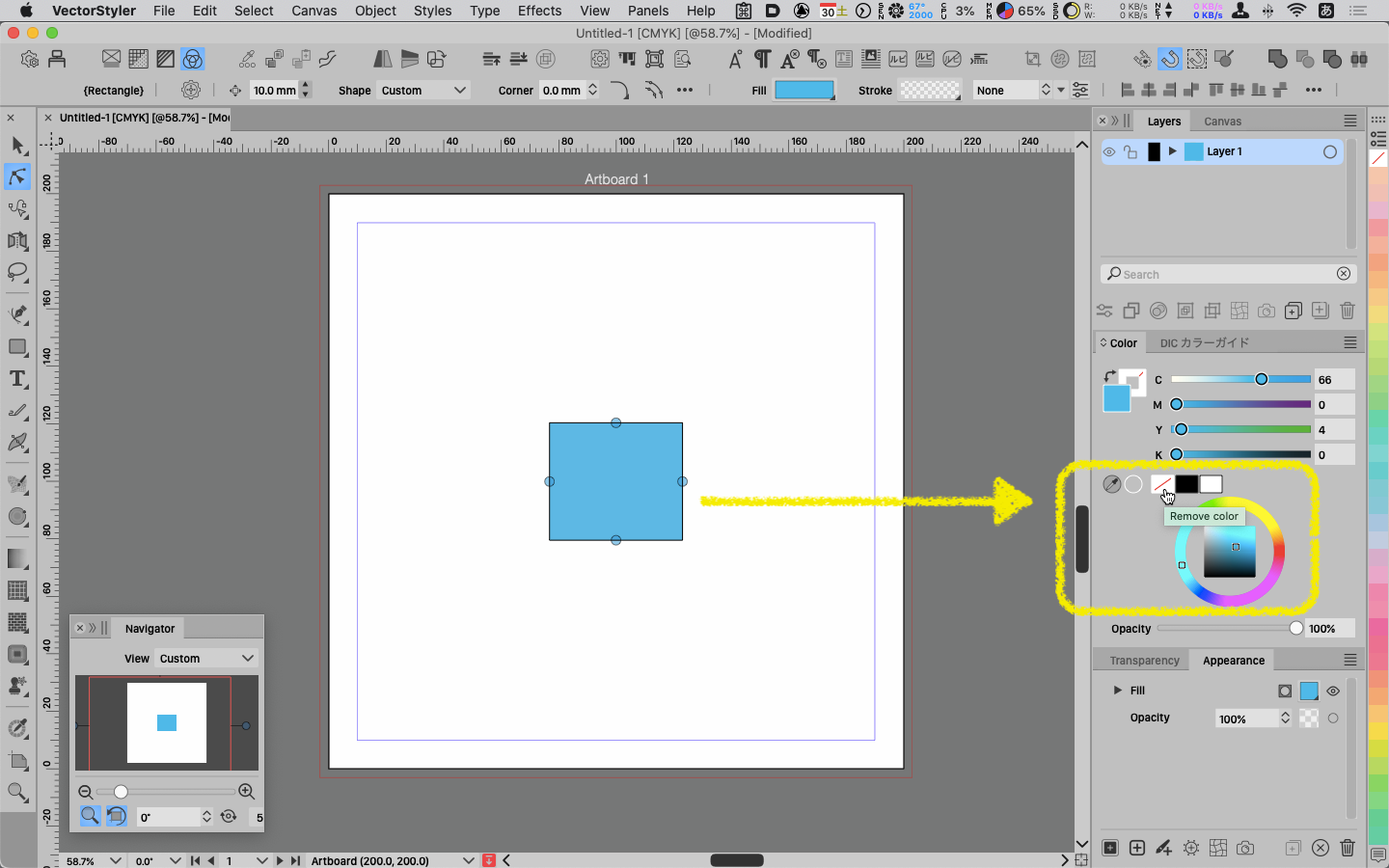
      I frequently use remove color from this state.
      0_1711765462475_ 2024-03-30 10.35.43.png

      Would you consider adding this shortcut or command in the future?

      Adobe products are like this.
      [ / ]: non fill
      [ < ]:color (in VS it is vector & pixel)
      [ > ]: gradient (white in VS, no shortcut)

      LIc. 0 OS10.15.8
      MacBook Air (13-inch, Mid 2012) / Intel Core i5, 8GB / Intel HD Graphics 4000
      LIc. 1 OS15.7.4
      MacBook Pro (14-inch, 2023) / Apple M2 Pro, 16GB / Apple GPU

      VectorStylerV 1 Reply Last reply Reply Quote 2
      • VectorStylerV Offline
        VectorStyler @861475_VctSt
        last edited by

        @861475_VctSt I added this to the backlog.

        861475_VctSt8 1 Reply Last reply Reply Quote 0
        • 861475_VctSt8 Offline
          861475_VctSt @VectorStyler
          last edited by

          @VectorStyler

          Thanks.
          Please implement this as soon as possible, as it is a basic action that I use very frequently.

          I have been using BetterTouchTools as a substitute, but sometimes the palette changes position, which is not comfortable.

          LIc. 0 OS10.15.8
          MacBook Air (13-inch, Mid 2012) / Intel Core i5, 8GB / Intel HD Graphics 4000
          LIc. 1 OS15.7.4
          MacBook Pro (14-inch, 2023) / Apple M2 Pro, 16GB / Apple GPU

          VectorStylerV 1 Reply Last reply Reply Quote 0
          • VectorStylerV Offline
            VectorStyler @861475_VctSt
            last edited by

            @861475_VctSt It is not clear yet how the < and > shortcuts would work.
            Do they assign a solid color? is it the current color?
            How about the gradient, which gradient will this be?

            861475_VctSt8 2 Replies Last reply Reply Quote 0
            • 861475_VctSt8 Offline
              861475_VctSt @VectorStyler
              last edited by 861475_VctSt

              @VectorStyler

              What I need now is a shortcut for [Remove color]. That is to correspond to the tip at the bottom of the color panel.
              In my previous statement I misspelled "non fill".

              I see no need to change the role of the other tips right now.

              First: Remove color
              2nd: black
              Third: white

              The examples are only for Adobe products.
              1st: Color
              Second: Gradient
              Third: no color

              The Adobe formula is not necessarily the best. However, it is based on the assumption that many people are familiar with it.
              If necessary, it can be changed in the future.

              LIc. 0 OS10.15.8
              MacBook Air (13-inch, Mid 2012) / Intel Core i5, 8GB / Intel HD Graphics 4000
              LIc. 1 OS15.7.4
              MacBook Pro (14-inch, 2023) / Apple M2 Pro, 16GB / Apple GPU

              BoldlineB 1 Reply Last reply Reply Quote 0
              • debraspicherD Offline
                debraspicher
                last edited by

                I also use "/" quite a bit in both Designer/AI for selecting transparent fills.

                Windows 11 Build 26200.7171 (25H2)
                AMD Ryzen 7 9700X with Gigabyte X870E Aorus Pro Ice
                32GB RAM @ 6000MHz
                PNY NVIDIA RTX 5070 Ti 16GB; Display 1: 4K @150%; Display 2: 4K @200%
                Wacom Intuos Pro L (2025); Wacom Intuos Pro M; Epson ET-8550; Siser Romeo

                1 Reply Last reply Reply Quote 0
                • BoldlineB Online
                  Boldline @861475_VctSt
                  last edited by

                  @861475_VctSt @debraspicher I had never used the shortcuts for these tasks in Illustrator before. Once this topic was brought up, I went to my old copy of Illustrator and tried them out. I like that it works to edit whatever is in the forefront, the stroke or the fill. How do you use the shortcuts in your workflow? Are you often removing strokes or fills? Does it help to switch the fill to a gradient as opposed to grabbing the gradient tool?

                  🍎 macOS Tahoe 26.2, Mac mini (M1, 2020), Chip Apple M1, Memory 16 GB
                  Cintiq 27QHD Display and LG Ultra HD Display

                  debraspicherD 861475_VctSt8 2 Replies Last reply Reply Quote 2
                  • debraspicherD Offline
                    debraspicher @Boldline
                    last edited by debraspicher

                    @Boldline It's as you say, it keeps the artist working closer to the canvas and can lead to less distractions. I can lay out objects very quickly, by swapping between two colors "X", disabling/reenabling fill/stroke "/"... think having a ink pen in both hands, working to fill in/stroke different elements in a design.

                    Ex: I can put black in both inkwells and have a logo with strokes and fills (or both!) done fairly quickly. I almost always start in black & white.

                    Windows 11 Build 26200.7171 (25H2)
                    AMD Ryzen 7 9700X with Gigabyte X870E Aorus Pro Ice
                    32GB RAM @ 6000MHz
                    PNY NVIDIA RTX 5070 Ti 16GB; Display 1: 4K @150%; Display 2: 4K @200%
                    Wacom Intuos Pro L (2025); Wacom Intuos Pro M; Epson ET-8550; Siser Romeo

                    1 Reply Last reply Reply Quote 2
                    • 861475_VctSt8 Offline
                      861475_VctSt @Boldline
                      last edited by 861475_VctSt

                      @DEBRASPICHER

                      Let me reiterate my thoughts.

                      First of all, I have a wording error, which I would like to correct.
                      What I meant by "tip" is correctly "button".

                      What I need is a shortcut to [ remove color button ] or its menu command.

                      Arrangement of buttons
                      Function of buttons
                      These are as they are now.

                      The reason these three buttons are different from Adobe products is that the developers have not yet reached a conclusion.

                      For example, there are unresolved issues such as what kind of typicality should be derived for gradients.
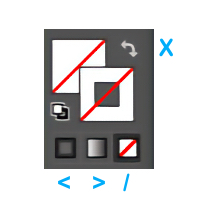
                      0_1711958619035_AdobeHairetu.jpg

                      This is that of Adobe products.
                      This layout has been maintained for more than 30 years now.
                      Some people may never have used it. It may need to be revisited to see if it works for many people.
                      As for the gradient button, this button might have been effective in the 1990s when this feature was still rare. Today, however, gradients can be created in other UIs.

                      Whether or not to use these buttons depends on the position of the creator and the nature of the work.
                      Those who are called DTP operators may use them more often than those who are creative artists.
                      This is the case when working in a situation where instructions and materials are given. In these tasks, they often work while checking the fill and stroke of an object. I habitually use remove color & undo a lot.
                      In the days when there was no layer function, I used it frequently to remove the full view to see the background.

                      @BOLDLINE
                      I guess you could say this is my habit. When I start working with the pen tool, I first set fill to no fill and stroke to black. This could be preset, but for various reasons, I try not to create many presets.
                      After that, when I do some other work and pick up the pen tool again, I start writing with no fill.
                      I have written about gradients before.

                      LIc. 0 OS10.15.8
                      MacBook Air (13-inch, Mid 2012) / Intel Core i5, 8GB / Intel HD Graphics 4000
                      LIc. 1 OS15.7.4
                      MacBook Pro (14-inch, 2023) / Apple M2 Pro, 16GB / Apple GPU

                      1 Reply Last reply Reply Quote 1
                      • 861475_VctSt8 Offline
                        861475_VctSt @VectorStyler
                        last edited by 861475_VctSt

                        @VectorStyler

                        It was implemented before I knew it.
                        Sorry for the delay in checking, there was a period of time when I did not use VS for a little while.
                        😅
                        It is very useful.

                        But
                        Shortcuts work only on fill, not on stroke; they work on fill even when stroke is selected.

                        LIc. 0 OS10.15.8
                        MacBook Air (13-inch, Mid 2012) / Intel Core i5, 8GB / Intel HD Graphics 4000
                        LIc. 1 OS15.7.4
                        MacBook Pro (14-inch, 2023) / Apple M2 Pro, 16GB / Apple GPU

                        VectorStylerV 1 Reply Last reply Reply Quote 1
                        • VectorStylerV Offline
                          VectorStyler @861475_VctSt
                          last edited by

                          @861475_VctSt said in Shortcuts for color manipulation:

                          they work on fill even when stroke is selected.

                          I will try to improve this.

                          1 Reply Last reply Reply Quote 0
                          • First post
                            Last post
