VectorStyler
    • Categories
    • Unread
    • Recent
    • Tags
    • Popular
    • Register
    • Login

    Export Artboard to PNG with a bleed?

    Scheduled Pinned Locked Moved Questions and Support
    4 Posts 2 Posters 4.1k Views 2 Watching
    Loading More Posts
    • Oldest to Newest
    • Newest to Oldest
    • Most Votes
    Reply
    • Reply as topic
    Log in to reply
    This topic has been deleted. Only users with topic management privileges can see it.
    • debraspicherD Offline
      debraspicher
      last edited by

      I'm trying to find the option, but it doesn't seem that it is feasible?

      Windows 11 Build 26200.7171 (25H2)
      AMD Ryzen 7 9700X with Gigabyte X870E Aorus Pro Ice
      32GB RAM @ 6000MHz
      PNY NVIDIA RTX 5070 Ti 16GB; Display 1: 4K @150%; Display 2: 4K @200%
      Wacom Intuos Pro L (2025); Wacom Intuos Pro M; Epson ET-8550; Siser Romeo

      VectorStylerV 1 Reply Last reply Reply Quote 1
      • VectorStylerV Offline
        VectorStyler @debraspicher
        last edited by

        @debraspicher No such option. Should this kind of export clip (and size) to the bleed?

        debraspicherD 1 Reply Last reply Reply Quote 1
        • debraspicherD Offline
          debraspicher @VectorStyler
          last edited by

          @VectorStyler It should be something we can toggle on Export, ie "include Bleed/Slug", but it shouldn't be on by default. It is only used for sending off work to be printed externally, particularly borderless designs.

          The extra image information in the bleed is meant to provide extra room for when it is cut to prevent the paper media from showing through on the very edges. Otherwise, that image will have to be expanded/extended to guarantee it prints borderless or printed on large media.

          I did have to expand the one today beyond the border manually and in this case, for the card I was working on this was fine for the design and since I was printing at home, I could make the adjustment. There are cases I wouldn't want Expansion/Extend though because there might be details that need more care along the edge, such as a decorative frame border with thick strokes along the very edges. Those details couldn't be expanded beyond the frame easily and still look right, so the extra information outside of that frame in the bleed is meant to fit in any gaps should the design not print perfectly along the edge.

          Windows 11 Build 26200.7171 (25H2)
          AMD Ryzen 7 9700X with Gigabyte X870E Aorus Pro Ice
          32GB RAM @ 6000MHz
          PNY NVIDIA RTX 5070 Ti 16GB; Display 1: 4K @150%; Display 2: 4K @200%
          Wacom Intuos Pro L (2025); Wacom Intuos Pro M; Epson ET-8550; Siser Romeo

          1 Reply Last reply Reply Quote 1
          • debraspicherD Offline
            debraspicher
            last edited by debraspicher

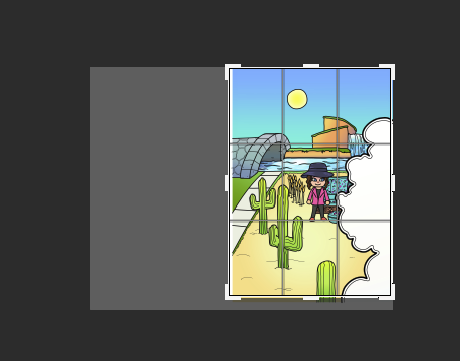
            I did have to work around this for printing off an illustration. Printing off the bleed would've been more straightforward, but the nice thing about being able to export a whole Canvas, is even though I have a lot of white space in the end, I was able to crop it down in PS, I could still get a bleed. In this case, I was printing to media that wasn't quite the original document size, so having that extra information in the bleed gave me some extra room to chop around the main art area:
            0_1719593773433_37f43669-0d55-4ccb-b0a1-6ea8ad6c8d44-image.png

            Just thought I would share this for informational purposes.

            Windows 11 Build 26200.7171 (25H2)
            AMD Ryzen 7 9700X with Gigabyte X870E Aorus Pro Ice
            32GB RAM @ 6000MHz
            PNY NVIDIA RTX 5070 Ti 16GB; Display 1: 4K @150%; Display 2: 4K @200%
            Wacom Intuos Pro L (2025); Wacom Intuos Pro M; Epson ET-8550; Siser Romeo

            1 Reply Last reply Reply Quote 1
            • First post
              Last post
