VectorStyler
    • Categories
    • Unread
    • Recent
    • Tags
    • Popular
    • Register
    • Login

    How to keep same overall stroke width on object resize

    Scheduled Pinned Locked Moved Questions and Support
    8 Posts 2 Posters 4.4k Views 2 Watching
    Loading More Posts
    • Oldest to Newest
    • Newest to Oldest
    • Most Votes
    Reply
    • Reply as topic
    Log in to reply
    This topic has been deleted. Only users with topic management privileges can see it.
    • RaaskotR Offline
      Raaskot
      last edited by Raaskot

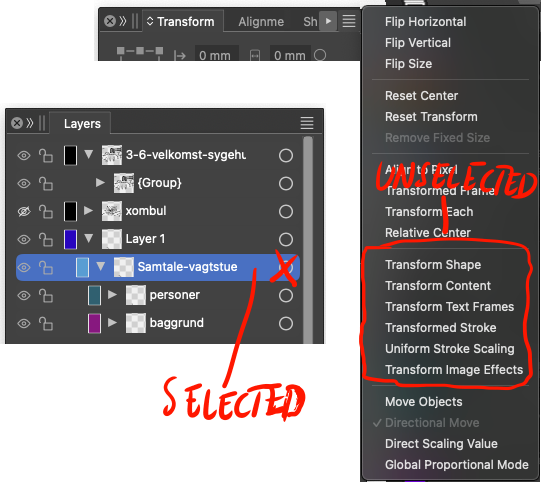
      I want to resize the image (containing several groups and layers) keeping same overall stroke width, but VS can't.

      1. Is it possible to do this without applying appropiate settings to every single sublayer?
      2. Please also note in VS-file: Its quite confusing when collecting objects in a new layer the strokes freaks out. How do I prevent this?

      WATCH___📽️

      0_1750683026741_Untitled-1.vstyler

      0_1750682148088_8a36dfb3-56aa-445b-8f75-2fff1a9c3413-image.png

      VectorStylerV 1 Reply Last reply Reply Quote 0
      • VectorStylerV Offline
        VectorStyler @Raaskot
        last edited by

        @Raaskot Group the objects to be scaled, and in Object Options -> Geometry enable the "Transformed Stroke" option

        RaaskotR 1 Reply Last reply Reply Quote 1
        • RaaskotR Offline
          Raaskot @VectorStyler
          last edited by Raaskot

          @VectorStyler
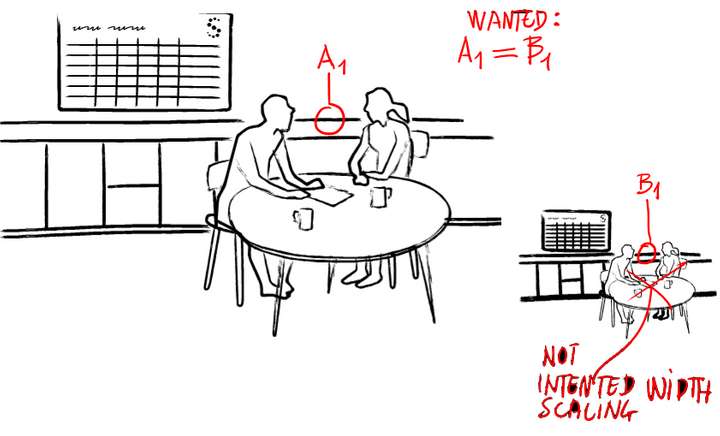
          Thanks, but I actually want the opposite: I want the stroke width in mm to be the same -- meaning keeping the same original stroke width from image A -- for every part of drawing (including sub-groups) when scaling the object down to image B.

          For now some element elements in the group scale the stroke width, which is not what I want. What do you think?
          0_1750749181618_b54bca22-e82d-485f-93d7-47e8ae267974-image.png

          VectorStylerV 1 Reply Last reply Reply Quote 1
          • VectorStylerV Offline
            VectorStyler @Raaskot
            last edited by

            @Raaskot The group object with the desk and people has the "Transformed Stroke" enabled.
            Convert to curves first and then disable this option for the group.
            I looked at the brush strokes also but these seem to keep width when scaling

            RaaskotR 1 Reply Last reply Reply Quote 1
            • RaaskotR Offline
              Raaskot @VectorStyler
              last edited by Raaskot

              @VectorStyler
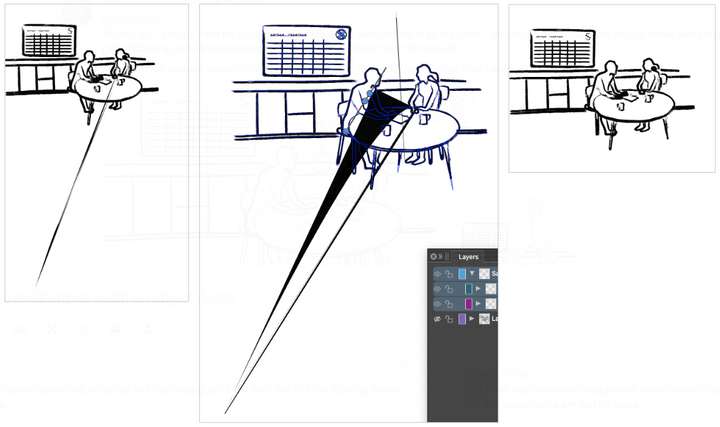
              Hm, I can reproduce your suggestion when converting to curves and then ungrouping the part. But still the drawing freaks out with artefacts and some paths are lost on scale.

              Is there a general approach - meaning without having to go through any sublayer - to make or clean up the image to appear less unpredictable?
              0_1750756107768_3af87046-ff22-4328-a0f2-ea3bda1656a0-image.png

              VectorStylerV 1 Reply Last reply Reply Quote 1
              • VectorStylerV Offline
                VectorStyler @Raaskot
                last edited by

                @Raaskot Some of the brushes have issues. Try adjusting the ending of those curves so that the control point at the ending does not overlap the node.
                I will also open a bug on this.

                RaaskotR 1 Reply Last reply Reply Quote 1
                • RaaskotR Offline
                  Raaskot @VectorStyler
                  last edited by Raaskot

                  @VectorStyler
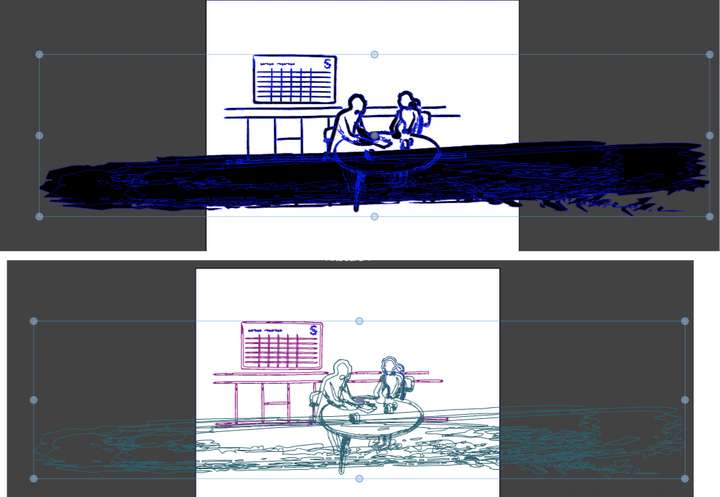
                  I understand, but finaly I was thinking of some way to "freeze" the artefacts by Expand, Expand Stroke/Brush (in order to outline stroke) but this returns new oddities.

                  Am I trying to do something one cannot?
                  0_1750756993247_5592b320-6ae1-44b7-87e6-00790dced146-image.png

                  VectorStylerV 1 Reply Last reply Reply Quote 1
                  • VectorStylerV Offline
                    VectorStyler @Raaskot
                    last edited by

                    @Raaskot Clearly a bug, can be replicate here also.
                    It occurs with small shapes where the width is large relative to the shape size.

                    I will fix this ASAP.

                    1 Reply Last reply Reply Quote 0
                    • First post
                      Last post