How to quickly copy halftone appearance to new shape?
-
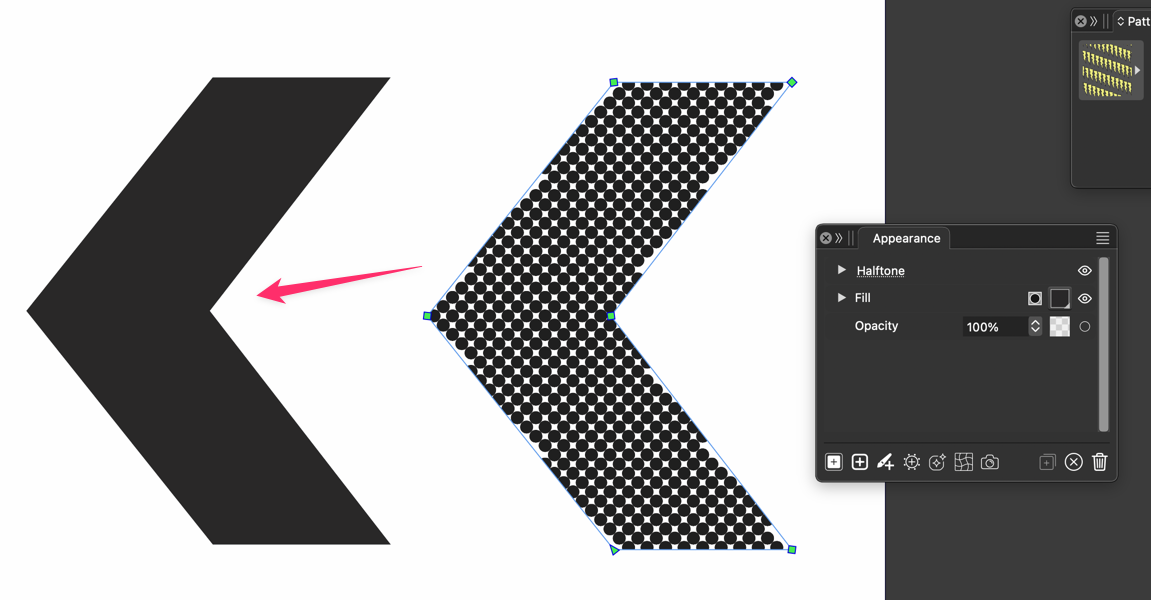
I wanted to see what was the best quick method to copy the halftone effects from one object over to another. Based on reviewing the VS manual, My thought was to use "Copy Appearance / Paste Appearance:
Select the object that already has the live halftone.
Go to Edit > Attributes > Copy Appearance.
Select the target vector shape.
Go to Edit > Attributes > Paste Appearance.This method does not work however.
I know I can save the halftone settings as a preset, but I was also looking for a fast and simple one time option.
🍎 macOS Tahoe 26.2, Mac mini (M1, 2020), Chip Apple M1, Memory 16 GB
Cintiq 27QHD Display and LG Ultra HD Display -
"Copy Appearance / Paste Appearance: doesnt work here too.
Found a somewhat unusal way, using the Shape Picker.
Dont know if this works in every circumstances.Here a video
change shape of Halftone shapeWin 11
CPU: AMD Ryzen 5 9600X, 6-core.
GPU: Nvidia Geforce RTX 5070. -
@Boldline I must add Copy/Paste for these.
So currently, two ways to do this:
-
save the halftone as a preset or style in the Halftone panel, select the other object and select the halftone preset/style from the panel top dropdonw
-
a tricky one: select the other object and in the Appearance panel menu -> Open with Selection. Now select the halftone object and drag the Halftone effect from one appearance panel to the other.
-
-
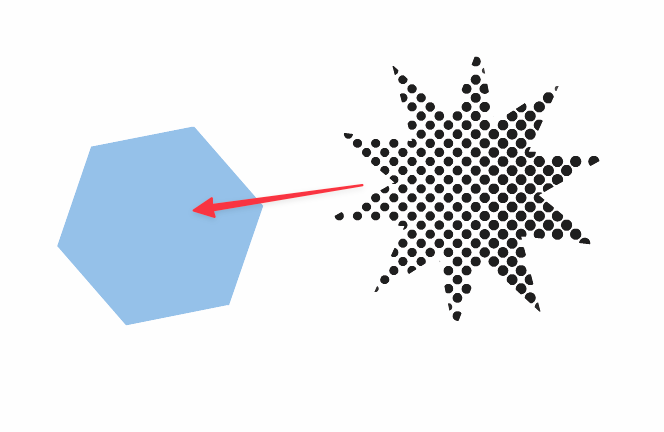
@Subpath I appreciate the idea and video example. the limitation with that is it's replacing the shape itself not just copying the halftone information. I should have clarified more as the example image I provided leaves room for confusion. my example has two of the exact same shapes and so your method would work for that, but I'm also thinking of times the second shape is not the same as the half-toned shape. How would I quickly apply the halftone of the star like shape to the light blue one?
@vectorstyler Should "Copy Appearance / Paste Appearance not accomplish this?
I also need to dig into the possibilities for the numerous eyedropper tools for things such as this
-
@VectorStyler said in How to quickly copy halftone appearance to new shape?:
@Boldline I must add Copy/Paste for these.
So currently, two ways to do this:
-
save the halftone as a preset or style in the Halftone panel, select the other object and select the halftone preset/style from the panel top dropdonw
-
a tricky one: select the other object and in the Appearance panel menu -> Open with Selection. Now select the halftone object and drag the Halftone effect from one appearance panel to the other.
UPDATE: @vectorstyler Sorry, I somehow missed seeing your earlier answer to this! thank you!
-
-
i think the methode vectorstyler mentioned "save as preset works" best
the shape picker methode would not work well
even the halftone would be untouched, but the
shape size change and other thingsi will experiment with it and will try a few settings
to understand this a bit better -
@Subpath said in How to quickly copy halftone appearance to new shape?:
i think the methode vectorstyler mentioned "save as preset works" best
I agree that is currently the best option for getting what I was requesting. I think it's also a great solution long term if you know you're going to use it frequently or in other projects down the road. However, I also think @vectorstyler is right to add the basic copy/paste option for quick and easy one-time editing. Both options will have their due place in VS

