Should align panel be added to the contextual menu when multiple items are selected?
-
Curious what everyone thinks on this. When I grab multiple selections, I was instinctively looking for the align panel to pop up in the contextual menu. I know I can open it from the panel menu and maybe this is part of the customization?
-
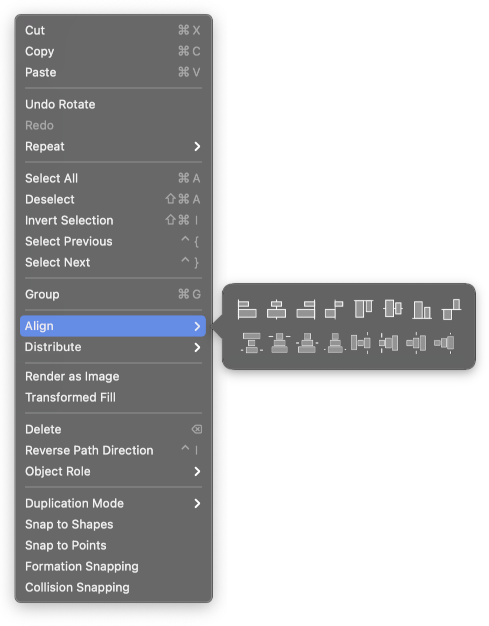
@Boldline You mean in the right-click menu as a submenu with Align buttons?
-
@b77 Interesting - I think I'd be ok with that option to right click and pull it up quickly from that sub menu. I'm not seeing it on mine - is this something I need to customize?
-
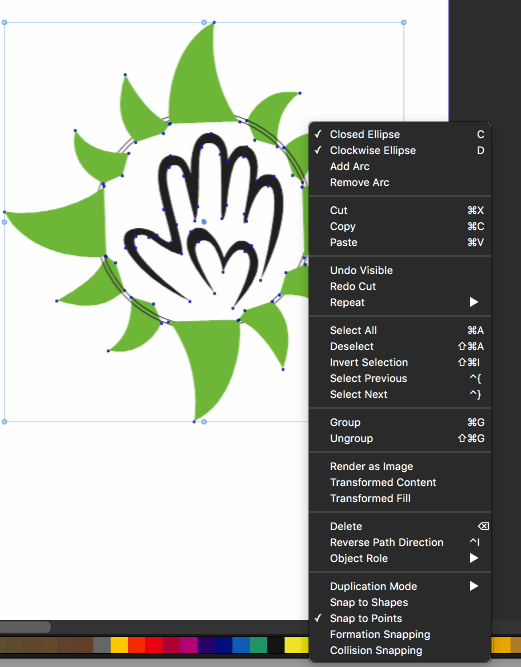
@Boldline What I posted is just a quick mockup, but trying to edit the right-click menu (VectorStyler > Contextual menu…) doesn't allow me to create a popover like that (unless I'm missing something). You can only add the 'Alignment' panel there, which will display it if you click that menu entry. Maybe the developer will consider including Align and Distribute popovers in the right-click menu in the future.
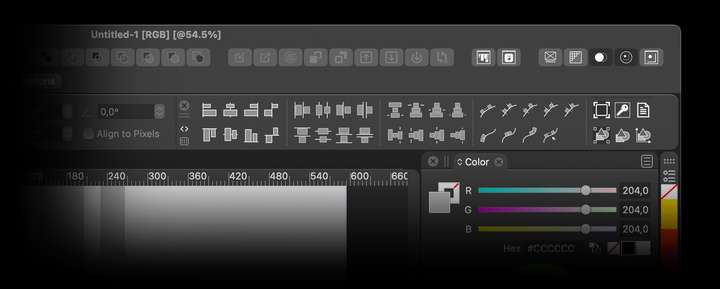
So I think that currently the fastest way possible would be to dock the Alignment panel horizontally like this:
-
@b77 oh! your mock up skills are impressive

Yes I could open and add the align panel to the top - that is a great idea.I really like your idea of adding the align panel to the right click sub menu. I wonder if the option to use the VS default for that sub menu or allow the user to create a totally customized right click menu would be better. Allowing it to be a quick access point for the most commonly used tools
-
UPDATE: I was so focused on the contextual menu, I failed to see the permanent align icon in the upper right corner! I feel dumb
 I now really like it's location there. It's not clogging up the contextual menu and I can click on it easily at any time and make a fast align edit.
I'll leave what I wrote below prior to this update so you see my thought process. There are a couple things regardless we could still consider - one being making the fill and stroke boxes smaller for more room for other things in the contextual menu and increasing the customization of the right-click menu.
@vectoradmin I was curious what your thoughts were with this topic. Affinity offers a small basic alignment setup in their contextual menu whenever multiple items are selected. I find this handy because typically it's one of those 6 alignment setting s I'm looking for.
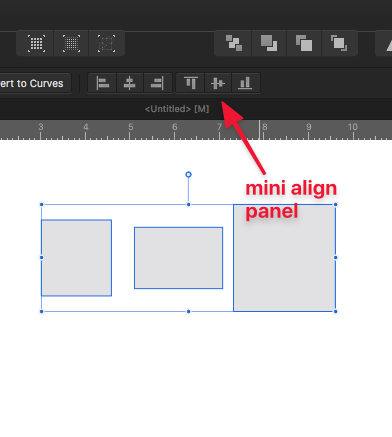
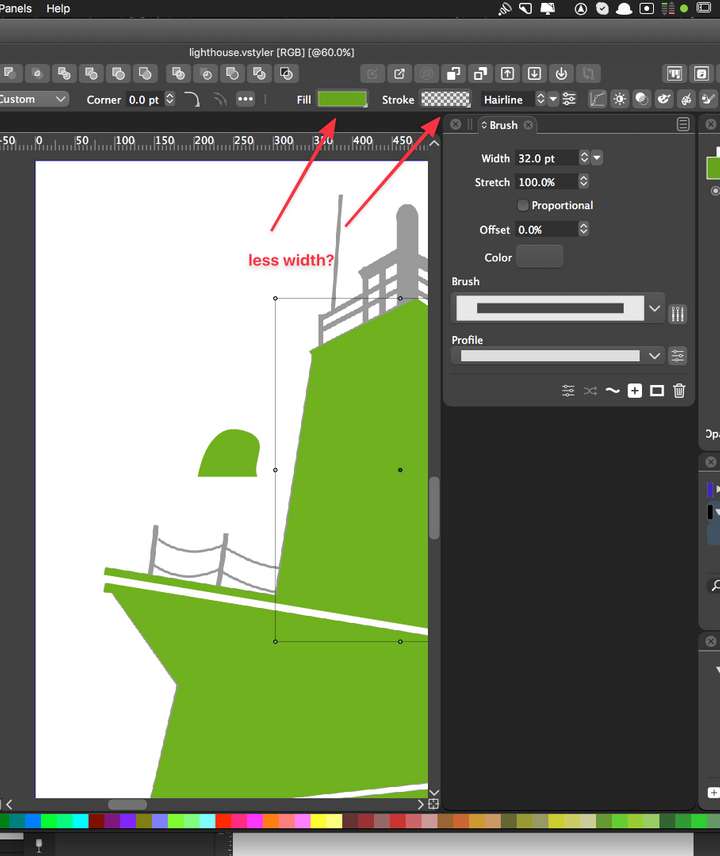
Some things in the contextual menu bar "could" be smaller to make more room - such as the fill and stroke boxes - could they not be squares rather than long rectangles?
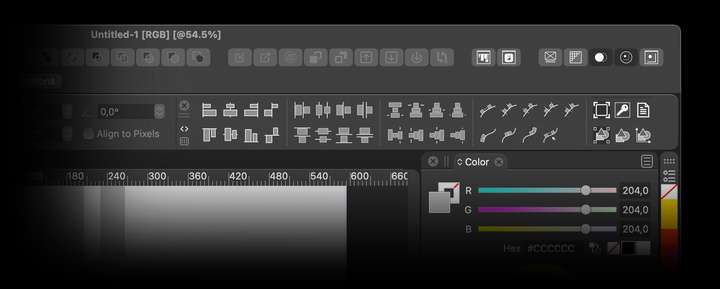
Illustrator has more alignment options showing than Affinity in their contextual menu, not that that's necessary in VS, but I do like that the option to set the alignment to selection, screen or keyframe is easily accessible right next to the basic commonly used alignment options
@b77 had a great idea to just add the whole align panel to the top of the screen - but typically I'm not needing as many options as that offers and if I did, I'd go find the align panel and make the edit.
@b77 had a great suggestion about adding it to the right-click menu as a submenu with Align buttons
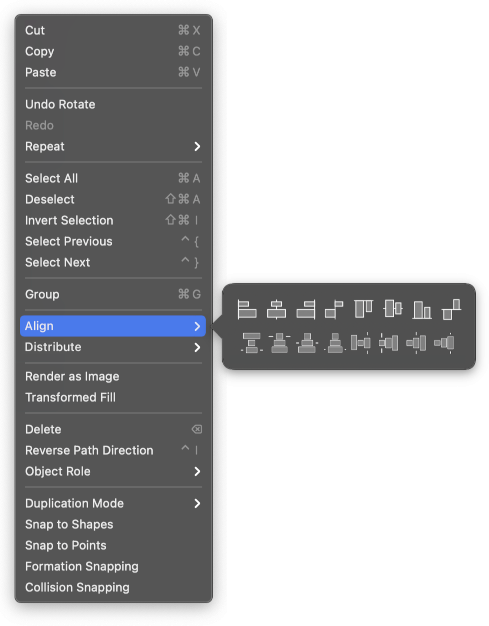
I'd be open to this possibility as well because after selecting all the object it's easy to just right-click and go grab the align function required -
@Boldline The align buttons could be added to the context panel (for multiple selection). The problem is that there is not much space. Maybe the color filter buttons (at the end) should be removed?
-
@vectoradmin Now that I see the align shortcut button at the top upper right side, I feel great about it there and I'm not worried now, that it needs to be more accessible in the contextual menu. I'm happy to table it for now and come back later if after using it more the way it is. I think how you have it now that I see clearly, it's better than putting it in the contextual menu.
-
On this point, I'm not convinced if adding to the context menu will improve comfort or speed. I think the time will be similar to using the align panel. I don't know if you know, but the align panel has a few modifications. I am away from pc but if you right-click or left-click on a panel's bar, it reduces size by one section with each press. which makes the panel take up little space. A double click collapses the panel into a bar.
I was wondering if it would not be a nice feature if all panels, after minimizing to the bar, opened after hovering over the cursor and minimize again when you leave panel's area. They would then take up little space and be easily accessible
MacBook Air M4 24Gb, Tahoe 26.3.1
-
@encart I agree with you now, not because I can open the align panel and collapse it, though that is great, but because the align button is easy to click at the top right of the screen providing a drop-down. If you feel it works great for you just leaving the align penl open and collapsed until needed - I totally respect that.
I can replicate the double-click to collapse the entire panel - but I tried doing the single click to reduce the panel and I did not see a change.🍎 macOS Tahoe 26.2, Mac mini (M1, 2020), Chip Apple M1, Memory 16 GB
Cintiq 27QHD Display and LG Ultra HD Display -
@encart Automatic open/close on hovering could work for floating panels, but it could be a problem when the panels are docked, as it may cause other panels to resize.
-
@Boldline I'am sorry. There is a up&down arrow button on the left side of the bar.
-
@encart ok I get it now - that works. thank you for showing me that



