VectorStyler
    • Categories
    • Unread
    • Recent
    • Tags
    • Popular
    • Register
    • Login

    how to clean up space at top of VS screen?
    Scheduled Pinned Locked Moved Questions and Support
    7 Posts 2 Posters 8.0k Views
    Loading More Posts
    • Oldest to Newest
    • Newest to Oldest
    • Most Votes
    Reply
    • Reply as topic
    Log in to reply
    This topic has been deleted. Only users with topic management privileges can see it.
    • BoldlineB Offline
      Boldline
      last edited by Boldline

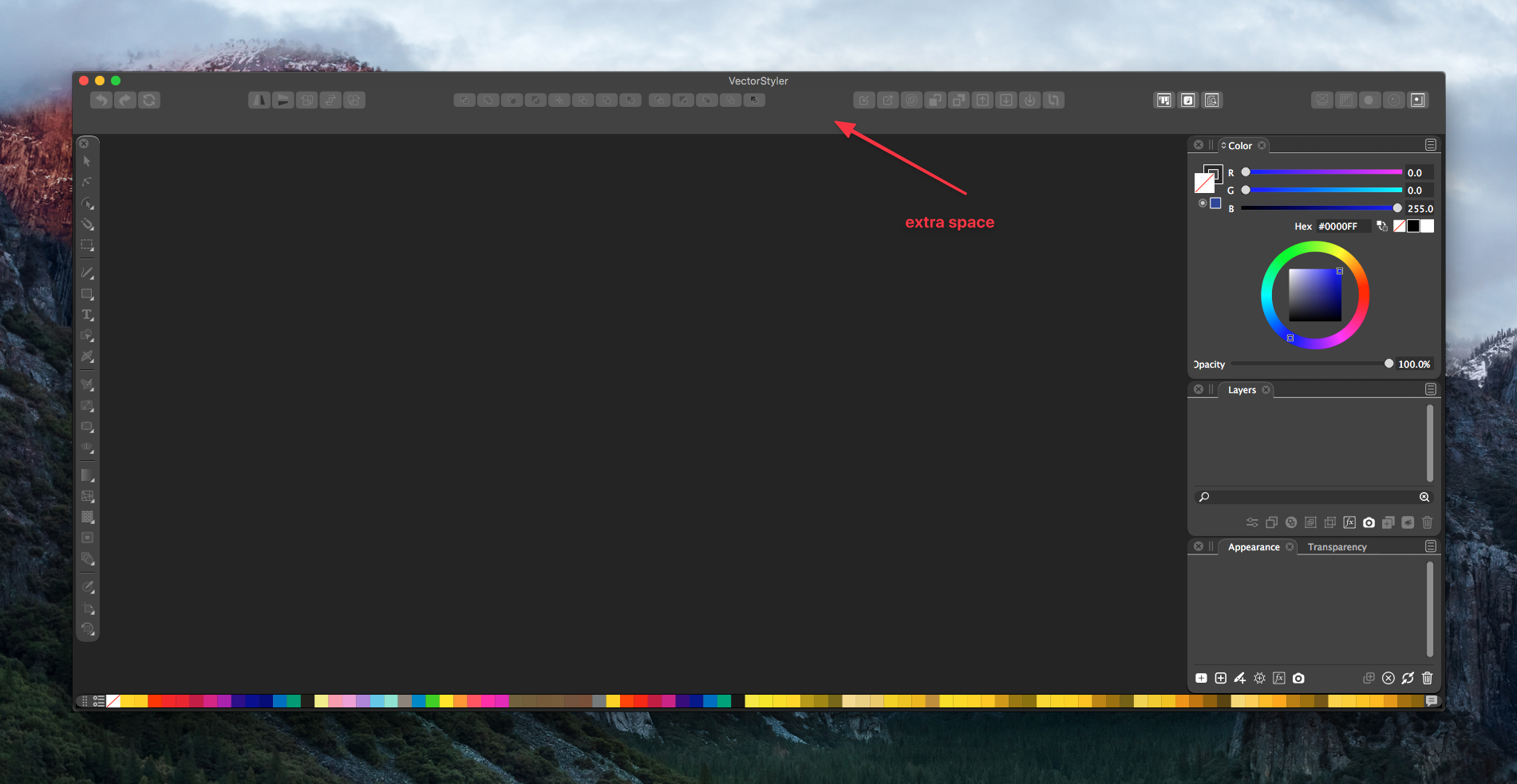
      I had tried a while back to move the alignment panel up into the top section of the VS screen - it didnt work there as well as I had hoped, and after I removed it, it left a large buffer of space there that the red arrow points to in the attached image. I tried resetting the workspace and that did not fix it. Sometimes I see more options partially obscured right above where the open file names are located.... they are not there in this pic.
      Where would I look to remove this extra space? thanks
      @vectoradmin now that I think of it, perhaps this unwanted buffer space is the cause for the boolean operation icons looking squished compared to the other icons nearby?
      0_1626319121311_0e6f7e81-216b-4644-b86d-d52eca6bf6ff-image.png

      🍎 macOS Tahoe 26.2, Mac mini (M1, 2020), Chip Apple M1, Memory 16 GB
      Cintiq 27QHD Display and LG Ultra HD Display

      VectorStylerV 1 Reply Last reply Reply Quote 0
      • VectorStylerV Offline
        VectorStyler @Boldline
        last edited by

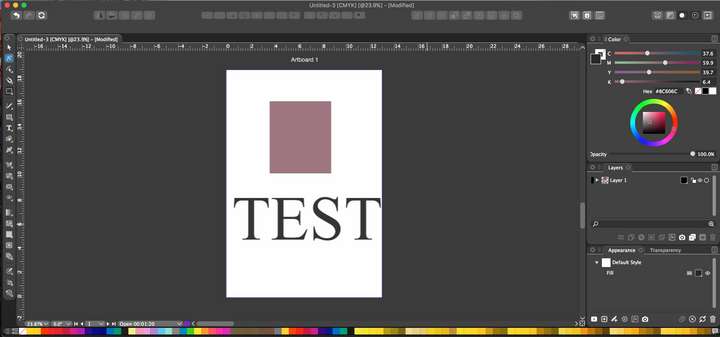
        @Boldline If a document is opened, and some objects are selected, that space should contain some options regarding the selection.

        BoldlineB 1 Reply Last reply Reply Quote 0
        • BoldlineB Offline
          Boldline @VectorStyler
          last edited by

          @vectoradmin - ok... is this how your screen looks when you have a couple selected items on the screen?
          0_1626358463279_b6519498-7f4e-4f22-98cc-32dd7c83407c-image.png

          🍎 macOS Tahoe 26.2, Mac mini (M1, 2020), Chip Apple M1, Memory 16 GB
          Cintiq 27QHD Display and LG Ultra HD Display

          VectorStylerV 1 Reply Last reply Reply Quote 0
          • VectorStylerV Offline
            VectorStyler @Boldline
            last edited by

            @Boldline That is a problem, the context panel is missing. I will try to replicate on El Capitan.

            BoldlineB 1 Reply Last reply Reply Quote 0
            • BoldlineB Offline
              Boldline @VectorStyler
              last edited by

              @vectoradmin ok yes! that's what's missing! I guess that would not ordinarily be refreshed if I hit the "refresh workspace" would it...

              🍎 macOS Tahoe 26.2, Mac mini (M1, 2020), Chip Apple M1, Memory 16 GB
              Cintiq 27QHD Display and LG Ultra HD Display

              VectorStylerV 1 Reply Last reply Reply Quote 0
              • VectorStylerV Offline
                VectorStyler @Boldline
                last edited by

                @Boldline Couple of thing to try:

                • restart the app, and create a new document, draw a rectangle and select the transform tool (first in the box). Is there anything showing up in that region (under the button).

                • if not, try reset by holding Shift+Option+Command and then starting VS, and then repeat the above.

                I just checked it on El Capitan, and it looks ok, but it is not used extensively on it so it could be that something got shifted in the workspace.

                BoldlineB 1 Reply Last reply Reply Quote 0
                • BoldlineB Offline
                  Boldline @VectorStyler
                  last edited by

                  @vectoradmin Thanks! the Shift-Option-Command ultimately solved it.

                  🍎 macOS Tahoe 26.2, Mac mini (M1, 2020), Chip Apple M1, Memory 16 GB
                  Cintiq 27QHD Display and LG Ultra HD Display

                  1 Reply Last reply Reply Quote 0
                  • First post
                    Last post
