Support on a feature: Distortion of a grid / swarm-like pattern without distorting the elements within the grid
-
Hi all
from the old times in Freehand and its Xtras I remember I could distort a pattern made of single elements with all kind of distortion tools and operations but keeping the element as such intact. Is there a toggle to switch to do the same in VS?
This is a quick fake of what I mean: https://www.dropbox.com/s/6tk3fv13lm108dv/Bildschirmfoto 2021-10-06 um 15.14.12.png?dl=0
Right the pattern, left the distortion of the grid but not the element.THX upfront to you all who know a trick / workaround / this feature.
-
@michaelokraj No need for a trick, this one actually exists for Shape Effects, for example with Distortion -> Perturbation we can get (steps after image):
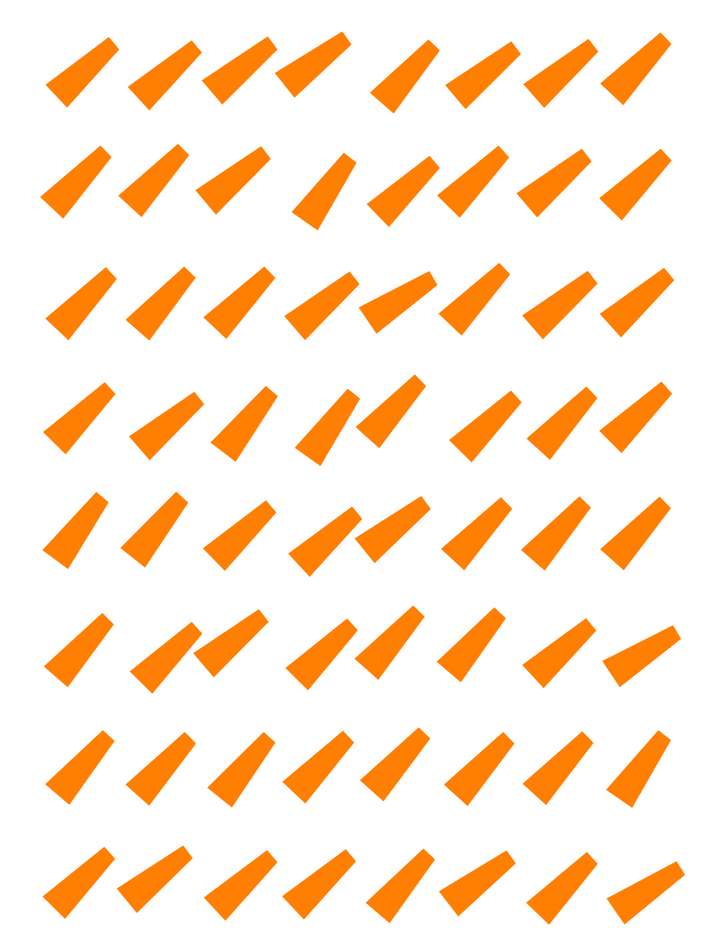
Add a shape effect in the Shape Effects panel (here is an example with Distortion -> Hole: https://recordit.co/OAL900tGvE).
Open the shape effect (arrow before the name).
In the effect parameters popup, click on the settings icon (wheel).
This opens another popup. Check Rigid Shapes.
This options is available for most effects (except the ones in Outline). So you can control the moving around, for example with a mesh also. BTW: the objects must be grouped before the effect is applied.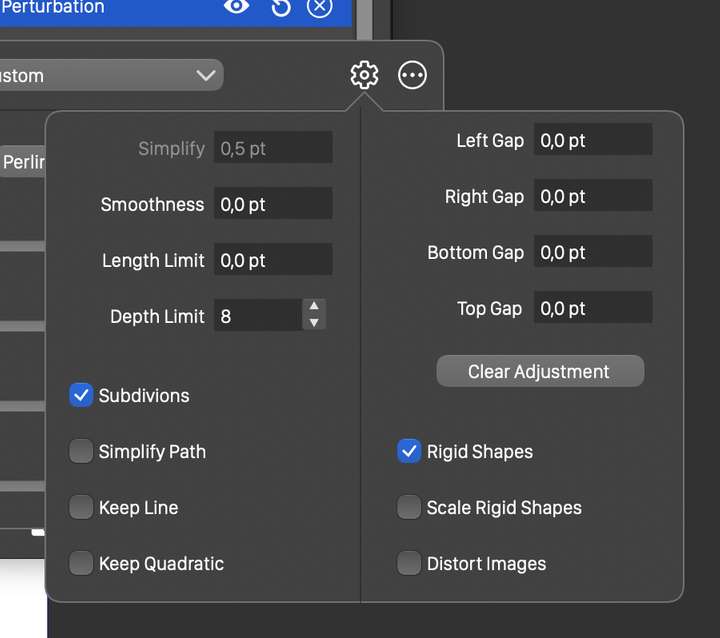
-
@michaelokraj Here is the file with Hole. 0_1633541808162_distortion1.vstyler
The Node tool should also open the effect editor (or use the second icon in the bottom row of the Shape Effects panel).
Then drag around the circle from the center to place the effect (and disturbance) somewhere. -
THIS. IS. AMAZING.
I knew it, VS can do it ;). Exactly what I wanted. PERFECT! Thank you so much

-
For me too, came at the right time !!!

Was already looking around in VS whether you could set the
Deform Cage so that the objects are not deformed.And in addition to that there is also the option that Objects
inside of a Deform Cage would also change there size.
Just great !!!On more Reason to like VS
-
@michaelokraj One more note: There are a number of destructive shape effect brush tools in the toolbox. For example there is vector Liquify tool.
These also have the Rigid Shapes option. Double click the tool icon, and in the Brush options vie click Options. The second checkbox on the right side of the popup is the Rigid Shapes option.This can be quite effective for example when used with the Liquify tool, to manually nudge around shapes.
-
Oh wow. That is helpful. Before I asked here at the forum I checked all the tools / filters / brushes but didn't come up on double clicking the icon. I don't know how Adobe is doing right now, but Macromedia Freehand and Fireworks had a little indicator within the tool icon where you could double click it when there was a "options"-menu available to be opened. maybe a suggestion for the toolbox-face-lift?

Once again: thank you a lot for that support. It was such a time saver!!!


