Difficulty with selecting Guidelines
-
I'm trying to understand more about the guidelines tool in VS. I like that the guideline cannot easily be dragged over with a selection box and be activated that way. This is a plus.
That said, the issue I have is that I am able to always hover over an existing guideline and select it. When my guideline turns from red to blue, it's usually stuck and unable to move at all. I can be adjusting the angle on the canvas with the rotation symbol active at the ends of the guide and as soon as I let go, it will lock and turn blue) and I cannot continue editing.
I noticed that when I drag the guideline on the canvas, sometimes it swaps colors from blue to red and back multiple times before I release it.
From reading the documentation, I know and tested the ability to go into the guideline panel and adjust the angle there for example - but I have to alter the angle or change a setting just to make that guideline have the ability to be active again. There's not a way that I can see where I can highlight the guideline in the guideline panel and have it automatically activate the corresponding guide. There's not a selection circle to click on like on the right side of a layer in the layers panel.
Could we add that layer panel circiel selection functionality to the guidelines panel? What causes the guideline to change color and is there a way to better control when it locks?
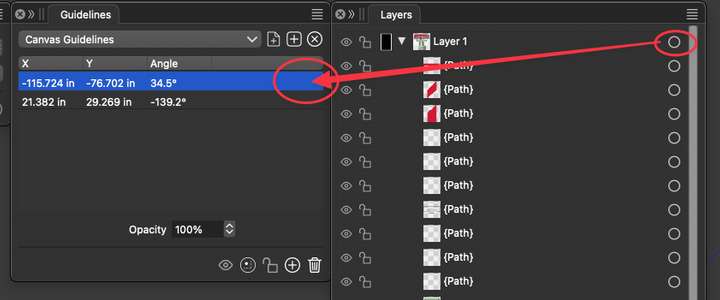
Here is a video showing what I am talking about in the guidelines panel
-
@Boldline I will try to replicate and fix this.
-
This post is deleted!
-
@Boldline Send me a file where guidelines are difficult to select.
About the Layers panel, guidelines will not be selectable here as they are not objects (these are objects in Illustrator).
A guideline can also be selected (turn red) by selecting it in the Guidelines panel.