VectorStyler
    • Categories
    • Unread
    • Recent
    • Tags
    • Popular
    • Register
    • Login

    update 1.1.042

    Scheduled Pinned Locked Moved Release notes of past builds
    45 Posts 7 Posters 19.9k Views 5 Watching
    Loading More Posts
    • Oldest to Newest
    • Newest to Oldest
    • Most Votes
    Reply
    • Reply as topic
    Log in to reply
    This topic has been deleted. Only users with topic management privileges can see it.
    • VectorStylerV Offline
      VectorStyler
      last edited by

      VectorStyler 1.1.042 release notes

      • Scrolling in the font list on Windows using the mouse wheel.
      • Faster opening of the font list with large number of fonts.
      • Use transform tool as alternate mode in style and effect picker tools.
      • Copy, paste and select all shortcuts in MacOS save panel.
      • Allow editing of repeater style and geometry presets.
      • Ungrouping object containing both reference and source resulted in wrong positions.
      • Converting to curves scaled groups with reference objects.
      • New fill should be below top stroke.
      • Adding an image effect on top of the Bevel effect did not display correctly.
      • Undo and redo the expansion of strokes on objects with multiple strokes.
      • Removing the last effect from an image effect stack should relink effects correctly.
      • Using ICC color profiles without a profile name.
      • Regression in tracing black and white images.
      • Possible memory leak when using Metal GPU acceleration for image effects.
      • Exporting blend modes to transparent PNG with background color selected.
      • Added preferences option to disable direct scaling of shapes.
      • Undo and redo after replacing objects with find and replace.
      • First segment of the spiral shape had wrong control points.
      • Retain text splitting choices.
      • Click drawing for 3 point circles.
      • Inserting node should change neighboring node from symmetric to smooth.
      • Location of intersection points with multiple points on one segment.
      • Click selection of overlapping nodes and objects.
      • Register spot color in changes when color is selected.
      • Expanding transformed stroke may result in wrong shapes.
      • Edit brush width in the context panel.
      • Blend object inside pattern and other brush types.
      • Custom color palette bar selection issues.
      • Could not import certain JPEG files with Adobe heading.
      • Allow scrolling of docked panels.
      • Improved performance for the white noise image effect.
      • Hide center knob for small object sizes.
      • Double click on some tools to open related panels.
      • Regression with Windows task bar auto hide mode.
      • Fixed shortcut for changing tracking amount.
      S 1 Reply Last reply Reply Quote 8
      • S Offline
        Subpath @VectorStyler
        last edited by Subpath

        @VectorStyler

        Thanks as always for the fixes and especially for this one
        " ...Use transform tool as alternate mode in style and effect picker tools...."

        Works great and the Picker Tools are much more comfortable to use now, in my eyes.

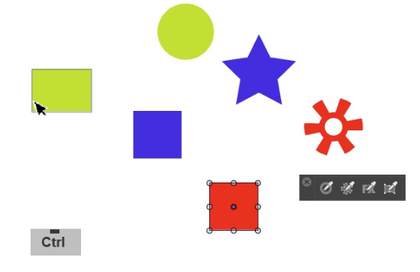
        For those who don't know what this is. Its possible now to call temporarily
        the "Transform Tool" to select another Shape
        with any of these Picker Tools by pressing the Control-Key (Win).
        (on the Mac the ⌘ Command-Key does this, as @b77 mentions below)

        0_1653723957442_Picker Tools.png

        Here is a video:
        .
        0_1653724131665_Ctrl-with-Style-Effect-Picker.png

        Win 11
        CPU: AMD Ryzen 5 9600X, 6-core.
        GPU: Nvidia Geforce RTX 5070.

        b77B BoldlineB 2 Replies Last reply Reply Quote 3
        • S Offline
          Subpath
          last edited by

          @VectorStyler

          One thing that also caught my interest
          ....Blend object inside pattern and other brush types ....

          Would be nice if you could explain a little what this mean/do ?

          Win 11
          CPU: AMD Ryzen 5 9600X, 6-core.
          GPU: Nvidia Geforce RTX 5070.

          VectorStylerV 1 Reply Last reply Reply Quote 0
          • VectorStylerV Offline
            VectorStyler @Subpath
            last edited by

            @Subpath said in update 1.1.042:

            Creating pattern brush (or tiling pattern) content from a group of objects that contained a Blend did not work previously.
            How it works now: create a blend object between 2 objects, and group the 3 objects (must be grouped). The resulting group can be used to create content for tiling patterns, or pattern brushes.

            S 1 Reply Last reply Reply Quote 3
            • S Offline
              Subpath @VectorStyler
              last edited by Subpath

              @VectorStyler

              That's cool Idea too!

              I imagined something like this a few days ago.
              But with the "Align to Shape/Curve" function.

              As you know, we can already align shapes to a shape/curve in the alignment Panel.
              So I thought it would be nice if these aligned shapes could then be converted into a pattern brush.

              But using Blend for this function is also great.

              Win 11
              CPU: AMD Ryzen 5 9600X, 6-core.
              GPU: Nvidia Geforce RTX 5070.

              VectorStylerV 1 Reply Last reply Reply Quote 0
              • VectorStylerV Offline
                VectorStyler @Subpath
                last edited by

                @Subpath said in update 1.1.042:

                But using Blend for this function is also great.

                Misunderstanding here: It is not about using blend for this, but about including blend inside a pattern brush 🙂

                S 1 Reply Last reply Reply Quote 1
                • S Offline
                  Subpath @VectorStyler
                  last edited by

                  @VectorStyler

                  I think I understood it the way you meant it.
                  Just expressed myself a little clumsily here.

                  Win 11
                  CPU: AMD Ryzen 5 9600X, 6-core.
                  GPU: Nvidia Geforce RTX 5070.

                  1 Reply Last reply Reply Quote 1
                  • J Offline
                    Jayanta Das
                    last edited by

                    0_1653730804519_Untitled.jpg

                    Mac Mini M4 Pro | 24Gb
                    WIndows 11 | Intel i5 11Gen
                    Wacom Intuos Pro

                    VectorStylerV 1 Reply Last reply Reply Quote 0
                    • VectorStylerV Offline
                      VectorStyler @Jayanta Das
                      last edited by

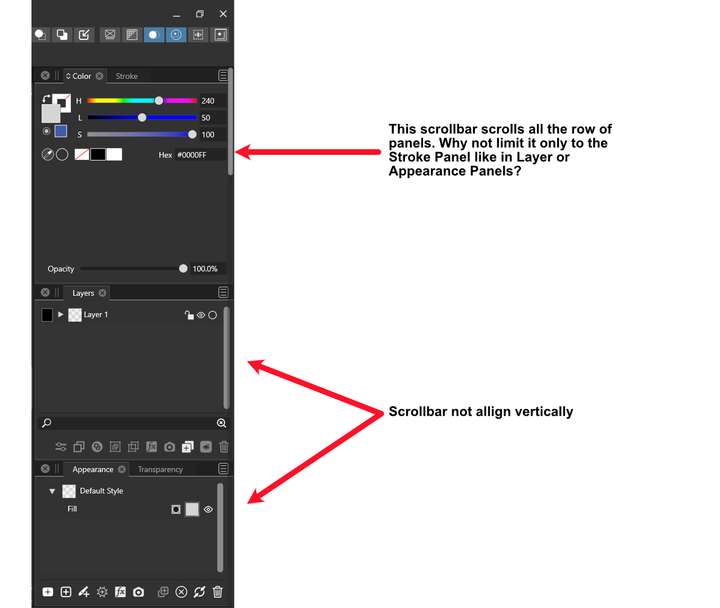
                      @Jayanta-Das The scrollbar in the Layers, Appearance (and some other) panels scrolls the list in those panels.
                      The Stroke (and some other) panels have a fixed height.
                      The common scrollbar is shown when multiple (vertically) docked panels do not fit, and this scrollbar scrolls the panel positions inside the dock.

                      1 Reply Last reply Reply Quote 0
                      • b77B Offline
                        b77 @Subpath
                        last edited by b77

                        • Use transform tool as alternate mode in style and effect picker tools.

                        @Subpath Thanks for suggesting it — good idea.

                        On the Mac it's the ⌘ Command key that does this.

                        MacBook Pro (Intel) running Monterey 12.6.4

                        S 1 Reply Last reply Reply Quote 1
                        • S Offline
                          Subpath @b77
                          last edited by

                          @b77 thanks for the info
                          will add your line in my Post above

                          Win 11
                          CPU: AMD Ryzen 5 9600X, 6-core.
                          GPU: Nvidia Geforce RTX 5070.

                          1 Reply Last reply Reply Quote 1
                          • BoldlineB Online
                            Boldline @Subpath
                            last edited by

                            @Subpath @b77 @VectorStyler I'm sure it's just me, but I'm not fully understanding the new feature of using the transform tool in connection with the shape effect tools. I appreciate that @Subpath brought attention to it and provided a cool video. Would someone be willing to elaborate further?

                            🍎 macOS Tahoe 26.2, Mac mini (M1, 2020), Chip Apple M1, Memory 16 GB
                            Cintiq 27QHD Display and LG Ultra HD Display

                            b77B S VectorStylerV 3 Replies Last reply Reply Quote 0
                            • b77B Offline
                              b77 @Boldline
                              last edited by b77

                              @Boldline It's mostly useful if you want to select (and maybe also transform) another object while using the Style or Shape Picker tools, without having to press V, select or transform then press the shortcut for the Picker tool again.

                              It's faster and similar to the way you can press Cmd (Mac) when in node editing mode (A) to temporarily switch to the Select/Transform tool, or vice-versa.

                              MacBook Pro (Intel) running Monterey 12.6.4

                              1 Reply Last reply Reply Quote 3
                              • S Offline
                                Subpath @Boldline
                                last edited by Subpath

                                @Boldline

                                As @b77 already wrote, it speeds up the handling of the styler picker
                                and the Shape Picker tools a bit. Its a bit difficult to show it in a Video.
                                The old way of using these Tools still exists.

                                The usefulness of this alternative handling becomes more clear
                                when you use these Tools more often.

                                I will show a few possibilities of these Picker Tools in Tutorials.
                                But will take some time.

                                Here a very simple Example with a color blend
                                and its transfer to other shapes.
                                But these Picker Tools have many more uses.

                                Video see here:

                                Above the old way.
                                Below the alternate way with Ctrl now.
                                You see it in the Video.
                                0_1653800424500_Color Transfer.png

                                Win 11
                                CPU: AMD Ryzen 5 9600X, 6-core.
                                GPU: Nvidia Geforce RTX 5070.

                                1 Reply Last reply Reply Quote 2
                                • VectorStylerV Offline
                                  VectorStyler @Boldline
                                  last edited by

                                  @Boldline said in update 1.1.042:

                                  I'm sure it's just me, but I'm not fully understanding the new feature of using the transform tool in connection with the shape effect tools.

                                  This is used while in the style picker (or similar) tools. It was not yet added to the shape effect tools.

                                  1 Reply Last reply Reply Quote 1
                                  • BoldlineB Online
                                    Boldline
                                    last edited by

                                    There were a few updates I did not understand based on the description. Would anyone be willing to elaborate more on these?

                                    Copy, paste and select all shortcuts in MacOS save panel. (Not following this)

                                    Added preferences option to disable direct scaling of shapes. (I was trying to find this in the preferences without luck)

                                    Click drawing for 3 point circles. - (I know where this tool is but not understanding what was modified)

                                    Click selection of overlapping nodes and objects. (what do we now do to access the overlapped node?)

                                    🍎 macOS Tahoe 26.2, Mac mini (M1, 2020), Chip Apple M1, Memory 16 GB
                                    Cintiq 27QHD Display and LG Ultra HD Display

                                    b77B 1 Reply Last reply Reply Quote 0
                                    • b77B Offline
                                      b77 @Boldline
                                      last edited by b77

                                      I only know the answer to these two:

                                      Added preferences option to disable direct scaling of shapes. (I was trying to find this in the preferences without luck)

                                      It's in Preferences > Editing Options 2 > Direct Shape Transformation.
                                      When disabled, the Transform panel will reflect any size changes in percent (85%, 120%, etc) for the parametric shapes (smart shapes) and for text.

                                      When enabled, smart shapes (parametric shapes unconverted to curves) will display at 100% when scaled and text as well when you change its size in pt.

                                      ……………………………………………………

                                      Click drawing for 3 point circles. - (I know where this tool is but not understanding what was modified)

                                      It was difficult to draw 2-point circles with the 3-Point Circle tool — it was working only by click-and-drag and you had to press Escape before placing the second point to end the circle.

                                      Now with only two clicks it's simple.

                                      ………………………………………………………

                                      Copy, paste and select all shortcuts in MacOS save panel. (Not following this)

                                      I guess it should be Cmd-C, Cmd-V and Cmd-A working in the Save or Save As panel, to copy the document name, paste text or select all text.

                                      But it's not working here, so maybe it's something else?

                                      LATER EDIT: It fails to work only on Monterey.

                                      ……………………………………………………

                                      Click selection of overlapping nodes and objects. (what do we now do to access the overlapped node?)

                                      I guess this option is in Preferences > Document Editor > Click Through Node Selection, but I don't know how to make it work.

                                      MacBook Pro (Intel) running Monterey 12.6.4

                                      VectorStylerV 1 Reply Last reply Reply Quote 1
                                      • VectorStylerV Offline
                                        VectorStyler @b77
                                        last edited by

                                        @b77 I tested the Save panel issue and it works here (have to test it on Monterey).
                                        The overlapping node click-through works only for nodes in different objects.

                                        BoldlineB Victor VectorV 2 Replies Last reply Reply Quote 0
                                        • S Offline
                                          Subpath
                                          last edited by

                                          @VectorStyler

                                          Blend in Pattern Brush works quite well so far.
                                          But it seems that when I like to change the colors with "Solid".
                                          The color I choose then is not taken for the middle part.
                                          Only for the starting and ending point

                                          see here
                                          0_1653896697878_Blend-Pattern-Brush.png

                                          Win 11
                                          CPU: AMD Ryzen 5 9600X, 6-core.
                                          GPU: Nvidia Geforce RTX 5070.

                                          VectorStylerV 1 Reply Last reply Reply Quote 1
                                          • VectorStylerV Offline
                                            VectorStyler @Subpath
                                            last edited by

                                            @Subpath said in update 1.1.042:

                                            The color I choose then is not taken for the middle part.

                                            Yes, this can be replicated. Added this to the backlog.

                                            1 Reply Last reply Reply Quote 1
                                            • First post
                                              Last post