update 1.1.042
-
@Boldline It's mostly useful if you want to select (and maybe also transform) another object while using the Style or Shape Picker tools, without having to press V, select or transform then press the shortcut for the Picker tool again.
It's faster and similar to the way you can press Cmd (Mac) when in node editing mode (A) to temporarily switch to the Select/Transform tool, or vice-versa.
-
As @b77 already wrote, it speeds up the handling of the styler picker
and the Shape Picker tools a bit. Its a bit difficult to show it in a Video.
The old way of using these Tools still exists.The usefulness of this alternative handling becomes more clear
when you use these Tools more often.I will show a few possibilities of these Picker Tools in Tutorials.
But will take some time.Here a very simple Example with a color blend
and its transfer to other shapes.
But these Picker Tools have many more uses.Above the old way.
Below the alternate way with Ctrl now.
You see it in the Video.

-
@Boldline said in update 1.1.042:
I'm sure it's just me, but I'm not fully understanding the new feature of using the transform tool in connection with the shape effect tools.
This is used while in the style picker (or similar) tools. It was not yet added to the shape effect tools.
-
There were a few updates I did not understand based on the description. Would anyone be willing to elaborate more on these?
Copy, paste and select all shortcuts in MacOS save panel. (Not following this)
Added preferences option to disable direct scaling of shapes. (I was trying to find this in the preferences without luck)
Click drawing for 3 point circles. - (I know where this tool is but not understanding what was modified)
Click selection of overlapping nodes and objects. (what do we now do to access the overlapped node?)
-
I only know the answer to these two:
Added preferences option to disable direct scaling of shapes. (I was trying to find this in the preferences without luck)
It's in Preferences > Editing Options 2 > Direct Shape Transformation.
When disabled, the Transform panel will reflect any size changes in percent (85%, 120%, etc) for the parametric shapes (smart shapes) and for text.When enabled, smart shapes (parametric shapes unconverted to curves) will display at 100% when scaled and text as well when you change its size in pt.
……………………………………………………
Click drawing for 3 point circles. - (I know where this tool is but not understanding what was modified)
It was difficult to draw 2-point circles with the 3-Point Circle tool — it was working only by click-and-drag and you had to press Escape before placing the second point to end the circle.
Now with only two clicks it's simple.
………………………………………………………
Copy, paste and select all shortcuts in MacOS save panel. (Not following this)
I guess it should be Cmd-C, Cmd-V and Cmd-A working in the Save or Save As panel, to copy the document name, paste text or select all text.
But it's not working here, so maybe it's something else?
LATER EDIT: It fails to work only on Monterey.
……………………………………………………
Click selection of overlapping nodes and objects. (what do we now do to access the overlapped node?)
I guess this option is in Preferences > Document Editor > Click Through Node Selection, but I don't know how to make it work.
-
@b77 I tested the Save panel issue and it works here (have to test it on Monterey).
The overlapping node click-through works only for nodes in different objects. -
Blend in Pattern Brush works quite well so far.
But it seems that when I like to change the colors with "Solid".
The color I choose then is not taken for the middle part.
Only for the starting and ending pointsee here

-
@Subpath said in update 1.1.042:
The color I choose then is not taken for the middle part.
Yes, this can be replicated. Added this to the backlog.
-
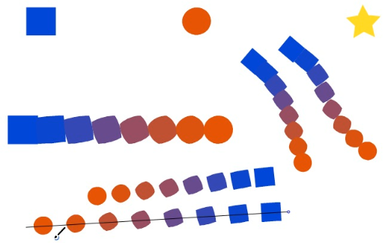
Here some uses of:
"Blend object inside pattern and other brush types"
(It offers the possibility to use a blend inside a pattern brush)At first glance it appears somewhat unimpressive.
But there is something in it
How to create it:
At first you need a simple Blend.
Create two Shapes and create a Blend between them.
Now select the whole thing and group it.In next step go to Styles and create a Pattern Brush preset from it.
Select the Artistic Brush and paint a few strokes, choose one of them
and select your previously created pattern brush to paint with it.Here a few uses i found so far.
-
use rigid shapes with scaling
your shape will then be not deformed as you paint
(its a pattern brush feature) -
you could use colored Blends !
-
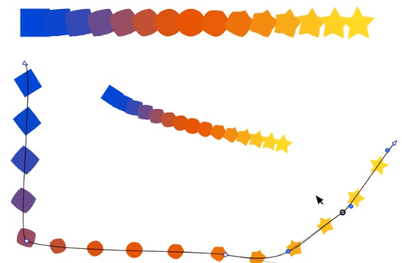
as some of you may know you could create multi Blends in VS
but there some quirks with them as you would like to move them
with the Shape Editor Tool
( but works if it is a Pattern Brush now )
.
.
Video with simple Blend
.
.
.
Video with multi Blend
.
.
.
Finally "Big thanks" to @VectorStyler for that.
-
-
@VectorStyler said in update 1.1.042:
I tested the Save panel issue and it works here (have to test it on Monterey).
If I understand what the fix is supposed to do - I can copy text from another source and paste it into the file name section inside the save and the save-as panels. Testing this on the M1 mac with the newest build and for me, it's NOT working as it should. Nothing gets pasted.
I tested it on the Intel computer in VS and that was successful -
@Boldline As I understand it, this doesn't work on Monterey, but it works on Big Sur and older.
-
@b77 ok.. I have El Capitan on that intel machine so that makes sense.
@VectorStyler mentioned it should be working on M1 macs and that has not been the case for me so far. -
@Boldline It works on M1 Macs with Big Sur, I guess.
-
@b77 I keep this issue open.
-
I have reported this issue way back in beta, but it wasn't really an issue for me because switching to Collections seemed to work, but now that doesn't work anymore. When I scroll with mouse, or use the slider, the top of the fontlist becomes empty the more I scroll down, to the point only a couple of fonts are displayed.
-
@Gremriel said in update 1.1.042:
I have reported this issue way back in beta, but it wasn't really an issue for me because switching to Collections seemed to work, but now that doesn't work anymore. When I scroll with mouse, or use the slider, the top of the fontlist becomes empty the more I scroll down, to the point only a couple of fonts are displayed.
Yes, I remember this. The problem is that I could not replicate it.
-
@VectorStyler said in update 1.1.042:
The overlapping node click-through works only for nodes in different objects.
I tested this on a some overlapping nodes (from the forum post Selecting Contiguous Nodes in a Sub-path), using this Vstyler file: 0_1653449050525_Overlapping nodes.vstyler
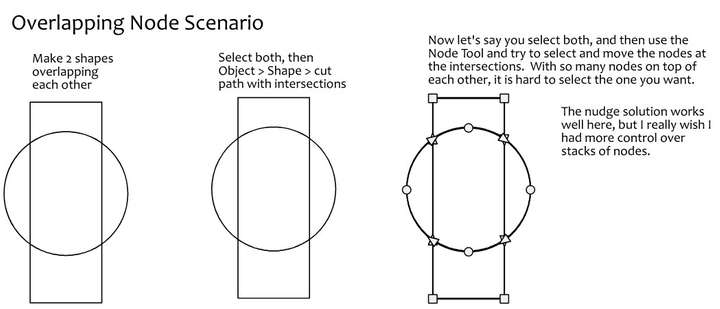
Here is what I discovered:
If I have nothing selected, switch to the node editor tool, and click on an intersection of the circle and the rectangle, say at the bottom left: It selects the top node; second click, it selects the next node underneath; click again, the next node; click a fourth time and it selects the bottom node.I can only tell this by watching the layers panel and see progress through.
Unfortunately, a fifth click does not start at the top node and go in a cycle again. One has to click off the object, then click on the intersection again.
It works, but it is not elegant. I am not sure how to solve this elegantly...
Here is a first shot suggestion: I wonder if the segment next to the node could be highlighted? Perhaps the user can turn this on or off in the preferences if this is distracting for some users?
Something like this mockup:
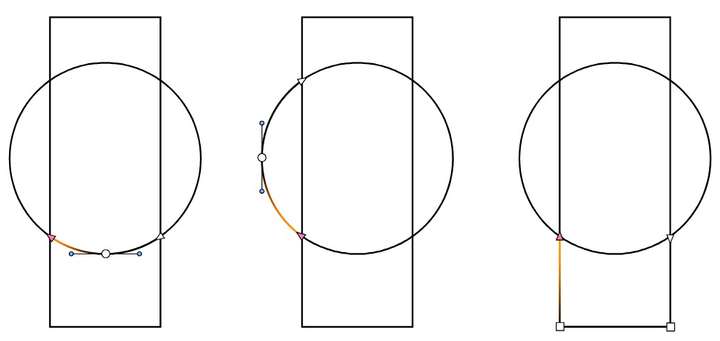
I think this might be a good way to augment the display of node selection in general. Thoughts?
-
@Victor-Vector Not sure about the usefulness of highlighting just a segment in a more complex drawing. Would it be a problem if the entire shape is highlighted?
-
@b77 if the entire shape was selected using the node selection tool, it would highlight ALL the segments in the selection color chosen in the preferences (in this case I illustrated it as orange), which for me would not be a problem, because most often I would be using the Transform Tool for those type of operations.
Where this idea really shines is for using the Node Selection Tool for individual nodes. I think it would help the user see the specific selected nodes especially in busy areas of artwork.
-
@Victor-Vector When an individual node of a shape is selected, the other nodes of the shape also become visible by showing small (non selected) circles.
Currently, this should indicate which shape contains the node.In the earlier drawing, I see that the orange highlight is sometimes drawn before and in other times after the selected node. Is there some rule for this? I'd like to explore this idea a bit as a new feature.