update 1.1.060
-
@Subpath said in update 1.1.060:
I'm not soo sure that this is so important.
I don't really have a big problem with it to set this in the settings.Because even if you have set use filling in the settings.
Its still easy to switch between the two modes.
Just use no fill and give your stroke a color and vice versa.
See video here

It is just too far away in preferences - it is a tool setting after all that can and will be used now and then. This is exactly what the context toolbar is for.
Currently we have an important and growing issue with the preferences stuffed with settings, quite a few belong to the context panel. With so many settings in preferences many won't find them, and then people will either not discover it or have to come here for help.
I just think about it every time I - quite surprised - find settings in preferences, I will toggle on and of sometimes while using the tool.
Just imagine, you want to enable this setting as anyone especially new users... Preferences > Changing Options... who would discover it there?
-
@Ingolf said in update 1.1.060:
It is just too far away in preferences - it is a tool setting after all that can and will be used now and then. This is exactly what the context toolbar is for.
The context tool bar is not for tools with settings adjusted "now and then", it's for tools used frequently in a given work session. This tool option in particular is really a one or the other choice, not even something occasionally changed to be honest.
Again, I would ask , does adding this rarely adjusted tool to the contextual menu bar help eliminate or contribute to a more cluttered UI?The preferences folder is getting pretty full, I agree. I could see it organized differently in the future where brushes and pencil like tools get a dedicated section, artboard and set up options get their own section, etc - making it easier to go find the area of need to edit much more efficiently than the way it is now - but i don't see cluttering the UI as the answer to a stuffed preferences folder.
-
Is it me or does it return to default black stroke and no fill if I fail to close a shape with the pencil tool? (Win)
-
@Ingolf Should not if Preferences > Changing Options > Filled Shapes with Pencil Tool is enabled.
-
@VectorStyler said in update 1.1.060:
@Ingolf Should not if Preferences > Changing Options > Filled Shapes with Pencil Tool is enabled.
It is - and in the beginning it does happen with grey fill color - if I accidentially miss closing it, it returns to black strok, no fill.
-
@Ingolf After drawing with the pencil, what is shown in the Color panel top-left knob for the fill and stroke?
And if the newly drawn shape is deselected, does it still have an outline?I tried to replicate on Windows, but here it seems to be working.
The only thing that might be confusing is the black outline shown while the object is selected. -
Movie coming up. I am using a PC with some ancient settings I will try with defaults after this movie.
-
its no fall back here
once you set a Fill Colorand it doesnt matter if a shape is open
here a video
.
. -
-
If I after the steps in this movie toggle fill and stroke, it works.
Perhaps something related to the fact that I probably never used the pencil before on this machine/config?
🍏 macOS Sequoia Apple Silicon
-
Dont know if you need the pencil to do such designs.
I would recommend to use the Path Sketch Tool for this.
Because with the Path Sketch Tool its easier to get closed Shapes. -
@Ingolf I will try to replicate this
-
I only use the pen/node tool and shapes + boolean ops. Just trying the implemented change.
-
@Ingolf If you set a fill color in the Color panel (other than the default) and leave the stroke to none, is the Pencil still drawing with a stroke?
-
@VectorStyler said in update 1.1.060:
@Ingolf If you set a fill color in the Color panel (other than the default) and leave the stroke to none, is the Pencil still drawing with a stroke?
Then it works, yes.
-
@Ingolf said in update 1.1.060:
@VectorStyler
@Subpath said in update 1.1.060:I love that you can sketch now in Fill Mode, right from the start.
With the Path Sketch and the Pencil Tool.
Preferences > Changing Options > Filled Shapes with Pencil ToolThis should be (sticky) settings in the context toolbar.
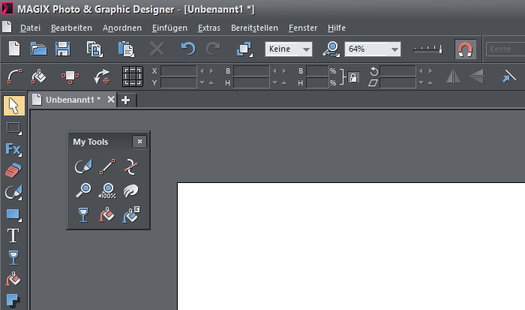
As I said - and as I will repeat on repeat forever - this setting belongs in the context toolbar, and to see why you can check out the excellent implementation in Xara, where their very short label explains it all. And the interface is simple and clean.

This is what a context toolbar is for, and this is why it is pure madness (and thus non-standard) to hide settings for this deep in the preferences. It is a simple button that toggles how the tool works immidiately and it is impossible to miss. This is how you work with tools quickly and dynamically and without a hailstorm of panels, shortcuts and preferences.
Ladies and gentlemen, the context toolbar and its raison d'être.
🍏 macOS Sequoia Apple Silicon
-
@Ingolf said in update 1.1.060:
As I said - and as I will repeat on repeat forever - this setting belongs in the context toolbar, and to see why you can check out the excellent implementation in Xara, where their very short label explains it all. And the interface is simple and clean.
@Ingolf I appreciate many good ideas and bug fixes you have for VS, but in this area, I'll continue to repeat that you advocate for more options to be always available in the contextual menu bar but at the same time mention that the UI of VS feels "cluttered". You can't have it both ways.
You're comparing apples to oranges, because Xara does not offer anywhere near as many tools or features as VS does, so there is plenty of room to add tool options. They have the save icon, new document icon, export, undo icons all on there taking space as well!
Using VS on a large screen is less of an issue, but using VS on a 16 inch laptop screen means existing icons are hard to keep on screen. We've had discussions in the forum over finding ways to consolidate existing icons in the horizontal toolbars - like the boolean operations
With this tool for the pencil tool in particular, most users are going to want one preference or the other for primary use. Even switching between the pencil being fill only, stroke only, or both is fairly easy and straightforward as it is already.
I understand you prefer to avoid keyboard shortcuts and want everything at surface level, but that does not bode well for a clean and organized UI. If every tool and preference is represented on the UI at all times, we would just have chaos. -
@Ingolf The context toolbar customization (long overdue) is in the backlog. This can added there.
Different workflows require different options
-
@Boldline said in update 1.1.060:
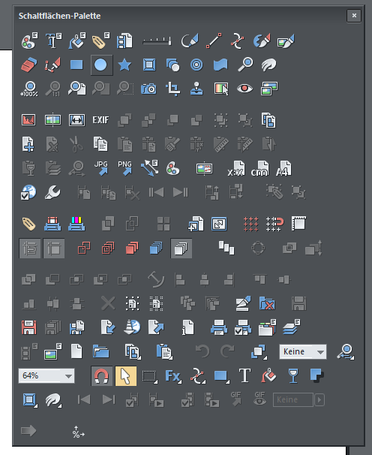
You're comparing apples to oranges, because Xara does not offer anywhere near as many tools or features as VS does,
i think you nail it
Here a pic of Xara Tool Button palette, with all tools avaiable
Win 11
CPU: AMD Ryzen 5 9600X, 6-core.
GPU: Nvidia Geforce RTX 5070. -
I found it a bit easier in Xara to create my own little Tool Palette.
Which i love to useI think it is doable in VS, but it seems to be a bit more complicated
which is a bit of a hindrance to trying it for me.