VectorStyler
    • Categories
    • Unread
    • Recent
    • Tags
    • Popular
    • Register
    • Login

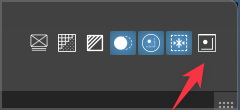
    Not easy to activate the snapping options icon to adjust settings
    Scheduled Pinned Locked Moved VectorStyler 1.1 Bugs
    17 Posts 3 Posters 19.3k Views 2 Watching
    Loading More Posts
    • Oldest to Newest
    • Newest to Oldest
    • Most Votes
    Reply
    • Reply as topic
    Log in to reply
    This topic has been deleted. Only users with topic management privileges can see it.
    • b77B Offline
      b77 @Boldline
      last edited by

      @Boldline I for one can't replicate the problem here. Did you restart the app?

      Also: is it working reliably if you press Ctrl-Cmd-K ?

      MacBook Pro (Intel) running Monterey 12.6.4

      BoldlineB 1 Reply Last reply Reply Quote 0
      • BoldlineB Offline
        Boldline @b77
        last edited by Boldline

        @b77 I had tried quitting and restarting VS and it had the same issue. I just tried Ctrl-Cmd-K and that did work

        🍎 macOS Tahoe 26.2, Mac mini (M1, 2020), Chip Apple M1, Memory 16 GB
        Cintiq 27QHD Display and LG Ultra HD Display

        BoldlineB 1 Reply Last reply Reply Quote 0
        • BoldlineB Offline
          Boldline @Boldline
          last edited by Boldline

          @b77 I think I figured it out. If I move the entire VS UI over to the left a little bit, the icon works correctly and displays the snapping options list. If I put it back in its natural position filling the screen, it does not work again. I wonder if it needs a certain amount of space to display and it's not getting that when VS fills the screen

          This video is a little wonky for some reason, but it should make sense along with what I described above

          🍎 macOS Tahoe 26.2, Mac mini (M1, 2020), Chip Apple M1, Memory 16 GB
          Cintiq 27QHD Display and LG Ultra HD Display

          b77B VectorStylerV 2 Replies Last reply Reply Quote 0
          • b77B Offline
            b77 @Boldline
            last edited by

            Interesting… could be that the hit area is slightly shorter than the width of your screen.

            MacBook Pro (Intel) running Monterey 12.6.4

            1 Reply Last reply Reply Quote 1
            • VectorStylerV Offline
              VectorStyler @Boldline
              last edited by

              @Boldline Is it clicked with the tablet stylus or the mouse?

              BoldlineB 1 Reply Last reply Reply Quote 0
              • BoldlineB Offline
                Boldline
                last edited by

                @vectorstyler I know I tried with the mouse. Not sure if I tried with the stylus as well. Its possible. I will try with both when I am back on the computer again

                🍎 macOS Tahoe 26.2, Mac mini (M1, 2020), Chip Apple M1, Memory 16 GB
                Cintiq 27QHD Display and LG Ultra HD Display

                1 Reply Last reply Reply Quote 1
                • BoldlineB Offline
                  Boldline @VectorStyler
                  last edited by

                  @VectorStyler I think I solved the issue though I hope you will find the fix!

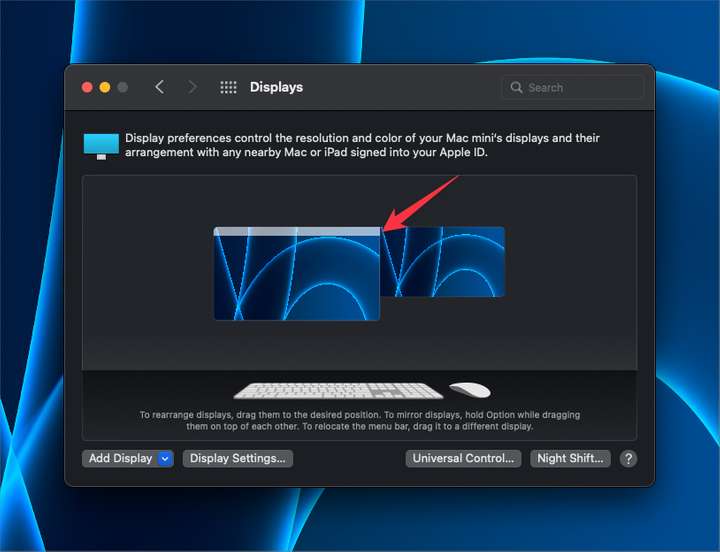
                  I use my wacom cintiq as my primary monitor and then have a secondary standard monitor attached as well. Even though in real life, I have them one over the top of the other, in terms of mouse movement, I have them arranged with the secondary monitor accessible to the right side.
                  So the snapping icon is on the far right corner of my main screen but that also borders the secondary screen. If I move the secondary screen to the left side of the main one instead, the snapping button works as expected.
                  0_1670239073688_735a4f85-1e1f-4a27-aa29-376e53bced39-BLD 2022-12-05 at 06.17.32.png

                  🍎 macOS Tahoe 26.2, Mac mini (M1, 2020), Chip Apple M1, Memory 16 GB
                  Cintiq 27QHD Display and LG Ultra HD Display

                  VectorStylerV 1 Reply Last reply Reply Quote 1
                  • VectorStylerV Offline
                    VectorStyler @Boldline
                    last edited by

                    @Boldline Tried to replicate this with a similar dual screen setup on a Mac Mini M1, but it seems to be working here.

                    BoldlineB 1 Reply Last reply Reply Quote 0
                    • BoldlineB Offline
                      Boldline @VectorStyler
                      last edited by

                      @VectorStyler ok thanks for trying.

                      🍎 macOS Tahoe 26.2, Mac mini (M1, 2020), Chip Apple M1, Memory 16 GB
                      Cintiq 27QHD Display and LG Ultra HD Display

                      VectorStylerV 1 Reply Last reply Reply Quote 0
                      • VectorStylerV Offline
                        VectorStyler @Boldline
                        last edited by

                        @Boldline Is VS full screen on the larger screen?

                        BoldlineB 2 Replies Last reply Reply Quote 0
                        • BoldlineB Offline
                          Boldline @VectorStyler
                          last edited by

                          @VectorStyler correct it is full screen. it also does not work for me if I manually size the UI and make it the full width of the screen that way

                          🍎 macOS Tahoe 26.2, Mac mini (M1, 2020), Chip Apple M1, Memory 16 GB
                          Cintiq 27QHD Display and LG Ultra HD Display

                          1 Reply Last reply Reply Quote 0
                          • BoldlineB Offline
                            Boldline @VectorStyler
                            last edited by

                            @VectorStyler Is there something more I could try or send to help figure out the cause? On my end it's definitively related to having the VS UI fill my cintiq screen even when not technically in "full screen mode". Something to do with the where the panel would display? I do notice that occasionally some panels open on the far left side of my secondary screen and not always on the main screen

                            🍎 macOS Tahoe 26.2, Mac mini (M1, 2020), Chip Apple M1, Memory 16 GB
                            Cintiq 27QHD Display and LG Ultra HD Display

                            VectorStylerV 1 Reply Last reply Reply Quote 0
                            • VectorStylerV Offline
                              VectorStyler @Boldline
                              last edited by

                              @Boldline No need to do anything for now. This issue is still open, as I could not replicate it with the current version.

                              The next build will have some fixes for popups, and lets retry with that.

                              BoldlineB 1 Reply Last reply Reply Quote 1
                              • BoldlineB Offline
                                Boldline @VectorStyler
                                last edited by

                                @VectorStyler said in Not easy to activate the snapping options icon to adjust settings:

                                The next build will have some fixes for popups, and lets retry with that.

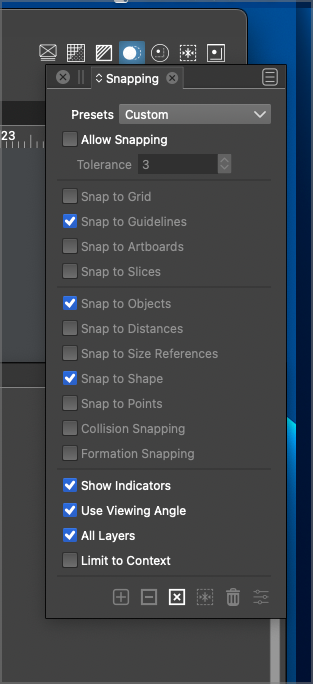
                                I was trying this again now with the 71 build release and still running into the same issue with the snapping icon not opening the menu below on the main screen. when I pull the VS UI over, it works fine as it should. I noticed there's an overlap off the right side of the UI where the snapping panel opens beyond the UI - could this be causing the issue? what if the panel opened flush with the UI?
                                0_1671481412155_ce766dc8-e0e8-4053-85c7-1f761bcd6922-BLD 2022-12-19 at 15.17.42@2x.png

                                🍎 macOS Tahoe 26.2, Mac mini (M1, 2020), Chip Apple M1, Memory 16 GB
                                Cintiq 27QHD Display and LG Ultra HD Display

                                VectorStylerV 1 Reply Last reply Reply Quote 1
                                • VectorStylerV Offline
                                  VectorStyler @Boldline
                                  last edited by

                                  @Boldline I keep this issue open. The problem is that I could not replicate it so far.

                                  1 Reply Last reply Reply Quote 0
                                  • BoldlineB Offline
                                    Boldline
                                    last edited by

                                    I was thinking about this as it relates to the potential future addition of a button to hide all panels and open menus to allow for unobscured full screen work. If that was added to the far right side, that would move the snap options button over to the left a little bit and might solve the issue I have with it now.

                                    🍎 macOS Tahoe 26.2, Mac mini (M1, 2020), Chip Apple M1, Memory 16 GB
                                    Cintiq 27QHD Display and LG Ultra HD Display

                                    1 Reply Last reply Reply Quote 1
                                    • First post
                                      Last post
