VectorStyler
    • Categories
    • Unread
    • Recent
    • Tags
    • Popular
    • Register
    • Login

    Wrong and to many colors in Image to color palette

    Scheduled Pinned Locked Moved VectorStyler 1.1 Bugs
    8 Posts 3 Posters 8.1k Views 3 Watching
    Loading More Posts
    • Oldest to Newest
    • Newest to Oldest
    • Most Votes
    Reply
    • Reply as topic
    Log in to reply
    This topic has been deleted. Only users with topic management privileges can see it.
    • S Offline
      Subpath
      last edited by Subpath

      Notice that when i use Image to color in VS
      .
      .
      1
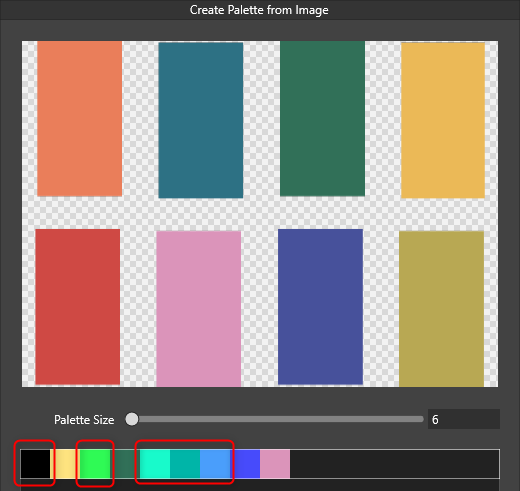
      want 6 colors and get a palette with 9 colors
      and some wrong colors
      0_1678263824091_Image to palette-1b.png
      .
      .
      2
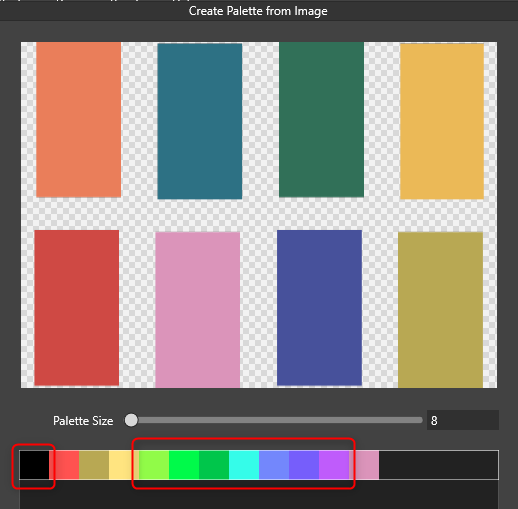
      my image have only 8 colors ( dont count the grey/white from the back)
      but i get 12 colors and some are wrong e.g. not in the Image
      0_1678263941106_Image to palette-1.png
      .
      .
      the Image is a png from VS which i create for test purpose.

      0_1678264064728_Image to palette-1d.png

      Win 11
      CPU: AMD Ryzen 5 9600X, 6-core.
      GPU: Nvidia Geforce RTX 5070.

      b77B VectorStylerV 3 Replies Last reply Reply Quote 1
      • b77B Offline
        b77 @Subpath
        last edited by b77

        @Subpath It could be that the bitmap image was exported from a vector
        graphics app without aligning to the pixel grid enabled, which won't result
        in the crisp look you expect — you get intermediary colors on some
        margins, which VS detects as separate colors.

        MacBook Pro (Intel) running Monterey 12.6.4

        S 1 Reply Last reply Reply Quote 0
        • S Offline
          Subpath @b77
          last edited by Subpath

          @b77

          Yes, I have already considered this but it seems unlikely to me.

          see nowhere black and and this light green (3rd color).
          and it also doesn't explain why I get more colors than I entered

          and the original png from VS that I used looks crisper than
          my attachment here

          Win 11
          CPU: AMD Ryzen 5 9600X, 6-core.
          GPU: Nvidia Geforce RTX 5070.

          b77B 1 Reply Last reply Reply Quote 0
          • b77B Offline
            b77 @Subpath
            last edited by b77

            @Subpath Sorry, I didn't see that the bitmap itself was exported from VS.

            I tried it here myself (on export as PNG I set the 'Smooth' value to 'None' in
            the Export panel) and I still get more colors than expected.

            MacBook Pro (Intel) running Monterey 12.6.4

            S 1 Reply Last reply Reply Quote 0
            • S Offline
              Subpath @b77
              last edited by

              @b77

              no problem
              appreciate your thoughts

              in the meantime i'll try again and make the png export as crisp as possible from Corelpaint

              and get more or less the same result, except that some colors
              looks different now and still more colors that i entered

              the antialiasing is from the palette Panel in VS
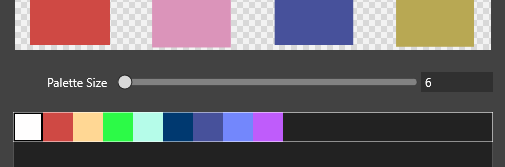
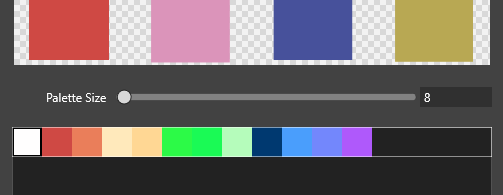
              0_1678274936790_Bildschirminhalt erfassen-1.png

              0_1678274944884_Bildschirminhalt erfassen-2.png

              Win 11
              CPU: AMD Ryzen 5 9600X, 6-core.
              GPU: Nvidia Geforce RTX 5070.

              b77B 1 Reply Last reply Reply Quote 0
              • b77B Offline
                b77 @Subpath
                last edited by b77

                Just to clarify for anyone reading:

                Choosing 'None' from the 'Smooth' dropdown menu in the Export window
                in VS aligns the pixels to the pixel grid and results in the crisp bitmap needed
                for this (no intermediary colors around the rectangles).

                But despite that, I get more/different colors with 'Create Palette from Image'.

                MacBook Pro (Intel) running Monterey 12.6.4

                1 Reply Last reply Reply Quote 0
                • VectorStylerV Offline
                  VectorStyler @Subpath
                  last edited by

                  @Subpath Added this to the backlog, will try to figure out what happens with the colors.

                  1 Reply Last reply Reply Quote 1
                  • VectorStylerV Offline
                    VectorStyler @Subpath
                    last edited by

                    @Subpath This issue should be fixed in build 1.1.080

                    1 Reply Last reply Reply Quote 1
                    • First post
                      Last post